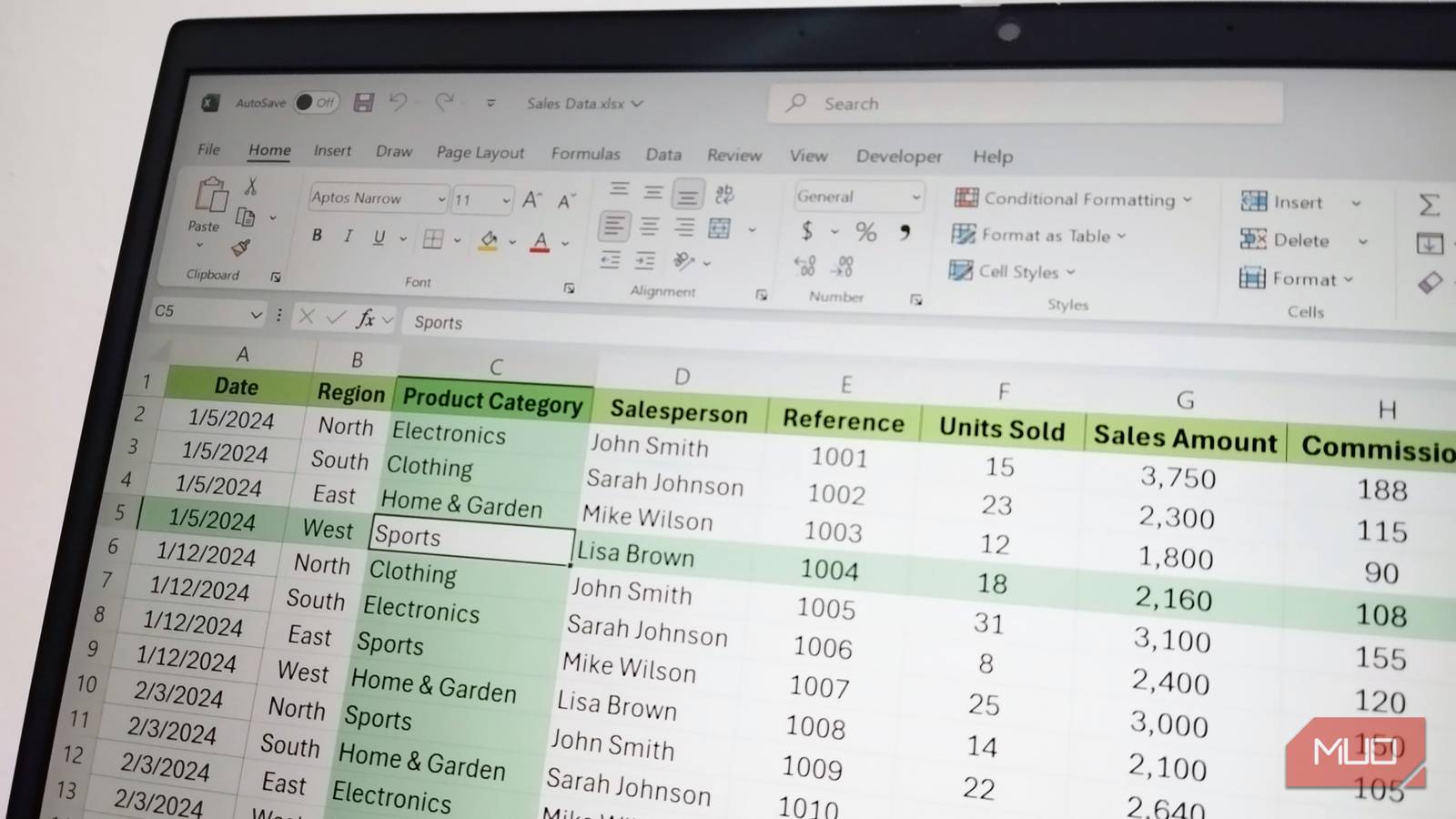
A colleague sends over a quarterly sales report; the totals look tidy, and the deadline says I should paste them straight into my own slides. I don’t. A workbook someone else built tends to carry quiet problems that never show up as errors, so the numbers on screen can be wrong while every cell looks fine.
Before I reuse any figure, I spend about five minutes on five checks. None of them needs an add-in, since most rely on tools like the formula debugger hiding in Excel’s Formula Auditing group. I run them in the order I’d open the file.
Check for external links before anything else
A file that quietly leans on another file
The first thing I notice on a borrowed workbook is the yellow bar under the ribbon. In my spreadsheet, it read “Automatic update of links has been disabled,” which means some cells pull values from a different file. If that file lives on a colleague’s laptop, those numbers are frozen at whatever they were the last time someone saved.
To see what’s linked, go to Data > Workbook Links. The pane listed a file called CommissionRates.xlsx, and clicking any Commission cell showed that file’s full path inside a VLOOKUP formula. The pane also flagged that the link existed in a defined name and in a hidden row, two places I’d never scan by hand.
Formulas > Name Manager confirmed it. A name called RegionTargets pointed at the outside workbook, even though no cell used it. If you can get the source file, refresh the link. If you can’t, Break all converts every linked formula into its current value, so the report stops depending on a file you’ll never see.
Breaking links can’t be undone. Save a copy of the workbook first so you can still see which formulas pointed where.
Unhide every row before trusting totals
Gaps in the row numbers give it away
Hidden rows are easy to miss because Excel doesn’t announce them. The only clue is the row numbers. In the sales sheet, row 14 sat directly above row 18, and row 30 jumped to 32. Four orders were tucked away, and all four were cancelled.
The catch is that SUM ignores visibility. The Sales Amount total read $130,210.74, which included $25,811.64 of cancelled orders. Typing =SUBTOTAL(109, H2:H41) returned $104,399.10, the visible rows only, which is a good example of why SUBTOTAL is often the safer choice over SUM. That figure matched the summary sheet to the cent.
For a full count, go to File > Info > Check for Issues > Inspect Document. It reported four hidden rows and also checks for hidden sheets. To bring rows back, select the rows on both sides of a gap, right-click a row header, and choose Unhide.
To be fair, hiding rows is sometimes deliberate, like tucking away old data to keep a report readable. That’s fine when it’s labeled. I’d still rather see Group on the Data tab, which leaves a visible plus button, paired with SUBTOTAL so the total matches what’s on screen.
Spot numbers that Excel treats as text
Left-aligned digits that SUM skips
Numbers pasted from a CSV export or a web page often land as text. They look like numbers, but Excel files them as words. The tells are left alignment and a small green triangle in the corner of the cell. In my sheet, five Units Sold cells had both.
The total is where it hurts. The Units Sold column added up to 1,025 when the real figure was 1,126, because SUM skipped 101 units. Oddly, Sales Amount in those same rows was correct, since multiplication converts text to a number on the fly. Only the totals went wrong, which is why this one slips past people.
The quickest test is the status bar. Select the column and compare Count with Numerical Count. Mine showed 40 and 35, so five cells weren’t numbers. To fix them, select the flagged cells, click the warning icon, and choose Convert to Number. Setting up number formats that keep a sheet from falling apart helps stop it from happening again.
Reveal totals someone typed by hand
A total that never updates
A hard-coded total is a typed number sitting where a formula should be. It looks identical to a calculated one, and it stays correct right up until someone edits the data. On the summary sheet, North, South, and East used SUMIFS, while West held a typed 42794.91.
Press Ctrl + ` (grave accent, the key left of 1) to switch on Show Formulas. Every formula shows its text, so a plain number in a column of formulas stands out right away. On bigger sheets, I select the totals, go to Home > Find & Select > Go To Special, choose Constants, and leave only Numbers ticked. Excel selected B7 and nothing else.
The fix is to replace the typed value with the same formula its neighbors use. That way, if anyone corrects a West order later, the total follows.
Catch the formula that breaks the pattern
One cell, one different reference

This is the sneakiest of the five. Every Sales Amount cell multiplied Units Sold by Unit Price in its own row, except H24, which read =F24*G23. It grabbed the price from the row above, so an order worth $6,003.81 showed up as $778.81. That’s a copy-and-paste slip anyone could make.
Luckily, Excel catches this one. A green triangle appears in the corner, and hovering over the warning icon shows “Inconsistent Formula,” with a note that the cell differs from the formulas around it. To check a whole workbook, go to Formulas > Error Checking, which steps through each flagged cell.
Choose Copy Formula from Above to fix it. If the difference is intentional, such as a one-off discount, click Ignore Error and leave a note in the cell so the next person doesn’t have to guess. Background error checking is on by default, but it’s worth confirming under File > Options > Formulas.
Make the next person’s audit shorter
What I change in files I send out
Checking other people’s files has shaped how I build my own. Before I share a workbook, I run Inspect Document, keep inputs in one labeled area, and format the data as a Table so new rows pick up the same formula automatically. It takes a couple of minutes and spares the person on the other end five minutes of suspicion.
If a file you inherited fails even one check, don’t rebuild it from scratch. Fix that problem, note what you changed, and tidy up the rest of the messy sheet before the numbers go anywhere important.

- OS
-
Windows, macOS
- Supported Desktop Browsers
-
All via web app
- Developer(s)
-
Microsoft
- Free trial
-
One month
- Price model
-
Subscription
- iOS compatible
-
Yes
Microsoft Excel is a powerful spreadsheet application used for data organization, analysis, and visualization. It supports formulas, functions, pivot tables, and charts to process complex datasets efficiently. Widely used in business and education, Excel also integrates with other Microsoft 365 apps for collaboration, automation, and real-time data insights.