
When I opened Chrome, it greeted me with the collection of tabs I’d left open days or weeks earlier. Twenty or even thirty-odd tabs would come up showing my half-read articles, a shopping page I’d forgotten, a Google Doc for my unfinished article, and videos that started playing before I could find which tab they were in. For me, this was convenient, but it eventually became an excuse to never close anything.
Instead of getting Chrome with a clean slate, I was constantly starting my day with yesterday’s leftovers. Once I changed the setting, Chrome felt much less cluttered. No, I didn’t clear my browsing data or reset Chrome. I simply changed one startup setting.
Why “Continue Where You Left Off” is tempting
The tab trap
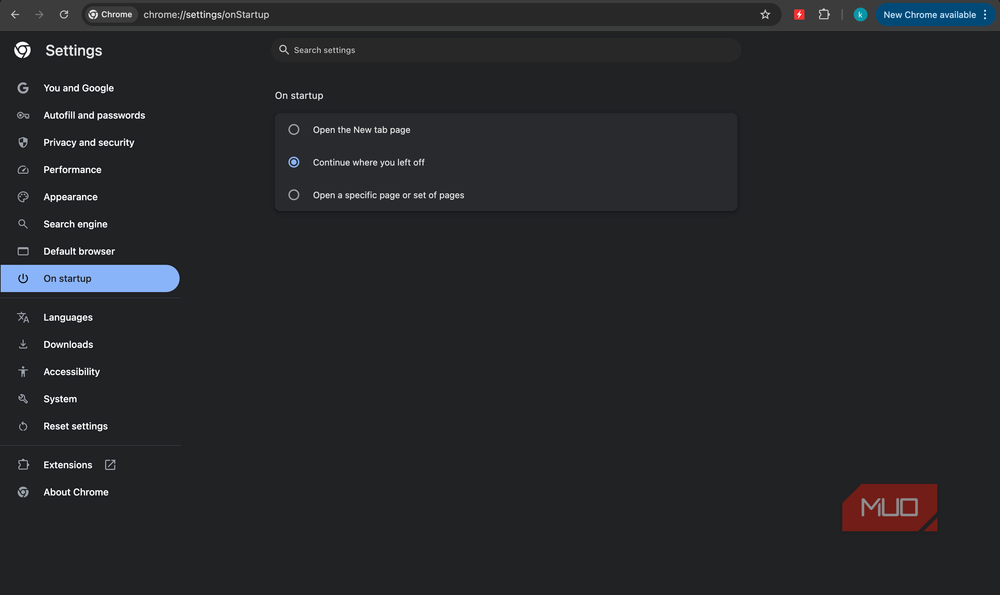
Chrome offers a useful Continue where you left off option. We do a lot of our work in browsers, and none of us wants to lose our place. Having an option to restore our last session feels like a safety net. Imagine your laptop dies, you close the window by mistake, or Chrome suddenly crashes. If you’ve enabled the “Continue where you left off” option, you’ll get back everything as if nothing happened.
It’s also helpful for people like me who regularly work with the same collection of websites. In my case, I always have a Google Docs document, a CMS, 1-2 project management tools, and a few research tabs open. I don’t have to remember to reopen everything the next morning. The trouble is that the safety net quietly becomes a habit. Also, a tab that was important yesterday can become irrelevant surprisingly quickly. Maybe I was comparing two products or fact-checking some information for an article I was on. Then I closed Chrome without cleaning things up. The next time I open Chrome, it brings everything back.
This became a habit and I rarely bothered about that mess. I’d simply open another tab and continue browsing. When Chrome restores a large session, it has to reload a lot of pages before you can do anything. Old Chrome tabs keep using memory.
I stopped Chrome from reopening everything I’d left behind
Start fresh, not from scratch
The setting I changed is pretty straightforward and takes only a few seconds. In Chrome, click the three-dot menu in the top-right corner and open Settings. Select On startup from the left-hand menu. You’ll see a few options for what Chrome should do when it launches. I had Continue where you left off selected. Now, I’ve switched to Open the New Tab page.
You can also go for the “specific page or set of pages” option if you always begin the day with the same stuff like your email, calendar, or a work dashboard. You can choose exactly which tabs you wish to open, so everything else doesn’t come along. I chose the New Tab page option because I wanted to decide what to open rather than have Chrome decide for me.
This didn’t delete anything from Chrome. My bookmarks and browsing history are still there. Also, I can still reopen a tab that accidentally closed using the recently closed tabs option. Simply right-click an empty area of the tab strip and choose Reopen closed tab. You can also hit Ctrl + Shift + T on Windows or Command + Shift + T on Mac.
My browser finally started with what I actually needed
Faster, lighter, and more private experience
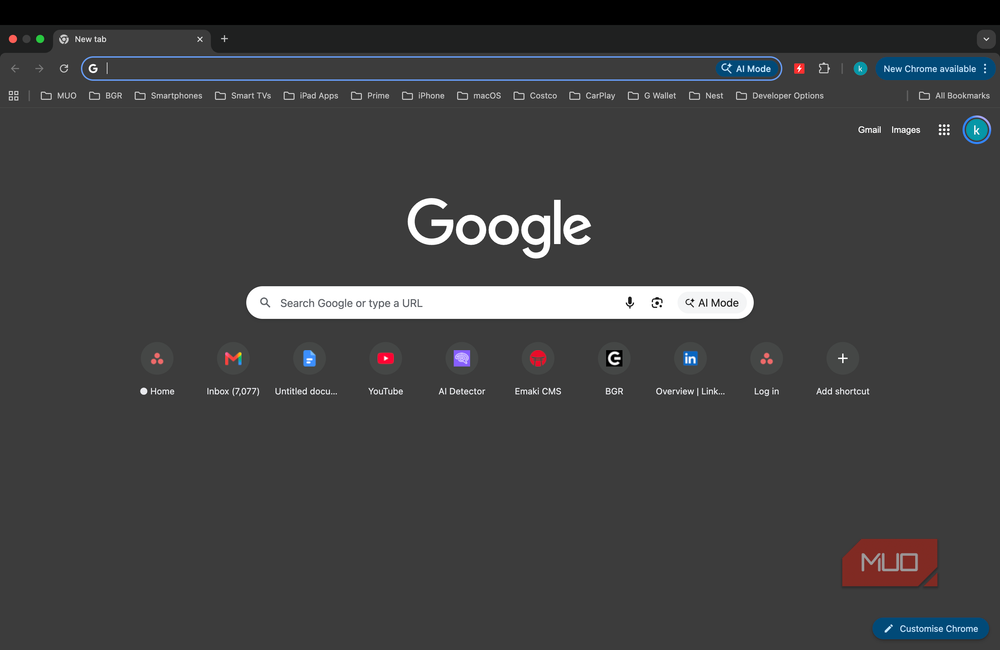
The first thing I noticed was that Chrome had to do less work during startup. Previously, opening Chrome was almost like reopening a workspace. It had to load dozens of tabs at once. I had a lot to process before I could figure out what I had to do. Yes, it gave me mental overload. Also, my laptop fans would get noisy because of overflowing tabs. After changing the setting, I got a window with one empty tab, which is ready almost immediately. I didn’t run benchmarks, but I could notice the difference the first morning.
This changed the way I approached browsing, for good. Instead of asking myself which of these 25 tabs I need to deal with first, I could start my day with the task I actually had in mind. This improved my focus.
The overall performance felt lighter too. Chrome has a reputation for being hungry for memory. And one of the big reasons is a pile of restored tabs. Even if you aren’t using a tab actively, it can hold onto resources. Also, Chrome has to rebuild many of these tabs every time you launch. When Chrome starts with only one new tab, it means the browser spends memory on only what I open on purpose. As a result, my laptop ran cooler and quieter. Of course, the results depend on your hardware and how many tabs you normally keep. If you’ve got older machines, you will definitely notice a big difference.
Changing this setting also has another practical benefit which I hadn’t considered initially: privacy on shared or work computers. I don’t like the idea of opening a browser and having my previous session immediately appear on screen. Even if I’m not doing anything particularly sensitive, I don’t want the next person to see my personal emails or shopping searches. It’s also handy if you often share your screen. You won’t have to worry about accidentally showing an old tab during a meeting.
I replaced tab hoarding with better habits
Stopping Chrome from restoring my old tabs solved one problem, but it didn’t magically make me better at managing my tabs. I still wanted to put my things I genuinely wanted to return to. So, I started managing my habits. For instance, if I want to read an article later, I don’t necessarily leave it open for three days. Instead, I would bookmark it or add it to my reading list. I’ve also started using tab groups to save related pages for a particular project. This gives me a dedicated workspace without cluttering my entire browser with unfinished tasks.
The best part is I didn’t have to clear my browsing data or reset Chrome to get a fresh start. If you also find yourself opening Chrome to a wall of old tabs, you don’t necessarily need a complicated tab-management system. Just change this one setting instead.

- OS
-
Windows, macOS, Linux, Android, iOS/iPadOS, ChromeOS
- Developer
-
Google LLC