If you’re not acquainted with Vivaldi, then you’re genuinely missing out. I get that, among the browser options in 2026, it’s hard to look past the familiar ones like Chrome, Edge, and Firefox, but they only offer a surface-level browsing experience.
I realized this when I switched to Vivaldi and immediately noticed a huge jump in productivity. Vivaldi isn’t just loaded with extra features; it’s integrated with the services my workflow depends on, so I no longer have to press Alt + Tab to switch apps and break my immersion.
My old productivity stack was drowning me in tabs and apps
Every login, extension, and workaround was another point of friction
In my line of work, which requires extensive research and brainstorming, I rely on multiple third-party apps and extensions to streamline my workflow and improve efficiency. I’ve been on Chrome for more than a decade, and the first thing I do to set up the browser is spend hours installing new extensions for ad blocking and productivity, and logging into my accounts.
The browser isn’t the only place where my workflow’s immersion breaks.
Windows 11’s first-party apps are so underwhelming that I need an alternative for about any basic function: Notepad++ for note-taking, or ShareX as a Snipping Tool replacement for taking screenshots.
These are just a few examples of how many different apps I have to use for the most basic functions. Stacking all the different apps on top of each other creates massive resource overhead and friction. On top of that, managing all these tabs on a single monitor is overwhelming and a huge productivity drain for me.
Tab Stacking, Tiling, and Workspaces replaced three separate habits

Vivaldi’s customization options are its biggest strength, and they make other browsers like Chrome look pale in comparison when it comes to freedom of personalization. The three core features of tab and window management are Tab Stacking, Tiling, and Workspaces, which make Vivaldi the perfect browser choice for someone who doesn’t close their tabs.
Tab Stacking lets you group related tabs, reducing the clutter. For example, I may create a stack for everything related to a single task, like researching an article, and another stack as my personal window, where I might’ve opened Instagram or X.
Tiling is viewing multiple tabs in a single window, akin to Chrome’s split view but much better. You can arrange the layout and group more than two tabs at once. It’s incredibly useful for me when I’m basing an article on a source and reading and writing the content; I won’t have to switch back and forth.
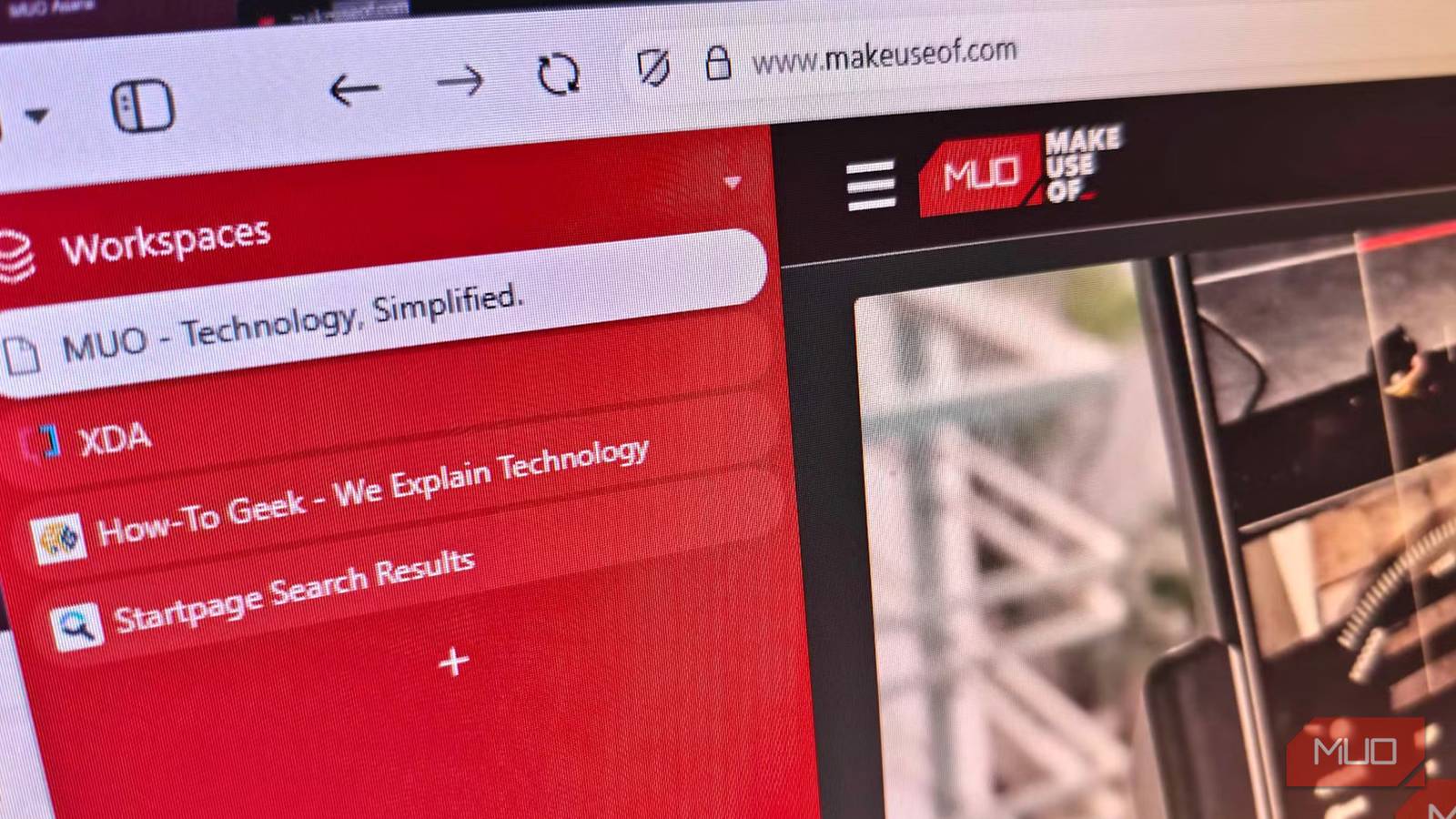
Then Workspaces are used to organize a broader context. It’s similar to Tab Stacking, but Workspaces create distinct environments for different purposes, helping keep everything orderly. For instance, you can organize all writing tabs into one if it’s the CMS to write, and Grammarly to proofread the content.
You can choose where the search address and tabs appear, and I’ve chosen to place them in a sidebar where I can conveniently manage all my tabs, workspaces, etc., while keeping all my work on the right side.
Notes, Mail, Calendar, and Capture, all living where I already work

As far as basic tasks go, Vivaldi integrates all the basic apps you may need, including a dedicated notepad to jot down ideas. You can access the note section at any time while browsing without switching tabs and breaking the flow, with additional markdown support for attaching or linking URLs, screenshots, etc.
You can also log in to your email in your mail client so you don’t have to keep opening Gmail, and I really love the UI. The bonus part is that Vivaldi has a calendar client too, and with Sync, you can stay up to date on your upcoming tasks and deadlines.
The screenshot-taking app also works brilliantly and is quite similar to Snipping Tool, and I can access it right there in the browser.
Vivaldi also has Proton VPN integrated, so whenever you need to mask your IP address and encrypt your data, you can turn on the VPN right from the browser.
Another great feature is the ability to install PWAs (Progressive Web Apps), which run in a separate window — similar to how WhatsApp Web and others work. I created a YouTube PWA, which reduced all the clutter and distractions that appear when opening the tab in a browser, making it a better viewing experience, even without downloading the client from the Microsoft Store, which does the same task but with more resource consumption.
An ad blocker, a VPN, and no data collection, by default

For extensions, Vivaldi comes with a tracker and ad blocker by default, so you won’t need to rely on any external tool to block annoying ads and ensure a private browsing experience. On the home screen, you’ll find privacy statistics for all trackers and ads the browser has blocked, saving you bandwidth.
Vivaldi’s business model isn’t based on collecting data, and it has minimal telemetry, meaning it doesn’t store your browsing behavior or sell your data. It even anonymizes IP addresses when counting users.
In fact, Vivaldi has publicly spoken against data collection tactics like Google’s FLoC (Federated Learning of Cohorts) tracking technology and removed that API entirely, even though it’s a Chromium browser.
Overall, Vivaldi is pretty much anti-AI and has ruled out chatbots, summarizers, and AI browsing assistants by saying, “keep browsing human.”
With Vivaldi, I’m never looking at another browser again
With all its features, Vivaldi seemed overwhelming to me at first, but I quickly got the hang of it, and for my workflows I rarely have to leave the browser now. Setting it up is quite easy, and you can choose to import your data from Chrome/Edge for a smooth transition. Even with all these services and being a Chromium-based browser, Vivaldi isn’t that taxing on your system resources. Still, it will give smaller memory-configured systems a run for their money, so be wary of that. Anyhow, my browsing isn’t too chaotic with Vivaldi around, thanks to its tab management and all the integrations; I’ve boosted my productivity and writing turnaround time by a huge margin.