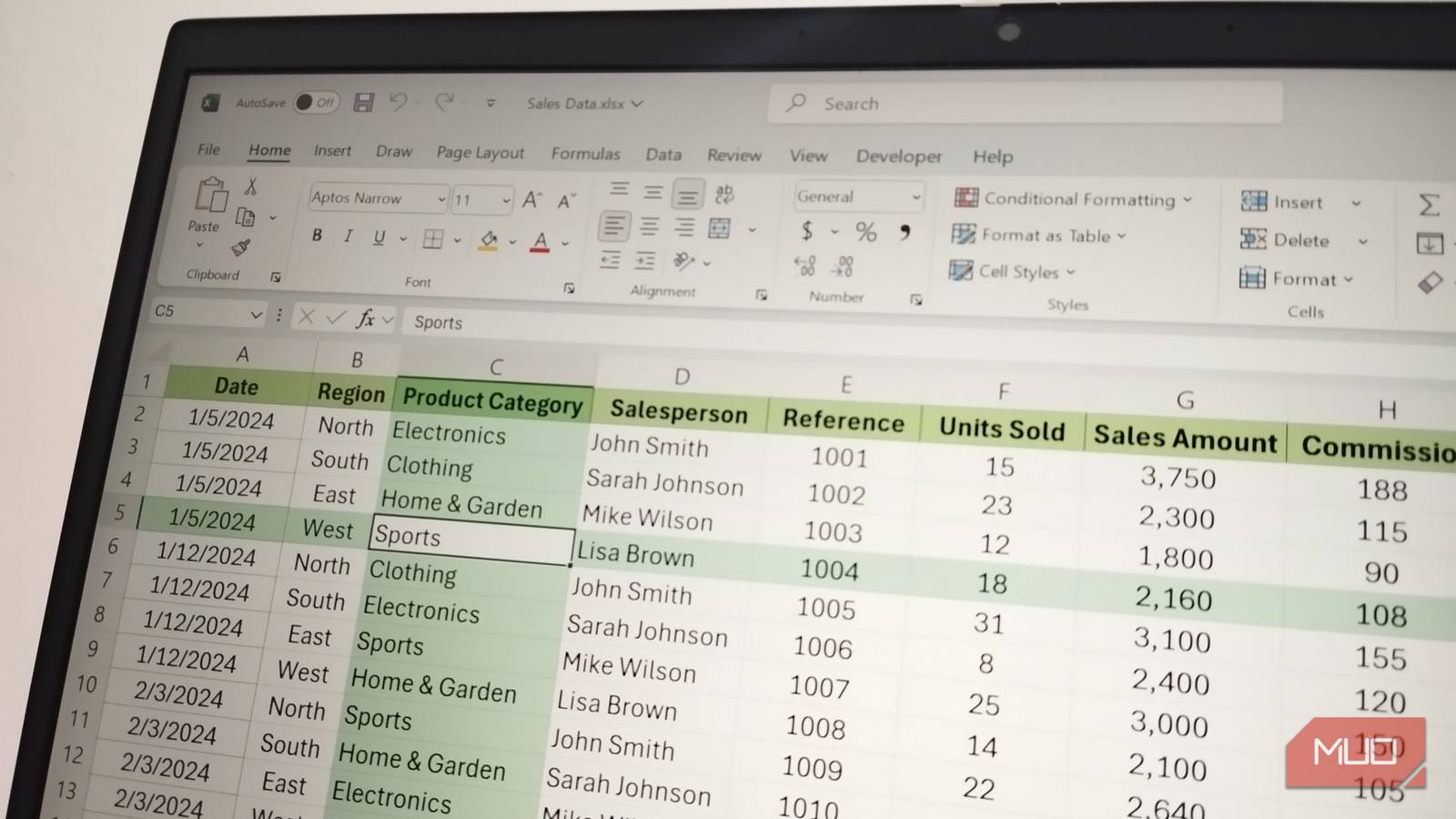
You wouldn’t think keeping your eyes on the right row and column in your Excel spreadsheet would be a problem until you’re staring at a large spreadsheet with similar numbers and moving between labels in far-apart columns. Even with golden eyes that can’t miss a thing, you’d still lose valuable time with all the tracking you’d have to do.
I used to be unable to move through a spreadsheet without double-checking that I was in the right cell. Now, I can navigate any sheet, no matter the size, without having to concentrate like I’m taking a pop quiz.
The problem Focus Cell solves
It’s quite easy to lose your place in a dense spreadsheet

Imagine you’re working with a large financial spreadsheet with about 35 columns of figures. You need to find a value in column C, say row 149, and enter another value in column O. That means your eyes have to travel across a long line of figures and text while staying fixed on row 149. If the spreadsheet has borderless columns, lots of decimal values, or repeating numbers, it’s easy to drift into row 150 along the line.
By default, Excel shows your current location with a thin outline around the active cell. That border works well enough when your table or range is small, but I find it much less helpful once I’m working with more than 20 columns and 100 rows of data.
That’s where Microsoft Excel’s Focus Cell comes in. When you turn it on, Focus Cell places a high-contrast crosshair across the active cell’s entire row and column. Excel also gives the active cell a thicker border. Instead of scanning the spreadsheet with only your eyes, you can click cell O149, follow the horizontal highlight to C149, find the value you need, and enter the correct figure in O149. You’ll spend less time squinting or counting rows and columns to confirm your position, making it easier to navigate quickly without avoidable errors.
Because keeping track of your position in a spreadsheet is so important, people have created different versions of this feature for years. One option I came across was an Excel VBA macro that recolored the selected row and column. It works, but it also means maintaining code and saving your workbook in the macro-enabled .xlsm format. Conditional formatting offers another workaround, with formulas based on the current row or column used to mimic a crosshair effect.
These approaches can work, but they require additional setups that Focus Cell doesn’t. Focus Cell is built into Excel, requires no macros, doesn’t recolor the underlying cells, and doesn’t force you to change your workbook’s file format. You switch it on, and the visual guide follows your selection as you move through the spreadsheet.
How to use Focus Cell
The basic setup and a few extras worth knowing about
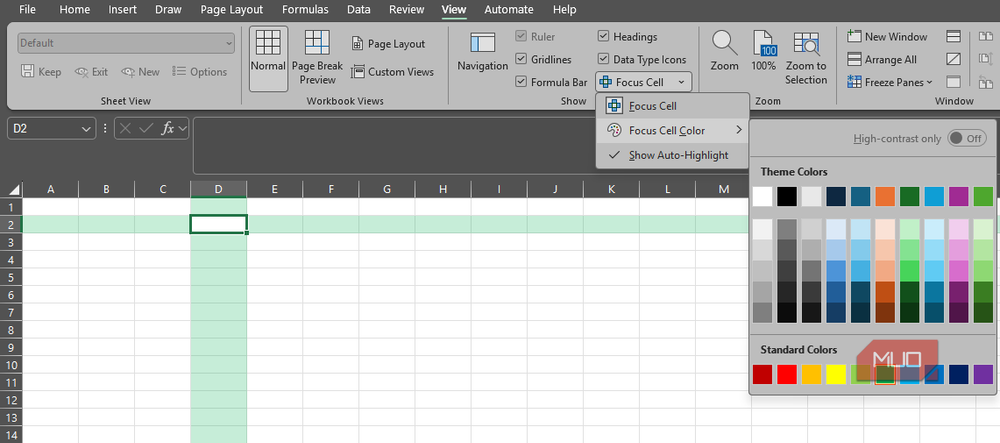
In any open workbook, navigate to the View tab on Excel’s ribbon and select Focus Cell. Once it’s active, clicking a cell displays the row-and-column crosshair. If you prefer using your keyboard, you can toggle it on with Alt + W + E + F. Another option, which I doubt I’d ever use, is Alt + Q to open Excel’s Search box. From there, type Focus, and Excel will take you directly to the command.
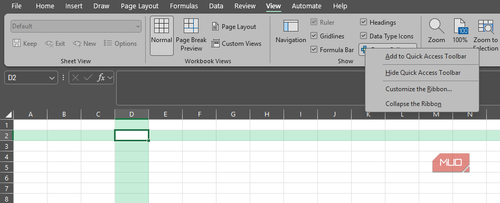
You should also consider adding Focus Cell to your Quick Access Toolbar if you expect to turn it on and off frequently. Right-click the Focus Cell button and choose Add to Quick Access Toolbar. This keeps the command within easy reach, no matter which ribbon tab you’re using.
The default highlight is easy to follow, but you’re not stuck with it. Open the drop-down beside Focus Cell and choose Focus Cell Color to select a highlight that works better with your workbook’s existing formatting.
Another helpful option in the Focus Cell drop-down is Show Auto-Highlight. It’s especially handy when you’re using Find & Replace in a large workbook. Excel can jump to a matching result just fine, but there’s no reason to strain your eyes when the highlighted row and column make the selected cell much easier to spot.
Focus Cell literally lights up your sheet for good, but that doesn’t mean it’s perfect. It follows the active cell rather than your mouse pointer, so hovering over a cell won’t move the crosshair. You need to click the cell or navigate to it with your keyboard. It’s also designed around a single active cell, so selecting a larger range won’t turn the feature into one giant highlighted block spanning every row and column involved. You can’t choose to highlight only a row or only a column, either, because both parts of the crosshair work together.
You may also notice the highlight disappear when you switch away from Excel to another application, maybe in a split screen. The overlay is tied to Excel being the active window, so clicking elsewhere temporarily removes it until you return. If you’re using an older version of Excel, you might also find that Focus Cell becomes unavailable when Freeze Panes is active.
Regardless, none of these limitations have been particularly bothersome in normal use. I still find Focus Cell useful as a much clearer reference point for whichever cell I’m working with.
A small Excel feature that fixes a frustrating problem
Focus Cell won’t change how your spreadsheets calculate, automate a repetitive process, or replace a complicated formula. It’ll just make it easier to keep track of where you are.
And that matters. A one-row mistake in a large dataset can be easy to make and hard to notice afterward, especially when every number looks plausible. Focus Cell won’t eliminate those mistakes completely, but it makes them much less likely by giving you a clear visual reference wherever you move.