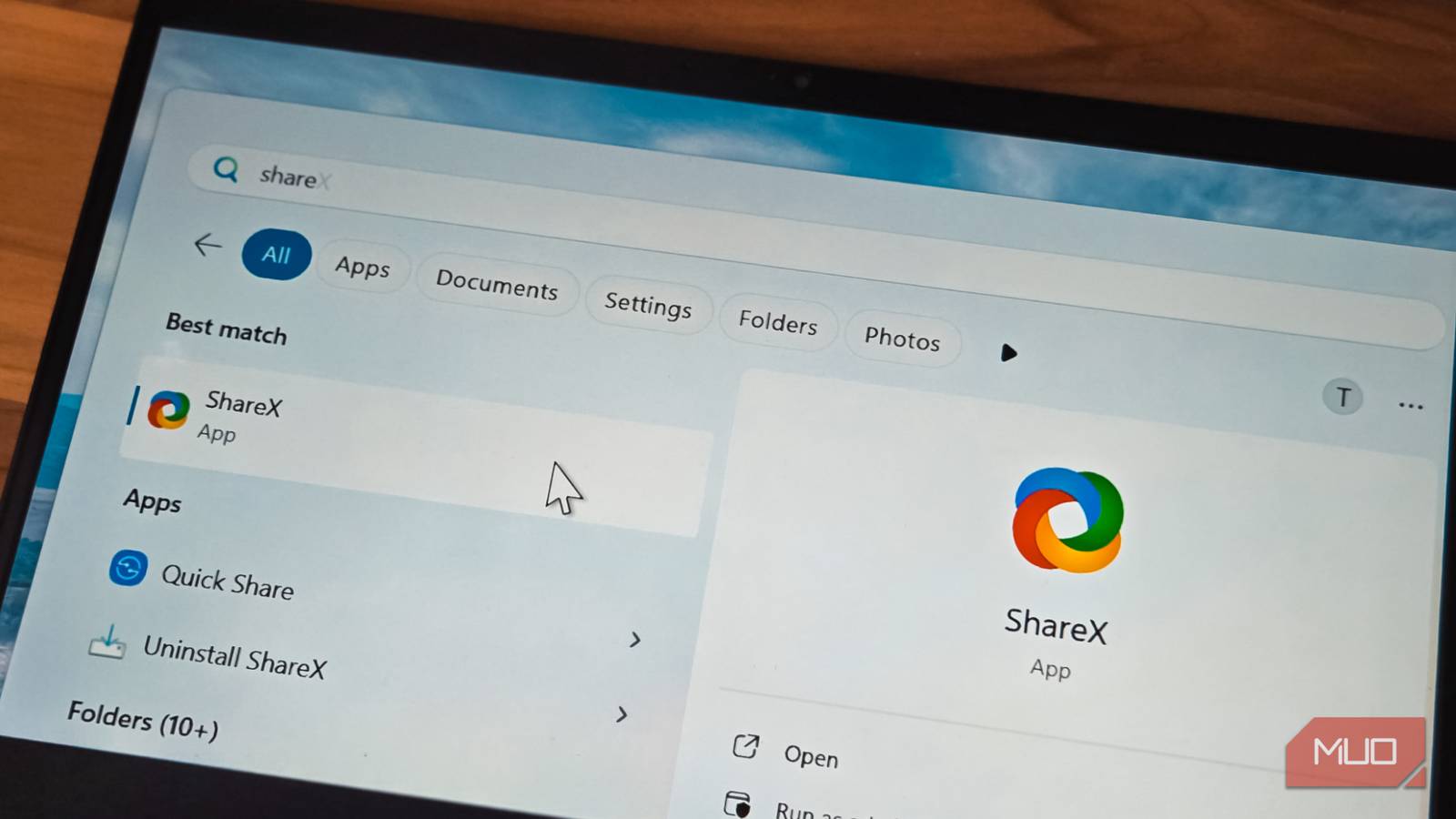
ShareX looks like any other screenshot tool, but there’s a reason it keeps showing up on every “best Windows apps” list. And it has little to do with its ability to capture the screen.
It’s everything else ShareX can do that makes it so good. It bundles a color picker, a QR code scanner, an image editor, an auto-uploader, and about a dozen other tools. I recently stumbled onto some of these and ended up removing quite a few apps from my PC.
Never stitch screenshots again

One of my biggest complaints with Snipping Tool is the lack of a scrolling screenshot feature. It also can’t do something as simple as capturing the mouse pointer in the frame. That meant I had to keep apps like PicPick or Snagit around just for a couple of features. Neither of which is exactly free.
ShareX handles both. Its scrolling screenshot feature is dead easy to use. All you have to do is open it from the capture menu, choose the app window, and it automatically scrolls through and stitches everything into one clean image. You can even assign a custom hotkey for it if you need it often. And for the cursor thing, there’s a Show cursor option that you can flip on or off as needed.
Scan and generate QR codes without going online
Ditch those QR apps

Scanning QR codes on a Windows PC isn’t exactly as easy as it is on phones. For years, I bounced between online tools and apps like Codex to get the job done. What I didn’t realize is that ShareX can also handle QR codes.
Go to Tools > QR Code inside ShareX and you’ll see a dedicated window. Click the Scan screen and the app will look for any QR codes on your screen. If it finds one, it’ll instantly scan it. You can also scan manually or drop in an image that contains a QR code, if that’s what you’re working with.
Creating a QR code is just as easy. You can simply paste the text or link in the QR code window and ShareX spits out a QR code almost instantly.
Edit screenshots without switching apps
You can even automate this bit
My old workflow was embarrassing in hindsight. Take a screenshot in one app and then open it in an app like Markup Hero or Paint.NET to annotate, then save it again. That meant I was wasting time switching apps and saving the same screenshot twice.
ShareX fixed this with its built-in image editor. The moment you take a screenshot, it can drop straight into the editor where you’ve got arrows, text boxes, blur, highlights, callout bubbles, and more.
Of course, an image editor inside a screenshot tool isn’t exactly groundbreaking, but ShareX takes it a step further with automation. Open the After capture tasks menu, and you can specify edits you want applied to every screenshot. This is handy if you’re taking dozens of screenshots and all of them require a specific background or a watermark.
Auto upload screenshots to cloud
Set it and forget it

This won’t apply to everyone, but if your workflow involves uploading your screenshots to the cloud, ShareX can automate that too. All you have to do is pick a destination and let ShareX do the rest. The list of supported destinations is also absurdly long — Imgur, Dropbox, Google Drive, Amazon S3, Pastebin, even custom FTP servers. Whatever you’re using, there’s a good chance ShareX can talk to it directly.
You can tell ShareX to either upload every screenshot you take, or only those you save in a specific folder. It’s all too flexible, so you don’t need another app like FileZilla to do just that.
There’s much more hiding inside ShareX
The features I talked about are just the start. ShareX can do a lot more. Its color picker tool is something I reach for any time I’m doing design work. There’s also a built-in EXIF cleaner tool, which is handy anytime I’m sharing photos. And it works with all photos, not just screenshots captured using ShareX. Heck, ShareX even has tools for splitting and combining images, converting videos, and creating GIFs.
My favorite is Auto Capture tool, where you only need to set a region and an interval, and ShareX fires screenshots on its own until you tell it to stop. It’s great for documenting long installation processes or keeping a visual log of something over time.
The fact that ShareX offers all of this for free without any ads is honestly impressive. There are very few like it.

- OS
-
Windows
- Developer
-
ShareX
ShareX is a free and open-source screen capture and recording tool for Windows that allows users to capture or record any area of their screen, annotate images, and easily share files to over 80 destinations.