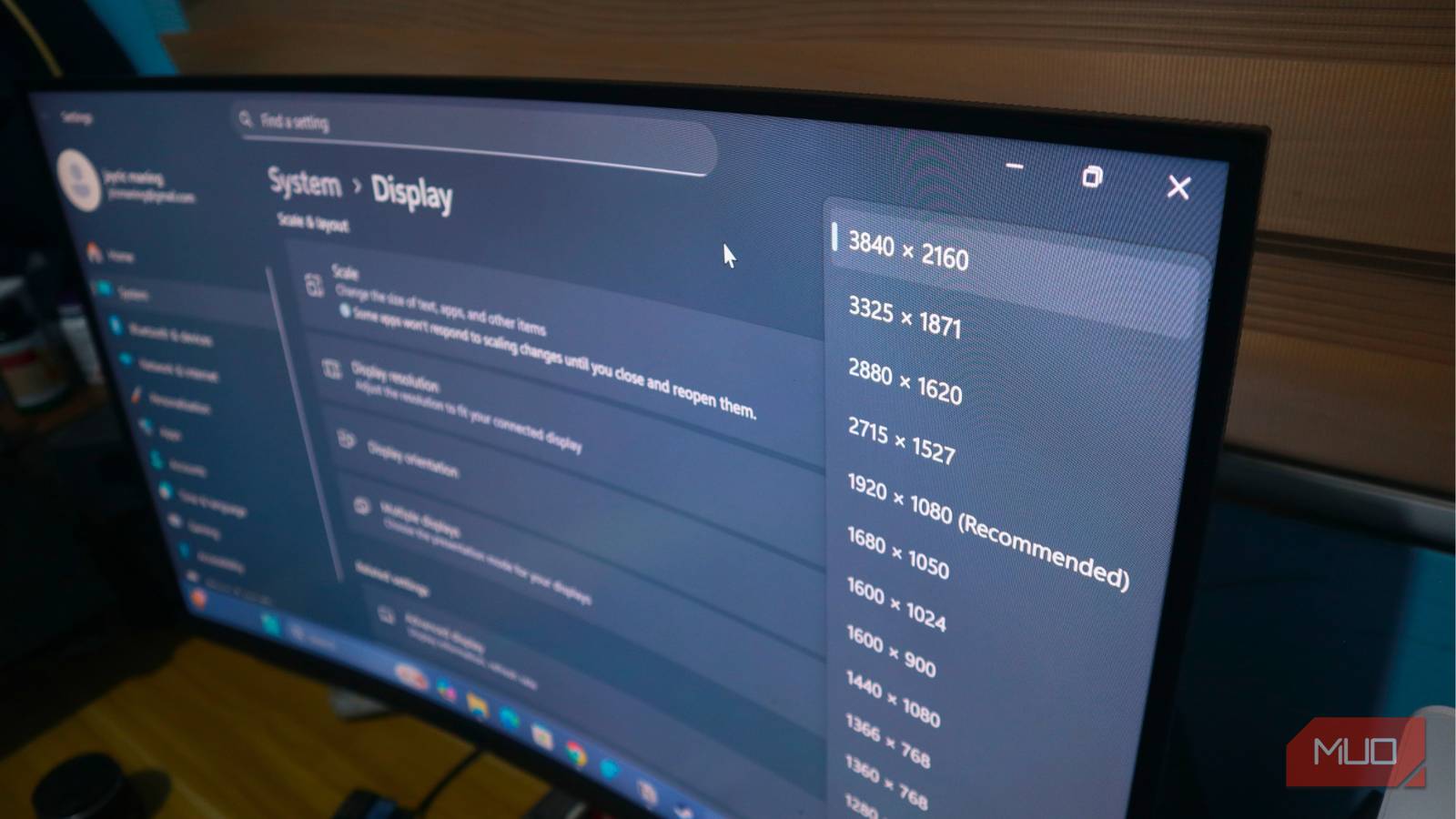
Upgrading to a 4K monitor after nearly a decade on a 1080p display felt like seeing colors for the first time, as if I’d been colorblind my whole life. The resistance to an upgrade beforehand came from the fact that I considered the upgrade to 4K pointless, but after seeing the results of a much sharper and clearer image, boy, was I wrong.
However, resolution isn’t the only thing that matters when upgrading or buying a new monitor, and refresh rate is just as important for an improved experience. Unfortunately, I wasn’t able to access the monitor’s full feature set because it remained at 60Hz until I realized I had plugged the wrong cable into the wrong port.
I finally learned why my TV needs HDMI while my PC needs DisplayPort
DisplayPort is the go-to standard for gamers, while HDMI is preferred by home theater buffs — have you ever stopped to ask why? This is the reason.
It’s your cable’s fault, not Windows
The real reason why 4K won’t hit 144Hz

Your monitor’s incapability to output 4K resolution at a higher refresh rate isn’t your GPU’s fault, but rather the connection between your PC and the monitor. Unfortunately, the fix doesn’t lie within Windows or even the BIOS because the problem stems from a bandwidth limitation.
Higher resolution means more pixels to transmit, and higher refresh rate means more frames sent every second; with increased resolution and refresh rate, that’s more work for your cable to do. Unfortunately, not every cable can transmit this much bandwidth, but even if it can, the port may still be the limiting factor.
Not all ports are equal
Some ports cap a higher refresh rate at a higher resolution

Your monitor comes with several ports for connecting the display, but not all of them support the highest advertised resolution and refresh rate. Some ports can output high refresh rates, but that’s only at certain resolutions; at higher resolutions, the refresh rate is capped or reduced. Take HDMI 1.4, for instance: the port can do 1080p@144Hz, but at 4K resolution it drops to 30Hz due to bandwidth limitations.
Here are all the ports that can output 4K resolution, but with capped refresh rates:
|
Port/Standard |
Maximum capabilities |
Bandwidth |
|---|---|---|
|
HDMI 1.4 |
Up to: |
10.2 Gbps |
|
HDMI 2.0 |
Up to:
|
18 Gbps |
|
DisplayPort 1.2 |
Up to:
|
21.6 Gbps |
The ports that can do it
If your goal is to use your 4K monitor at its highest refresh rate, you’ll need display ports that can carry enough bandwidth to support both the pixel count and the frame rate. Not every port on your monitor can do so, but here’s a rundown of modern display interfaces that can.
Here’s a table with all ports that are capable of outputting high refresh rates at higher resolutions.
|
Port/Standard |
Maximum capabilities |
Bandwidth |
|---|---|---|
|
HDMI 2.1 |
Up to: |
48 Gbps |
|
DisplayPort 1.4 |
Up to: |
32.4 Gbps |
|
DisplayPort 2.0/2.1 |
Up to:
|
80 Gbps |
The cable has to match the port, too
Opt for certified cables only
With the port specifications out of the way, it’s also important to note that not every cable can carry this bandwidth from the GPU to the monitor. You might have chosen the right port, but the wrong cable will then become the bottleneck. You can’t really plug a cheap HDMI cable into a 2.1 port expecting it to output 4K@144Hz — the same goes for DisplayPort cables.
For DisplayPort cables, look for VESA-certified 1.4 or higher cables. On the other hand, you’ll need “Ultra High Speed” HDMI cables to unlock higher refresh rates on a 4K display.
I recommend only getting certified cables that will deliver their advertised speeds. HDMI-certified cables have a QR code that can be scanned to verify their status.
Other factors that may be throttling your refresh rate
There are some settings that can also steal bandwidth

Even if your display cable and port support a higher refresh rate at 4K, they may still require a manual adjustment to enable it. For instance, with DisplayPort 1.4, 4K at 144Hz will require you to enable DSC (Display Stream Compression), a lossless compression method that reduces the bandwidth required to transmit. Not all monitors have it enabled by default, and sometimes it may require a manual toggle from their settings.
Another notable consideration is that HDR increases bandwidth limitations, which can push some display configurations to lower refresh rates. HDR uses a 10-bit color configuration, which requires more bandwidth than SDR’s 8-bit configuration. To compensate for the extra bandwidth, some setups lower the refresh rate or drop chroma subsampling to 4:2:0, which can reduce image quality and make it appear blurry.
It’s a mismatch and not a malfunction
Your monitor being stuck at a lower refresh rate on a higher resolution isn’t broken hardware or a false advertisement; it’s a mismatch issue between your port and cable. The fix is as easy as choosing the right port and cable to unlock your monitor’s full capabilities, instead of swapping out your GPU or frantically searching for driver updates.

- Brand
-
Hisense
- Display Type
-
Mini-LED ULED
- Display Resolution
-
4K
The Hisense U8K delivers some of the best movie image quality of any QLED TV. Movies and TV shows look stunning with the TV’s deep contrast, vibrant, natural colors, and impressive peak brightness. If you really want to splash out on the ultimate movie experience, consider the exceptional 100-inch model for total movie immersion.