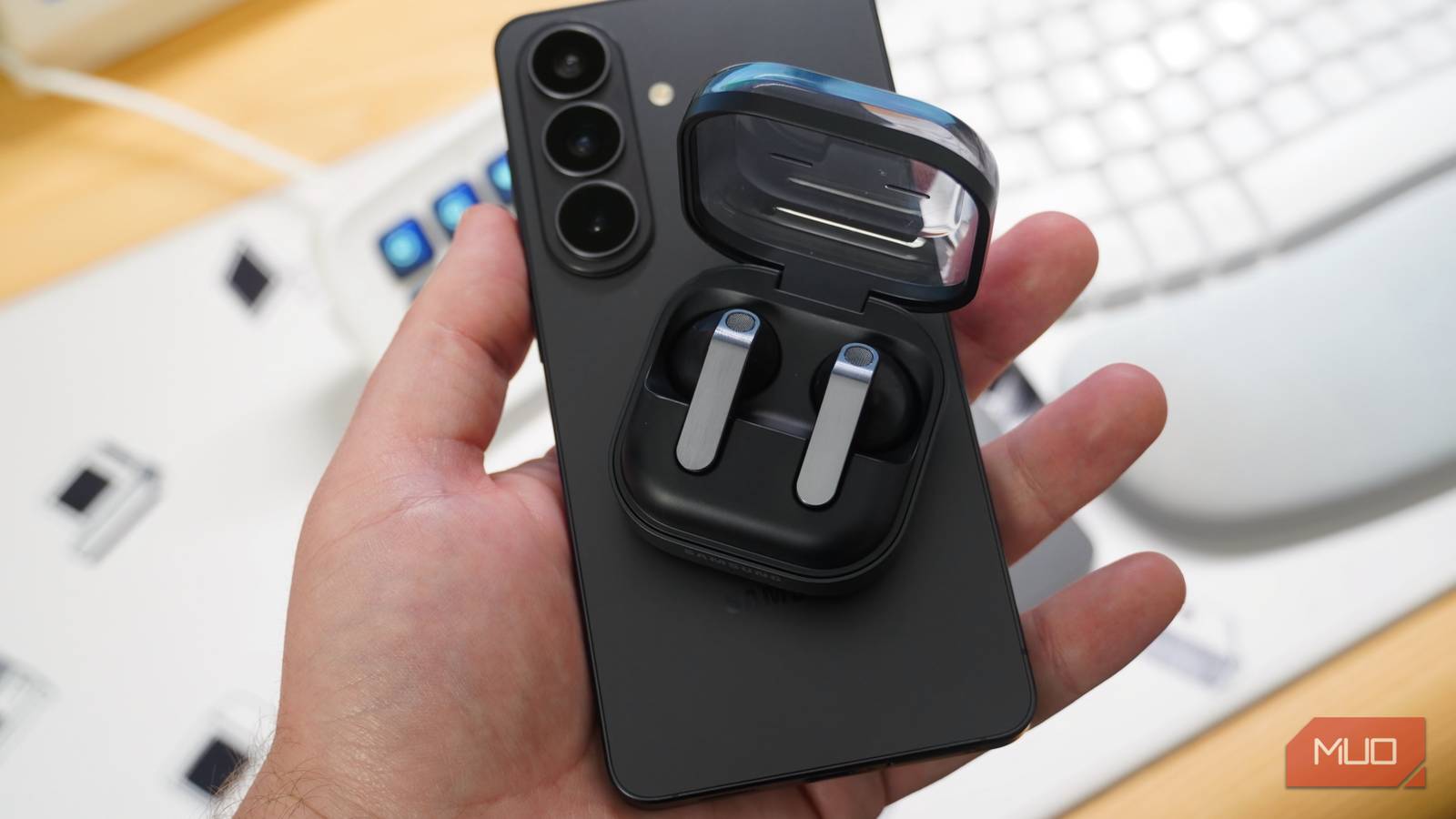
Buying a pair of premium headphones doesn’t automatically guarantee the best sound — and usually, that’s not a hardware issue. A lot depends on how your phone processes audio, because no two people hear sound the same way. Your Galaxy phone has a feature built specifically for this, and there’s a good chance you’ve never used it.
The Adapt Sound feature builds a profile based on your hearing, not just preference, which makes it different from an EQ — you’re not dragging sliders around and hoping for the best.
Your ears aren’t the same as anyone else’s
They don’t deserve a one-size-fits-all sound profile

The thing about audio is that something that sounds “perfect” to one person may not necessarily apply to the other. And it’s not a matter of taste, it’s anatomy. A big part of this comes down to our age. As we grow old, we lose some degree of hearing without ever even realizing it. That means how a pair of headphones sound to a 20-year-old versus a 35-year-old is different. And as the age gap widens, so does the difference in hearing capabilities.
But the problem is, most Android phones or headphones don’t offer any solution for this. Sure, you do get an equalizer and some presets that let you adjust frequencies, but that’s not the same thing. Bumping up the bass or tweaking treble isn’t always enough, and more importantly, it’s not something everyone is comfortable doing. If you have a Galaxy phone, though, there’s a feature to help you with this problem, and it can change the way your headphones sound.
What Adapt Sound actually does
It’s not a miracle, but it does sound better
Samsung’s Adapt Sound feature promises to create a perfect sound profile that’s tuned for your ears. It works only when you’re wearing headphones, but the good thing is you’re not limited to just Galaxy Buds. To start, head to Settings > Sounds and vibration > Sound quality and effects > Adapt sound.
By default, it offers three ready-made sound profiles for different age groups — one for those under 30, which boosts high frequencies; one for those between 30 to 60, that boosts high and mid frequencies; and one for those above 60, which boosts all frequencies. Each of these can play the original and personalized versions of a sample audio to hear the difference. Each profile also lets you set your sound preference to either clear or soft.
If you don’t want to settle for one of these profiles, you can also create one for yourself. Tap Add personalized sound profile and Adapt Sound will run a quick hearing test. You’ll need to connect your headphones and move to a quiet place for this to work.
During the test, your Samsung phone will play a series of tones at different frequencies into each ear individually, and you have to tap a button each time you hear one. The whole thing takes less than a minute and based on your responses, your Galaxy phone builds a personalized sound profile. It basically checks how your ears actually pick up audio and compensates for those frequencies where your hearing is weaker. At the end, it’ll even ask you which earbud you prefer for calls. And if you don’t want to apply a sound profile during calls, you can set it for Media only.
How much difference Adaptive Sound makes mainly comes down to your age and hearing capabilities. If you’re young, say under 20 or 25, this might not make a difference at all. I’m 30, and it sure did make a difference for me.
There’s a lot more you can do
You don’t have to stop at Adapt Sound

Adapt Sound is just one feature. Your Galaxy phone has plenty more that can change the way your headphones sound. For instance, enabling Dolby Atmos plays a sound that flows above and around you. You can set it to Auto mode so it optimizes sound automatically for whatever you’re listening to — music, movies, or podcasts.
Then there’s UHQ Upscaler, which attempts to restore detail that usually gets lost during audio compression. It doesn’t work with every headphones. You’ll need to use wired headphones or compatible wireless earbuds, otherwise the feature will appear grayed out on your Galaxy phone.
On the wireless side, Samsung lets you manually pick your Bluetooth audio codec from the Developer Options menu — so if your headphones support aptX, LDAC, or AAC, you can lock it in rather than leaving it up to auto-negotiation. LDAC in particular pushes significantly more data than standard SBC, which translates to noticeably better audio quality over Bluetooth if your headphones can handle it.

- Charging Case Included?
-
Yes
- Supported codecs
-
SSC (Samsung Seamless Codec) HiFi, SSC UHQ (Samsung Proprietary), AAC, SBC, LC3
- Bluetooth
-
6.1
- IP Rating
-
IP54