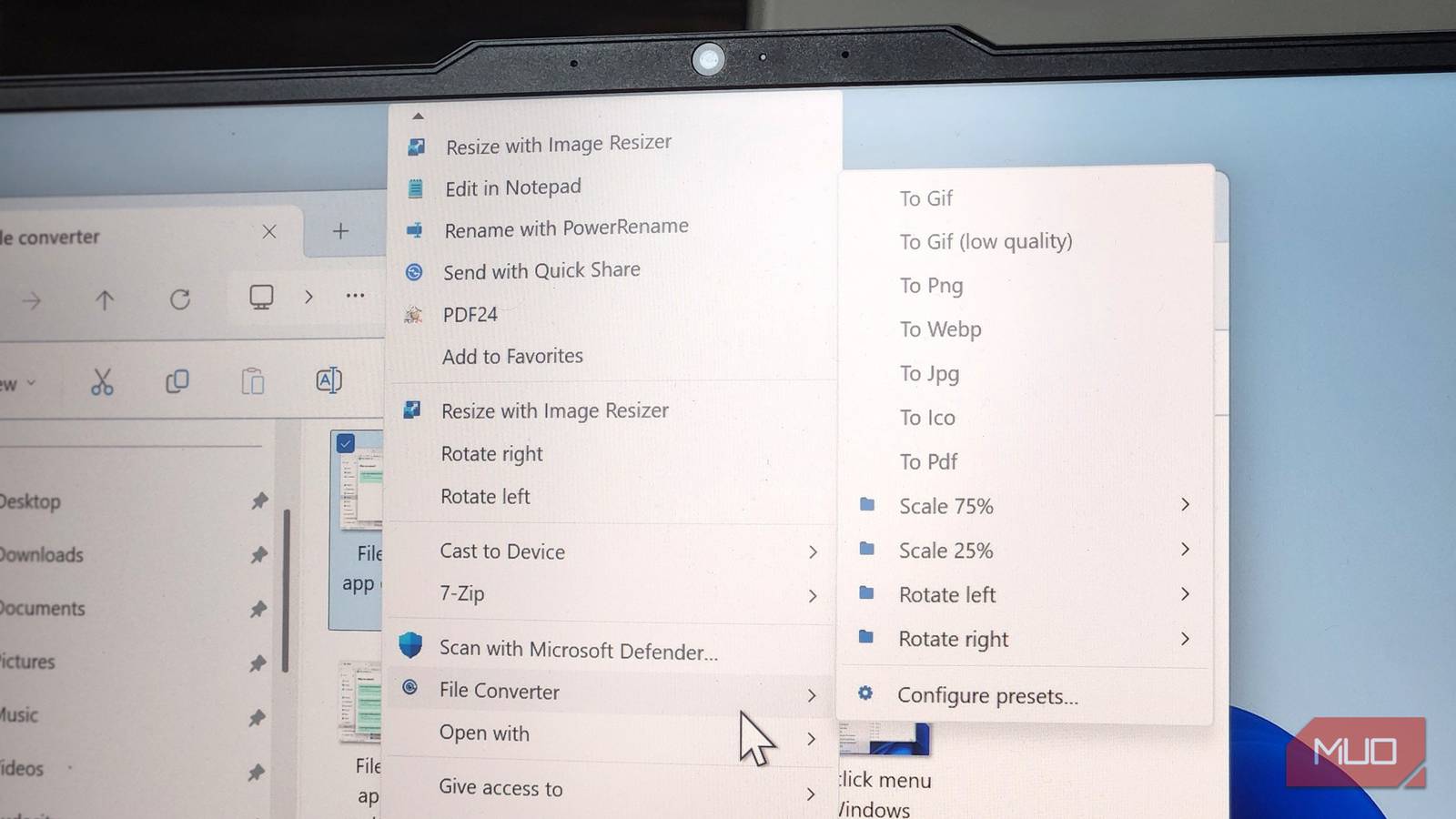
Windows 11’s right-click menu gets talked about a lot, and rarely for good reasons. Its biggest problem is that it’s unnecessarily long and yet doesn’t offer anything useful. But it doesn’t have to be that way. With the right apps, you can turn the Windows 11 context menu into a hub for your favorite shortcuts.
Phone Link or Blip
Share files with your phone with a couple of clicks
Let’s start with an app that needs no introduction, and you won’t have to install it either. You might already be using Phone Link to browse your phone’s files via File Explorer, but it also adds a clever shortcut to the Windows context menu.
You can use it to share files directly to your phone wirelessly. All you have to do is right-click a file and choose Send to My Phone. That’s it. This is by far the quickest way to share files from your PC to the phone because it literally only takes a couple of clicks.
If you’re not a fan of Phone Link, you can try an app like Blip. It’s a free file transfer app that can transfer files to any of your devices over Wi-Fi or the internet. One big advantage of using Blip is that you’re not limited to one phone. It works for any device you might have, be it a phone, tablet, or another PC. And since it can also transfer over the internet, those devices don’t have to be nearby.
File Converter
Stop using online tools
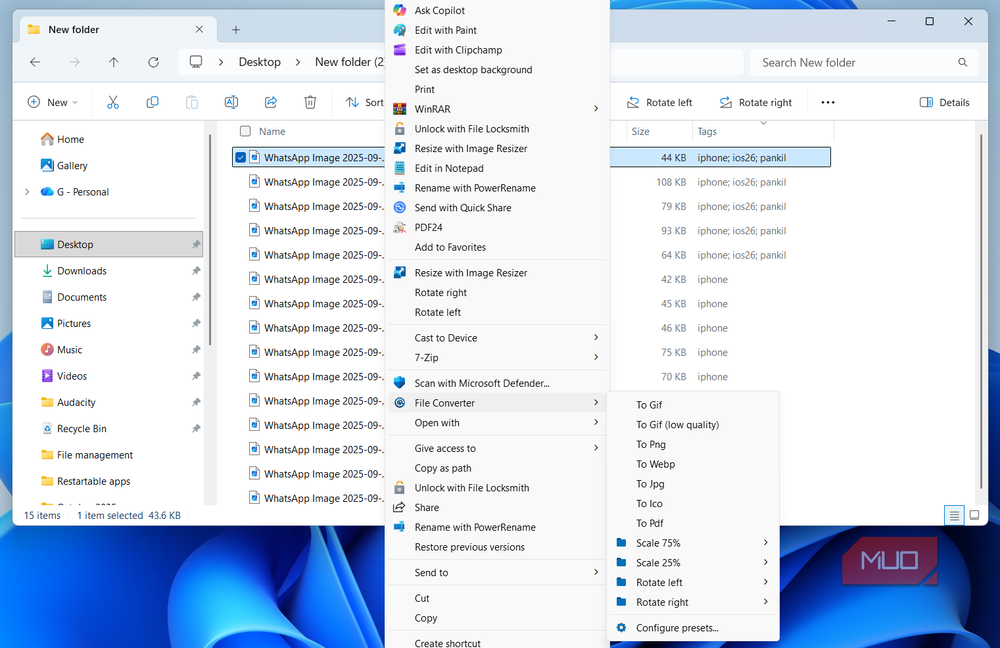
This one doesn’t need much of an explanation, because it does exactly what the name suggests. File Converter is a free, open-source app that handles photos, videos, audio, and documents. My favorite part is that you don’t have to open it. Right-click the file, choose File Converter, pick your format, and you’re done. The app saves the converted file in the same path as the original.
It works flawlessly and supports almost every popular file format out there. I use it all the time for converting HEIC images from my iPhone. And yes, it can even convert files in bulk, which makes it even more handy.
File Converter can even help you compress files the same way. If you want to shrink an image or scale down a video, you can do it from the right-click menu too. The app doesn’t need any complicated setup and works offline too.
PowerToys
Create, resize, and rename
PowerToys is another Microsoft gem that can make the right-click menu more useful. Unlike the above apps, this one adds a bunch of tools to the context menu. For instance, you get the Image Resizer tool for resizing images in bulk. You can even set up a few preset sizes you need often so you don’t have to enter dimensions every single time.
Another similar tool is PowerRename, which handles bulk renaming. Once you open it from the right-click menu, it opens a dedicated window where you can specify how you want the files to be renamed. You can add sequential numbers, alter text cases, swap names with file creation time, or standardize file names by other means.
PowerToys also adds a New+ option to the context menu, which makes Windows’ own “New” option look embarrassingly basic. You can use it to quickly create files you need often, and these don’t have to be blank. The New+ can help you create a reusable Excel spreadsheet template or a Word document with specific formatting with a couple of clicks.
Google
Analyze documents, images, and more
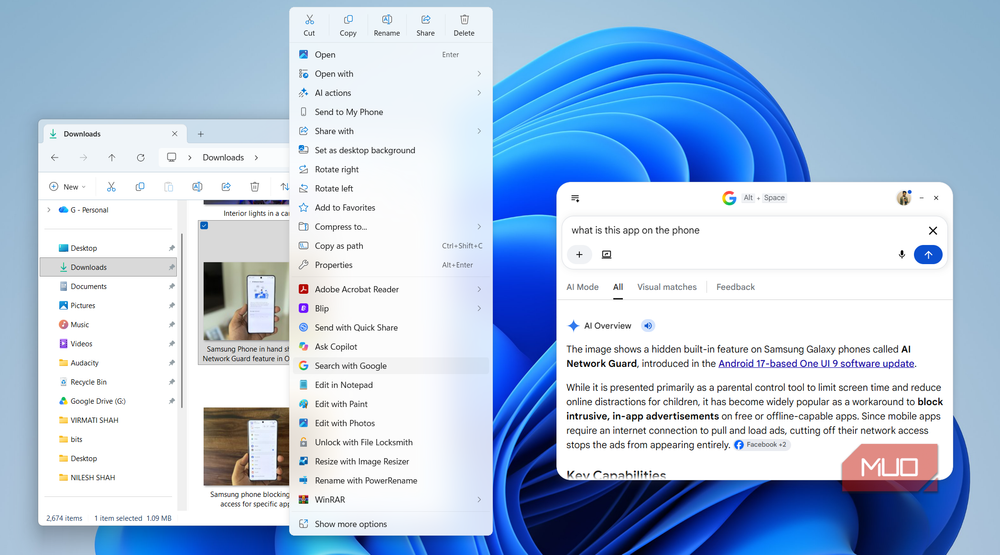
Google recently launched a Windows app, and it’s pretty solid for making web searches, finding Drive files, and even talking to AI. The app also adds a Search with Google shortcut in the right-click menu, and there are a few things you can do with it.
For instance, you can right-click any Word file or PDF, choose Search with Google and ask it to summarize it. You can even ask specific questions about the file or look for particular details. If it’s an image, you can do a reverse image search or ask Google to identify things.
It’s nothing different from uploading a file manually to an AI app, but if you already use Gemini, this shortcut is certainly more convenient.
You don’t have to stop here…
Almost every other Windows app you install on your PC adds its shortcut to the context menu. And the problem is, not all of them are useful. The above apps are a few exceptions because they actually make your life easy.
Another way to make the Windows right-click menu usable is to remove everything you’re not using. An app like Windows 11 Context Menu Manager can help you with this.