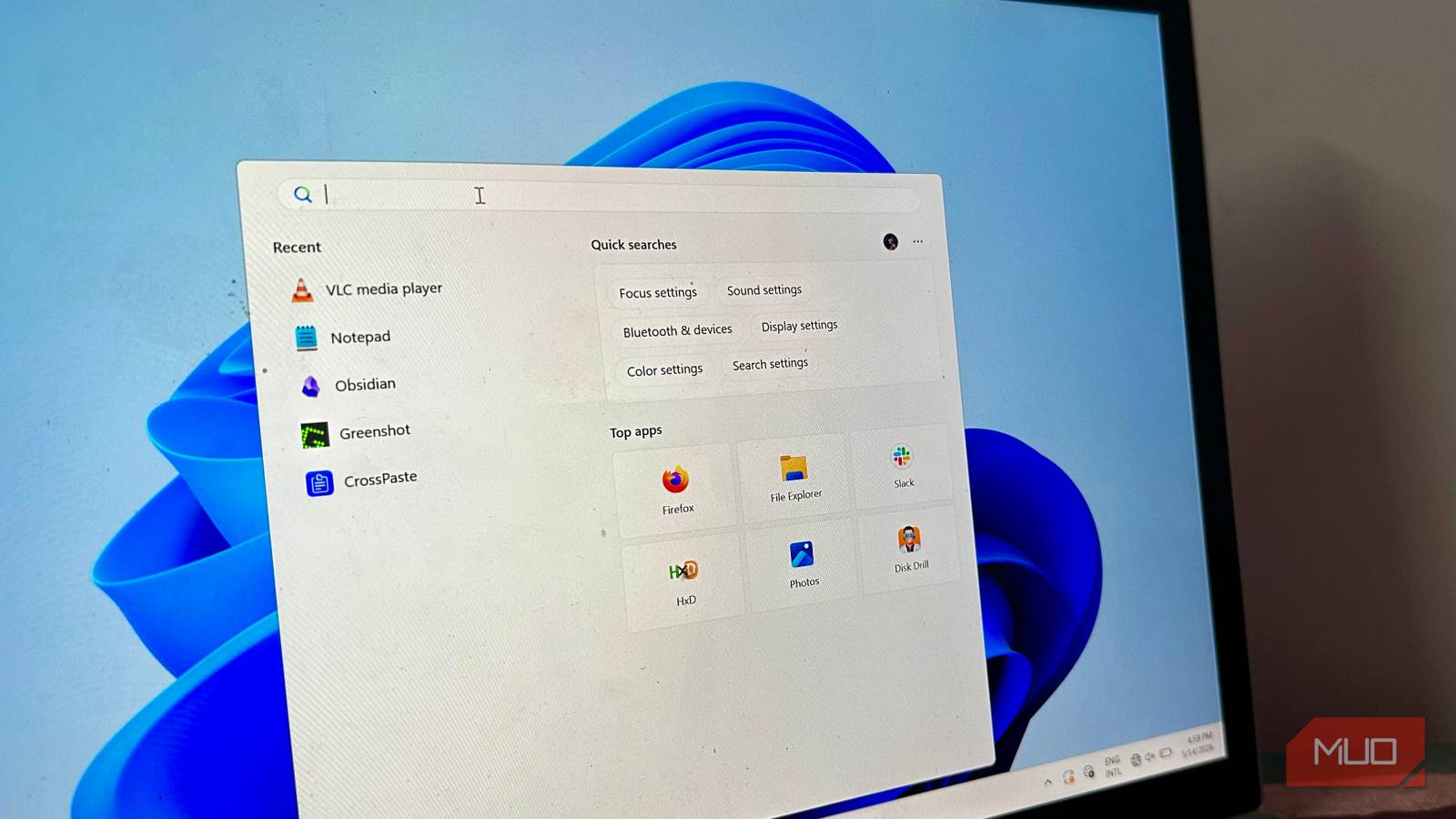
Windows has had several problems over the years, and thankfully, Microsoft has started listening to the audience in recent times, but there are still some places where it lacks improvement. Windows Search is a prime example of this — the default search feature has been terrible for years, and the last time it was good was with Windows 7, back when I was in elementary school.
Regardless, as with any other Windows problem, third-party developers take it upon themselves to make the experience a little more tolerable. This lightweight utility serves the same purpose, except that it’s worlds apart compared to Windows Search, called Everything.
Windows Search’s bloat problem
Indexes everything but finds less

Windows Search is much more complex than it needs to be, and in trying to do so much, it ends up feeling clunky.
For starters, Windows Search indexes your files too broadly. It will compile a catalog of file locations, names, metadata, documents, apps, OneDrive, and web results. This index becomes quite large because it’s mostly the entire content, not just metadata, which is taxing on your system resources. This is why you might occasionally see a hiccup when searching for a file, even on the most powerful systems.
Then there’s the issue of incomplete results because Windows Search can be very inconsistent. Often, the index becomes outdated when newer files are added, which won’t show up in the results, and it’s annoying because you then have to manually hunt for that specific file.
The search results can also become conflicting because Windows Search combines results from File Explorer, OneDrive, and web results, which can overlap, and sometimes a search from your web history may be prioritized over your local files. Not to mention that searching from three separate locations creates resource and network overhead that is bound to slow your system down.
Everything skips the bloat entirely
One file table, zero content scanning

My first time using Everything was quite shocking because I didn’t expect results this fast. One of the major reasons is that Everything indexes your files using metadata only, not the content itself. Then, you also don’t have the bloated web search and OneDrive integration that slow things down.
Windows Search builds its own database ahead of time by opening and reading files across multiple folders to find your desired results, which is a resource-intensive task. In contrast, Everything accesses the MFT (Master File Table), which is a system file that stores metadata for every file and folder on NTFS drives.
This means negligible background resource consumption, and your CPU, RAM, and disk usage won’t spike either, because Everything pulls searches from an already established database rather than manually searching through terabytes of data.
Other than that, Windows Search also indexes constantly, meaning resources are always being consumed in the background. The same isn’t true for Everything — it indexes only once and adds files as soon as they’re modified. In any case, if results look underwhelming, you can trigger a manual rebuild.
A taskbar-native front end for Everything
On its own, Everything might be underwhelming to use, since it’s a separate window that seems unnatural to search through. No matter how fast the search results are, they break the natural workflow of using the search bar at the bottom of the taskbar, and that convenience is only provided by Windows. Fortunately, you can make Everything a drop-in replacement for Windows Search using the Everything Toolbar.
Consider it a front-end tool that provides an improved UI akin to Windows Search, while Everything works in the background. You can disable Windows Search entirely and replace it with Everything, and your search results are also much more uniform and less cluttered.
Together, the Everything toolbar and the Everything search tool serve as a complete Windows Search replacement and offer additional features.
Everything works like a file explorer on the surface, showing you drive directories and the folders inside them. For searches, you can use filters for file type, size, and date modified, and customize the order. For instance, I’ve set up my results to show folders and files at the top and audio and video at the bottom.
For accuracy, you can match case, path, or whole word. There are search operators to bring up specific file types (e.g., .jpg), find files larger than 5 GB (size:>5gb), or narrow down search results to a specific time period for a specific file size, which would include file type + date, (*.png dm:2026).
Should you switch to Everything?
In my experience, Everything is one of the best third-party tools for Windows, and it has completely replaced the default search tool for me. I don’t use OneDrive, and I use the browser for web searches, so Windows Search wasn’t doing much for me. However, Windows Search can search files by text and the content inside, so you won’t get the same types of results in Everything unless you enable its content-indexing feature, which eats into its speed advantage and makes the point of shifting to a third-party search tool useless in the first place.

- OS
-
Windows
- Price model
-
Free
Everything is a Windows filename search engine that guarantees fast and accurate file search even without typing entire file names.