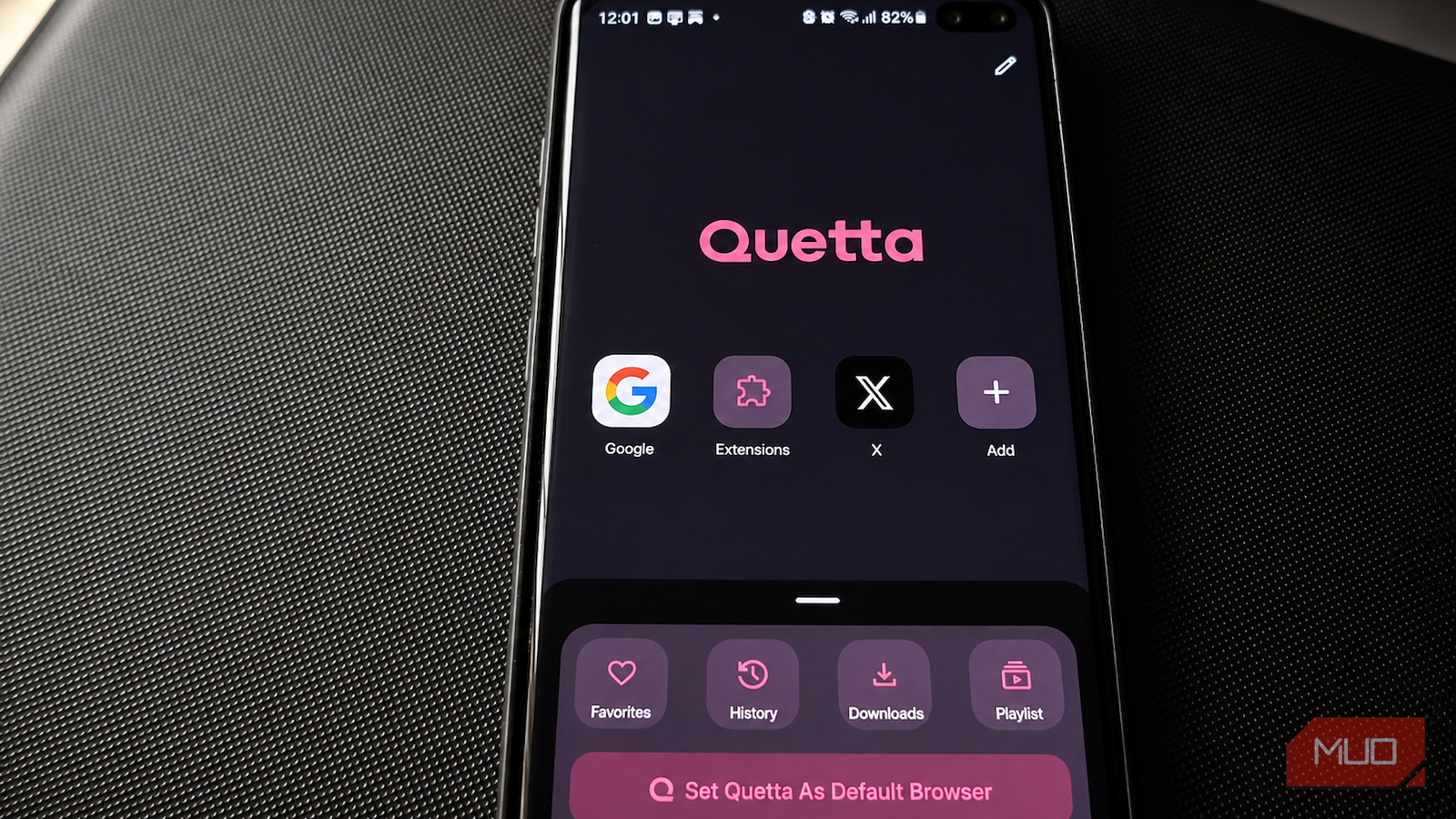
Kiwi Browser shutting down is what sent me looking for another Android browser in the first place. Kiwi had spent years occupying a pretty unusual niche because it brought desktop Chrome extensions to Android, but then its developer archived the project in January 2025 and pointed users toward Microsoft Edge. I wanted something closer to the Kiwi experience without going straight back to Chrome, which had become my default mostly through inertia.
Quetta Browser kept coming up, so I installed it and eventually started using it as my main browser. A few weeks in, I can see the appeal: it’s quite familiar if you’ve lived in Chrome for years, and moving over is not as disruptive as you’d expect.
It runs Chrome extensions, and also Edge ones
My desktop browser habits survived the move
This was the feature that got Quetta onto my phone in the first place. It can install extensions from both the Chrome Web Store and Microsoft’s Edge Add-ons store, and you can browse and manage them from inside the browser. Interestingly, Quetta isn’t alone in pushing extensions onto phones either. Microsoft Edge also supports extensions on Android, although Quetta giving me access to both stores makes the setup especially flexible.
Quetta does warn that compatibility varies because some desktop extensions depend on APIs, background behavior, or interfaces that don’t translate cleanly to a phone. So don’t assume every obscure Chrome extension will behave perfectly. Still, the ones that work make a huge difference. Being able to use desktop-style browser extensions such as uBlock Origin on Android means password managers, privacy tools, page utilities, and little browser add-ons I’m used to on the desktop don’t suddenly become PC-only luxuries when I pick up my phone. That was always Kiwi’s killer feature for me, and Quetta scratches much the same itch.
It also holds up quite well in my daily use. I’ve had five or six tabs open alongside a few extensions and could bounce around without constantly watching pages reload. I haven’t run a controlled RAM benchmark against Chrome, so I’m not claiming Quetta is objectively lighter on every Android phone.
Quetta is packed with features, but most of them stay tucked into menus and settings until I actually go looking for them, so the browser doesn’t feel especially busy. That’s really what the lighter feel comes down to for me. It does quite a lot without constantly reminding me how much it does.
Ad blocking starts before I start fiddling

Quetta enables ad and tracker blocking by default, the sort of built-in blocking that can replace some privacy extensions on Android. It also includes fingerprint protection to make device identification harder for tracking scripts. That’s useful because browser fingerprinting can identify you without relying on your IP address. If you dig around a little further, you’ll also find controls for features like Global Privacy Control, Secure DNS, cookies, and scripts. I mostly left the defaults alone, though, since they looked okay to me.
Quetta also gives you control over local browser data, including a Data Vault that encrypts supported browsing information and puts it behind your phone’s biometric authentication.
The Privacy Guard is where most of this becomes tangible. While I was browsing the Daily Mail, Quetta showed 97 ads and trackers blocked, and the same panel gave me per-site controls for the blocker, HTTPS enforcement, fingerprint protection, scripts, cookies, app redirects, and distracting page elements. I like that these aren’t buried several menus deep either. Tapping the shield beside the address bar brings up most of the controls I’m likely to fiddle with for a particular site.
There’s another layer for anything I’d rather keep behind my fingerprint. Under Lock Access, Quetta can require biometric verification before opening the Data Vault, incognito tabs, the built-in password manager, or Sync & Backup. I ended up enabling it for the password manager, and the flexibility is nice because I can lock the parts I care about without turning every trip into the browser into an authentication ceremony.
The built-in video downloader won me over fast
One less sketchy converter site in my life
Quetta’s downloader is probably the feature I warmed up to fastest. When the browser detects supported MP4, WebM, HLS, or M3U8 video on a webpage, it can expose a download option directly inside the browser.
That means I don’t have to copy links into a separate downloader app or one of those sites with twelve fake download buttons and a pop-up casino waiting behind number thirteen. You choose from the available qualities, save the permitted video, and keep browsing while it downloads.
There’s more tucked away here than I initially realized. Quetta also has some oddly specific YouTube controls, including options to hide Shorts and recommendations from parts of the site. Those are the kinds of settings I probably wouldn’t have looked for on my own, but they make sense once you start using the browser as more than just somewhere to open links.
The downloader does have limits. DRM-protected, private, encrypted, account-restricted, or otherwise unsupported videos may not work, and websites can break compatibility when they change how media is served. YouTube is also one place where offline downloading is restricted, so I wouldn’t treat Quetta as a universal grab-any-video button.
Even with those caveats, watching and saving supported video is less annoying.
There are two caveats you should know before switching
Privacy enthusiasts will probably notice both

The first is that Quetta is proprietary. Unlike Firefox or open-source Chromium derivatives such as Cromite, it doesn’t publish a browser codebase you can independently audit. That leaves a degree of trust in Quetta Networks. The privacy policy is detailed, and the controls are useful in practice, but anyone who chooses browsers specifically because the code is open for inspection should keep that caveat in mind.
The second concern is its Chromium update cadence. Quetta’s August 7, 2026, Play Store release says it uses Chromium 148.0.7778.217, while Google had already moved Chrome for Android several versions ahead by then. That doesn’t automatically mean Quetta is missing every newer security fix, since downstream Chromium browsers can backport patches. However, I’d rather see the underlying engine stay closer to current Chromium releases. Browsers deal with enough hostile nonsense on the web that engine updates are one area where lag makes me pay attention.

- OS
-
Android
- Price model
-
Free
Quetta is a privacy-focused mobile browser with built-in ad blocking, tracker protection, and a clean distraction-free interface. It also supports extensions and secure browsing features while staying lightweight and fast.
Chrome finally has competition on my home screen
I’ve tried plenty of alternative Android browsers that were fun to configure and considerably less fun to actually live with. After the novelty wore off, I’d usually find myself creeping back to Chrome because some minor annoyance eventually became a daily one.
That hasn’t happened with Quetta yet. A few weeks in, I’m spending less time thinking about my browser, which might be the strongest endorsement I can give one. I don’t want browsing the web to become another hobby that requires constant tinkering. I want to open a page, do what I came for, and move on.
Quetta has been quite good at getting out of the way.