Malicious software can easily find its way onto your computer and stay there undetected. However, with the right tools, you can scan your system and remove spyware, adware, and other malicious programs that may be hiding on your system.
Most of the time, it feels like you need to pay for some expensive antivirus or antimalware tool to help find and eradicate the issue. But these days, there are plenty of free tools that can help you track down dangerous files on your PC and finally get rid of them.
Process Explorer
This Task Manager replacement lets you look deep into your system internals
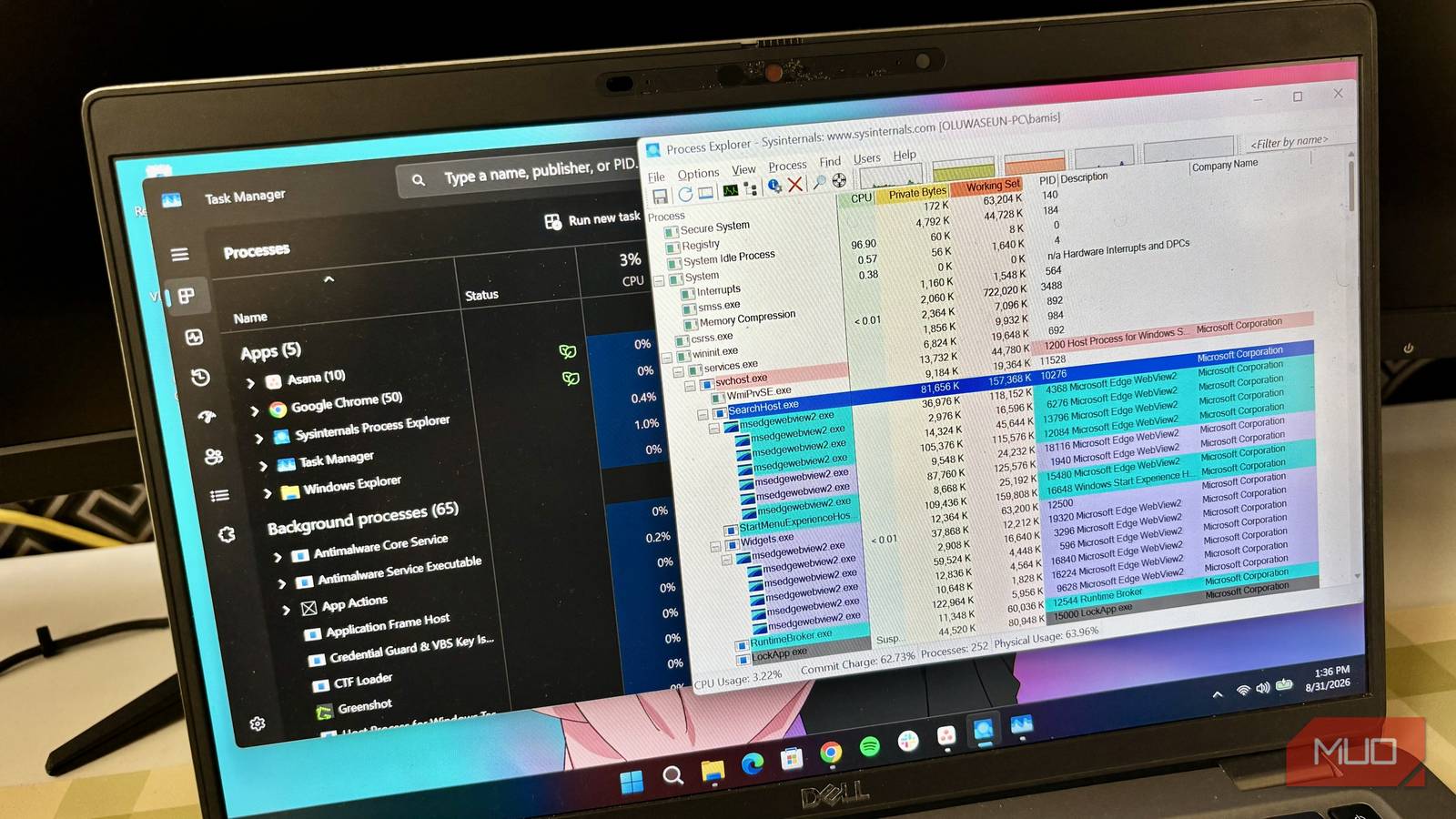
Process Explorer is part of Microsoft’s Sysinternals suite, which offers extended functionality and replaces built-in tools likeTask Manager. In Process Explorer, the program shows the handles and DLLs processes on the system have opened or loaded.
The program makes it incredibly easy to identify rogue DLLs running on your system and determine which programs are using these files. Additionally, it’s also useful for tracking down DLL version problems, handling leaks, and providing information on how Windows and applications work.
It can be intimidating at first glance, but the interface is surprisingly user-friendly, and spending some time with the program will clarify the purpose of many of the fields and buttons. Additionally, Microsoft’s Process Explorer documentation contains important information on how it works and how to use it more effectively.

For the everyday Windows user, Process Explorer is simply Task Manager on steroids. You can not only see which processes are running on your system and how much system resources they consume, but also run a VirusTotal scan directly from within the tool. This provides an early check and a good bird’s-eye view of potentially malicious tools present on your system. It enables you to match the hash for the process against known good and bad hashes, which will help you detect if the process is malicious.
You can also use Process Explorer to track network activity for a specific process. Right-click the process you want to check, select Properties, and then navigate to the TCP/IP tab. You’ll be able to see all ongoing network connections the process is using—a very handy way of checking whether a program on your PC is connecting to malicious servers or not. One slight downside to this is that Process Explorer doesn’t display historical network connections; however, it’s handy for identifying malicious processes that are currently running.
Last but not least, Process Explorer also shows the Command Prompt command a program needs to launch by hovering over the process for a few seconds. Checking commands can reveal special keys, flags, or instructions a malicious program might use to get access to system resources.
Autoruns
What’s booting automatically that you can’t see?

Also part of the Sysinternals suite, Autoruns replaces the Startup apps tab in Task Manager and shows all apps that start as soon as Windows fully loads. It also shows all other processes, including DLL files, services, scheduled tasks, and even registry entries— all categorized under well-defined tabs.
Autoruns makes it easy to spot malicious executables, DLLs, and tasks that might start with your Windows system. Malware often adds scheduled tasks to Windows, allowing it to start with your system and maintain persistence automatically. With Autoruns, you can quickly check suspicious processes, run VirusTotal scans if necessary, and terminate them.
Apart from hunting spyware and other malicious programs, Autoruns is also great for optimizing your PC. Instead of having to jump around multiple settings windows scattered throughout Windows, you can disable all unwanted programs and processes that start with Windows in one go. It can also come in handy when you’re troubleshooting Windows by checking for programs that might be causing crashes or system instability during startup.
Every time I set up a new Windows PC, I use Autoruns and Process Explorer to remove any suspicious or unwanted files. It’s one of the best ways to remove bloatware from your PC, along with external tools like the Windows 11 Debloater.
When checking for spyware or malicious programs, I first like to go through the main Everything tab and uncheck any programs that appear suspicious or that I don’t otherwise need. Pay particular attention to the Scheduled Tasks tab for any scheduled program starts and verify that all suspicious or unwanted programs are disabled. Be careful not to disable essential system processes or Microsoft-signed entries. If unsure, Google the file name or consult VirusTotal before taking action.
After that, a simple system restart will show whether the disabled processes were causing issues. Once you identify a problematic process, you can permanently delete it by right-clicking the process and selecting Delete. However, note that this doesn’t delete the malicious file (the potentially underlying malware). It only stops the process. Once you spot a malicious process, you’ll need to run a proper malware removal tool like Malwarebytes.
VirusTotal
Check files, URLs, IP addresses, and more before you click

VirusTotal is by far the easiest and perhaps the most basic of all tools you should be using to check whether a suspicious program is malicious in any way. Apart from checking individual files for malicious signatures, the site also lets you check URLs, hashes, IP addresses, and domains against a database.
This lets you quickly check whether a file or a URL a process on your PC is communicating with is malicious. It’s also one of the easiest ways of checking if a downloaded file is safe before using it.
The tool tests your files against more than 60 antivirus engines from different vendors. Since antivirus programs differ and may not always detect a malicious file, VirusTotal is a great way to check one file against as many antivirus engines as possible in a few clicks.
Since it’s an online tool, it’s also platform-independent, meaning you can upload a file from any device. This saves time and effort, especially if you want to check a file you found on your phone or tablet. However, its results aren’t definitive, as you’ll notice when some antivirus engines flag an issue while others ignore it. That’s why it’s best to use VirusTotal as part of a multi-tiered system for checking out potential spyware, adware, and malware.
Malwarebytes
A second opinion on dangerous files is never a bad thing

Malwarebytes is one of the best free anti-malware and antivirus programs you can install. It often detects files other antivirus programs miss, including Windows Security, Microsoft’s built-in antivirus solution.
Malwarebytes is particularly effective at detecting adware. It can also quarantine and remove adware built into Microsoft tools such as Edge, which Windows Security has been known to ignore. It also has a suite of built-in tools that let you tweak Windows privacy settings and control startup applications. If you opt for a Malwarebytes subscription, you’ll also receive a built-in VPN and additional protection options, as well as the option to enable real-time system scanning to detect incoming threats.
To be clear, you can do all of this with Windows Security or any other antivirus software you might be using. However, Malwarebytes scans tend to be deeper and often catch files that other antivirus programs might miss. Additionally, the interface is much easier to navigate if you’re not a computer wizard, so everyone can clearly see suspicious files and decide what to do with them.
Spybot – Search & Destroy
It’s older, but still does an excellent job

Spybot is definitely somewhat dated at this point; I remember using it to find spyware back in the early days of Kazaa and Limewire. However, despite its outdated user interface, it’s still a really handy tool for finding and removing adware and spyware from your computer, as it specifically targets them. Spybot does come with an additional antivirus component, but it’s not included in the free version.
Even without its antivirus engine, Spybot is a handy anti-spyware app to have on hand as a supplement to your existing antivirus program. The setup process is also intuitive and lets you choose between automated protection and manual configuration.
Its primary features include detecting and removing spyware, adware, tracking software, keyloggers, and other unwanted programs. The free version also includes the System Immunization feature, which protects your system against malware by blocking access to sites known to host malware or other unwanted software. It also blocks tracking cookies and browser plugins known to contain malware. You also get a startup program control utility and rootkit scans.
Most of Spybot’s other, more powerful features are paywalled. However, when you use it with other tools like Autoruns, Process Explorer, and an antivirus program, it offers enough capabilities to provide pretty comprehensive protection on the free tier.
Spyware and adware be gone
Spyware can be pretty sneaky, and finding it on your system, sometimes even with the proper tools, can be difficult. However, if you run multiple checks with the right tools, it becomes relatively easy to spot and even easier to remove. For best results, start with Autoruns and Process Explorer to identify suspicious processes and startup items. Then, confirm any suspicious files with VirusTotal. Finally, run a full system scan with Malwarebytes and/or Spybot to remove anything hiding in the background.