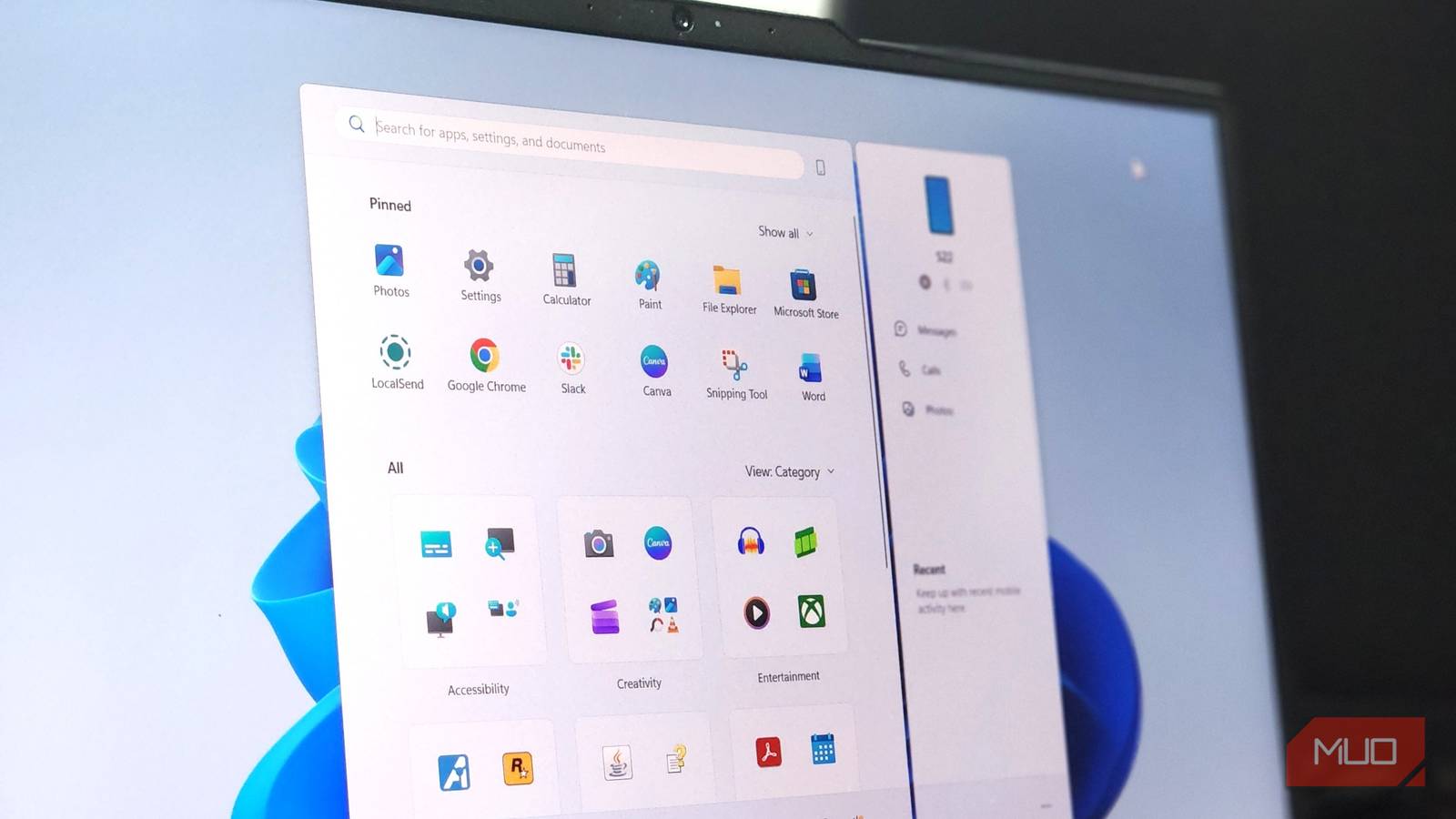
One thing I’ve always liked about Windows 11 is how much you can customize it to make your PC feel more like your own. While most of us spend time changing wallpapers, tweaking the taskbar, or playing around with settings, there’s one place we tend to overlook: the Start menu. Microsoft has now rolled out its redesigned Start menu to nearly every Windows 11 PC, bringing several new ways to organize your apps and get rid of things you don’t need.
But if you’re anything like me, you’ve probably been using it the same way you always have, without much thought. Once I started experimenting with the new layout and a few settings, I was surprised by how much of a difference it made. Now that I’ve got everything set up the way I like it, I can’t imagine going back to the default layout.
Three settings were all it took to tidy things up
First, I played around with the three app layouts: Category, Grid, and List. Category automatically groups similar apps together, while Grid and List arrange everything alphabetically, making it easier to find what you need. I tried all three, but Category ended up being my favorite.
I like having my apps neatly organized instead of scrolling through a long list every time I need something. Switching between them is pretty simple, too. Just open the Start menu, look for the View dropdown in the All section, and pick whichever layout works best for you.
I’d recommend trying all three before settling on one, because what works for me might not necessarily work for you.
Once I had the layout sorted, I wanted to cut some of the clutter. The Recommended section was the first thing to go, because I rarely used the recent files or suggested apps Windows kept showing me. Hiding those recommendations made the Start menu feel much cleaner, and I could finally focus on the apps I actually use.
To do the same, open Settings on your Windows 11 PC, select Personalization, then click Start. Here, you’ll find options to turn off recommendations for recently opened files, newly added apps, and other suggestions. You can also tweak the other settings depending on how you use your PC.
Another small change that made a big difference for me was adding shortcuts next to the Power button. Normally, whenever I need to open Downloads, Documents, or even Settings, I end up searching for them or opening File Explorer first. Windows 11 lets you place shortcuts to these locations right beside the Power button in the Start menu, so they’re always just a click away.
To set them up, open Settings, select Personalization, click Start, then choose Folders. From here, you can enable shortcuts to the locations you use most often. I added the folders I regularly access, and it’s one of those conveniences I’ve quickly gotten used to.
These are the changes I’ve made to my own PC so far, but you can do much more with the redesigned Start menu. For instance, you can expand the Pinned section to see more of your favorite apps, organize those apps into folders, or even hide the Phone Link panel if you don’t use it.
Personally, I didn’t feel the need to change every single setting, and I don’t think you need to either. I just changed what bothered me about the Start menu to suit how I use my PC. That’s really the point of having these options in the first place. You might prefer a completely different layout or find some of the default features useful, and that’s perfectly fine. But since we open the Start menu so often throughout the day, spending a few minutes setting it up the way you like is definitely worth it.
A little more freedom to move things around would go a long way

As much as I like the changes Microsoft has made to the Start menu, I still think there’s plenty of room for improvement. For starters, I’d love to have more control over where everything sits. Right now, you can customize individual sections, but you can’t freely move them around. I’d much rather drag the sections I use most to the top and push everything else further down.
The same goes for resizing the Start menu. Instead of digging through Settings to change its size, why can’t I just grab a corner and make it bigger or smaller, like I would with any other window?
I’d also like Microsoft to give us a little more freedom with the Start button itself. If someone has disabled all the sections they don’t use, it would be nice to have the option to hide the Start button from the taskbar altogether. And if Windows ever allows that, why not let us decide what pressing the Windows key does, too?
I feel these things make the customization options feel a lot more complete. After all, if Microsoft wants us to make the Start menu our own, I’d love to have a little more say in how it works.
My Start menu and I are finally getting along
For now, though, I’m pretty happy with where my menu has ended up. It’s not perfect, and knowing Microsoft, there will probably be more changes down the road. But I do appreciate that Windows 11 is slowly giving us more control over something we interact with so often.
I just hope Microsoft continues giving us more ways to customize the Start menu, because what works for one person might not necessarily work for everyone else. Until then, I’m sticking with my setup, and for once, I don’t feel the need to complain every time I open it.