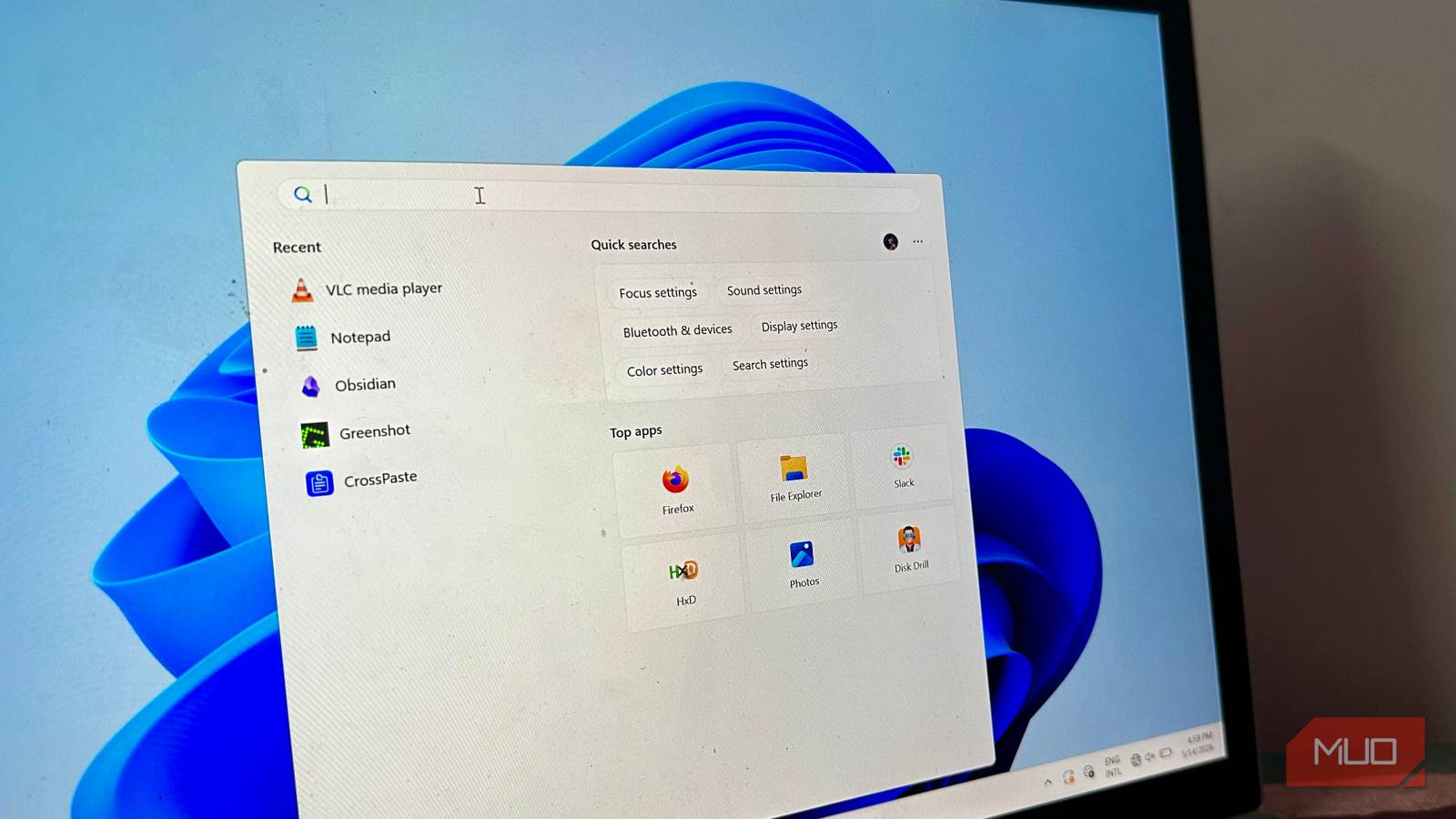
Microsoft constantly adds new features and tweaks to Windows. While a lot of these are well-received, some updates make the user experience worse, like the Windows 11 25H2 Start Menu overhaul. Regardless, I’m always curious to test out new Windows features as soon as they’re available. The only catch is that Windows doesn’t roll out new features to everyone all at once. Instead, these updates happen in a phased manner, and it’s downright conspiratorial how I always end up in the last group to receive them.
But thanks to an app called ViVeTool, I simply don’t care if I’m in the last group anymore, because it lets me enable new Windows features weeks before their official rollout date. It can do this because Windows Update usually installs new features on your PC in advance, but they lie dormant until Microsoft decides it’s time for you to try them out. You can also use the tool to enable experimental features not available on standard Windows releases.
Be ready to type in a few commands though
Despite being a command-line based tool, I found ViVeTool surprisingly easy to install and use. In fact, there’s no installation as such: simply download the ViVeTool ZIP file from GitHub, and extract its contents to a location of your choice. The exact ZIP file you download depends on the processor you’re using. If your PC is running a regular x86 or x64 chip, choose the one with “IntelAmd” in its filename. If you’re installing ViVeTool on a device with an ARM64 chip, pick the ZIP file that has “SnapdragonArm64” in its filename.
You’ll use ViVeTool via the Command Prompt. So, once you’ve extracted the ZIP file, launch an elevated instance of Command Prompt, type cd followed by the path where you copied the contents of the ZIP file to. In my case, I extracted the archive to a folder called “ViVe Tool” on the C: drive, so my command looked like cd C:ViVe Tool. Now, you can begin using ViVeTool to enable hidden Windows features.
The vivetoolcommand lists all available commands and what they do. There are a bunch of them, but the most important ones are:
-
/enable: Enables a feature. -
/disable: Disables a feature. -
/query: Lists all existing feature configurations on your PC and their status. -
/fullreset: Switches all feature configurations you’ve overridden using ViVeTool back to default.
To enable a feature, type in: vivetool /enable /id:XXXXXXXX, and press Enter, where the Xes stand for the unique feature ID. Usually, you’ll need to restart your PC for the changes to take effect, but you can get away with just restarting certain processes like explorer.exe if the changes were related to them. You can also enable multiple feature IDs at once, by separating each one with a comma. The first thing I did after downloading ViVeTool was enable the new Start menu customization settings (feature ID: 61754985) that were part of the September update but were still disabled on my PC. And as much as I love to dunk on Windows, the ability to resize and customize the Start menu without using third-party tools is actually useful.
But you’d still want to be careful

ViVeTool interacts directly with the Windows FeatureManager API and identifies available features using Feature IDs. It also identifies their state (Enabled/Disabled), and lets you change them. What it doesn’t do, is inject DLLs or “hack” anything. This makes it unlikely that you’ll brick your device as a result of tinkering around with ViVeTool.
However, some Windows features are experimental by their very nature, and you may run into the occasional bluescreen or face other issues if you enable them. My advice is to enable one feature at a time and see how it works; if it’s problematic, you can always disable it using the /disable command. Additionally, you can use the vivetool /fullreset command to disable reverse all changes you made using ViVeTool. Or you could create a System Restore Point before enabling a single feature.
Finding feature IDs to enable in ViVeTool
You’ll need to know the feature ID for the specific feature you want to enable in your Windows build. While you can always Google this information, my favorite resource for it is phantomofearth‘s X profile. They constantly post the latest Windows features along with the feature IDs. You can also use the vivetool /query command to list all available features and their feature IDs on your current Windows build along with their current status. However, some experimental features could be missing from the output.