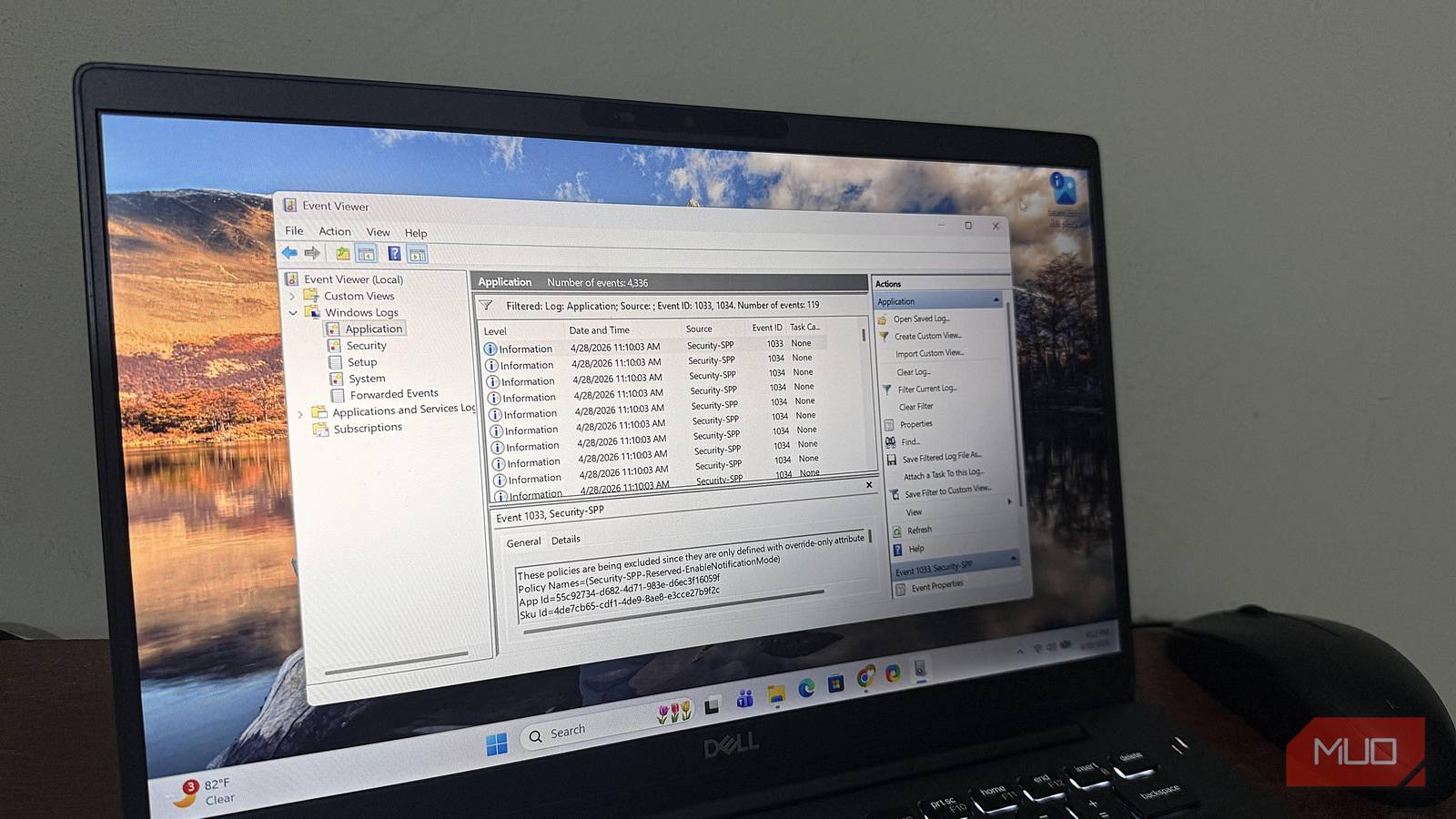
My Windows 11 laptop has been taking forever to boot up after a restart lately, and it’s getting really annoying. I already checked the Startup Apps page in Task Manager, but that only shows which programs open automatically and a rough estimate of how much they slow things down. I wanted to see what Windows was actually doing during all that time.
As it turns out, Windows keeps a detailed log of every boot, including exact times and warnings about specific apps that slow the system down. All this data was just sitting there in Event Viewer, waiting for me to go find it.
Windows had already timed every slow startup
Event 100 had the numbers, right down to the millisecond

Event Viewer keeps these measurements under a rather obscure corner of Windows, and you can inspect them without installing anything or wrestling with Terminal commands.
Here’s how to find the records:
- Press Win + R, type eventvwr.msc, and hit Enter.
- Expand Applications and Services Logs > Microsoft > Windows > Diagnostics-Performance > Operational.
- Click Filter Current Log in the right pane and enter 100-199 in the Event IDs box.
- Find the most recent Event ID 100 and select it to see your boot duration under General.
- Switch to Details > XML View to see how Windows spent that time.
If the Operational log is turned off, you’ll need to enable it so it can track your next reboot. Windows keeps only a rolling history here, so you won’t see a permanent record of every boot since the day you bought the PC.

On my first check, Event 100 showed 123,343 milliseconds—about two minutes and three seconds. That sounded terrible at first, until I looked at how Windows actually splits up that time:
- MainPathBootTime (71.6 seconds): How long Windows takes to start up and reach the desktop, excluding the time your PC spends initializing its firmware.
- BootPostBootTime (51.7 seconds): How long Windows takes to settle down after the desktop appears, while background services and startup programs finish loading.
Digging deeper, BootExplorerInitTime, which tracks Windows Explorer’s initialization as the desktop interface loads, took 43.4 seconds. I checked a log from two days prior, and it took almost the exact same amount of time.
A slow interface load can happen when your hard drive is slammed with too many tasks at once, or when other background parts of Windows fight to load at the same time. That gave me a good place to start investigating, even if the measurement couldn’t tell me exactly what was holding Explorer up.
For consistent full-boot comparisons, use Restart instead of shutting down and turning your PC back on. Windows uses a feature called Fast Startup when it’s enabled for normal shutdowns, which handles the boot process differently and can skew comparisons.
Event Viewer started naming names
The usual suspects weren’t quite so usual
While Event 100 gave me the big picture, the nearby warnings were where Windows started naming names and pointing fingers.
Here is how Windows breaks down the main troublemakers:
- Event ID 101: Flags apps that took way longer than they should have to load.
- Event ID 102: Flags drivers (the software that lets your hardware talk to Windows) that cause delays.
- Event ID 103: Spots slow services (background tasks that run automatically).
- Other Event IDs will even show you if specific system rules or policies are holding things up.
On my laptop, Event 101 had a lot to say. During one boot, it flagged SearchHost.exe (the Windows Search tool) for slowing things down by 1.2 seconds. Another log called out Microsoft Defender (MsMpEng.exe), showing it took 21.3 seconds to start up, with 16.3 seconds flagged as degradation.
I dug through an older boot and found Defender had been flagged again for a remarkably similar 17.1-second delay, which made it a much more interesting suspect than an application caught dawdling once. I wasn’t about to gut my antivirus over a few seconds, though.
Each warning lists Total Time, which measures how long the application took to start, and Degradation Time, which shows how much longer Windows reckons it took than expected. You can’t simply add those figures together to calculate the overall boot delay, since multiple processes can start at the same time. A warning is also more useful when the same process keeps appearing across several slow boots than when it appears only once.
The most eyebrow-raising result came during my next round of testing, when Event Viewer reported that Microsoft Edge took 36.6 seconds to start, with a whopping 31.6 seconds marked as degradation. That’s a pretty spectacular amount of time for a browser to spend getting out of bed, and I might have blamed Edge on the spot if I hadn’t known what happened before that restart.
I’d installed a Windows update beforehand, and Edge had opened automatically after startup to show me what the update included. That particular boot clocked in at 148.6 seconds, making it the slowest of my tests. I restarted the laptop again afterward, and Windows reported a much healthier 114.4 seconds, with Edge conspicuously absent from the degradation warnings.
That little episode saved Edge from an unfair roasting and gave me a good reason to check the circumstances surrounding each warning before tinkering with anything. If I’d rushed straight into cutting down background processes, I would have wasted a whole day trying to fix an app that was simply doing its job after a routine update.
I tried removing one suspect from the equation
The numbers improved, although the verdict stayed messy

One app showed up in two restarts in a row, including the one right after a Windows update. It’s called CrossDeviceService.exe, Microsoft’s Cross Device Service, and Windows flagged it for 4.7 and 7.0 seconds of degradation.
I use Phone Link with my Samsung phone, so I went to Settings > Bluetooth & devices > Mobile devices to check. My linked phone had several features turned on, including access through File Explorer, photo notifications, and cross-device features.

That made it a good candidate for a test I could easily undo. I temporarily turned off the option that lets Windows access my phone’s content and features, restarted, and checked Event 100 again.
Here’s what Windows recorded:
|
Metric |
Before |
After |
|---|---|---|
|
Total boot time |
114.4s |
110.2s |
|
Main boot path |
40.9s |
29.4s |
|
Post-boot processing |
73.5s |
80.8s |
|
Explorer initialization |
21.8s |
13.9s |
At first glance, the results looked promising. The main boot path had shed 11.5 seconds, and Cross Device Service had vanished from the degradation warnings. Then the post-boot figure came along to spoil the celebration. Background processing had grown by 7.3 seconds, eating up most of the improvement and leaving the overall boot time only about four seconds faster.

There was another reason to keep the champagne corked. One of my earlier restarts had already finished in 110.5 seconds with mobile-device integration still enabled, which was almost identical to the result after I switched it off. With only a single restart following the change, I couldn’t fairly give that setting the credit, even if Cross Device Service had stopped appearing in the warnings.
That’s how I’d recommend using Event Viewer when you’re trying to tame a sluggish startup. Look for recurring offenders, use the measurements to decide which startup programs you might want to disable, and test optional features one at a time so you can reverse changes if they don’t help. Run several restarts before declaring victory, and resist the temptation to start disabling essential Windows services or security software just because their names appear in a warning.
If the logs keep pointing to a slowdown without enough detail to pin it down, recording a full boot trace with Windows Performance Toolkit can take the investigation further. It exposes CPU, disk, and process activity that Event Viewer’s summary events leave out, which is handy when Windows tells you there’s a traffic jam but hasn’t quite worked out who’s blocking the road.
Event Viewer earns its keep
I’ve developed a grudging appreciation for Event Viewer’s rather prehistoric interface. It has all the charm of an accountant’s filing cabinet, but at least the accountant came prepared with timestamps, measurements, and a few names to investigate.
I’ll take that over another afternoon of changing Windows settings on a hunch.