I’ve been using the Samsung Galaxy Book6 Pro for a while now, and as AI becomes a bigger part of my everyday workflow, I started wondering which apps on my Windows laptop actually rely on it.
That’s when I discovered Windows makes this surprisingly easy to check. In just a few seconds, I could see which apps had requested access to on-device AI over the past seven days, along with a detailed activity history. It gave me a much clearer picture of what was happening under the hood.
The AI breadcrumbs are all there
Every app that taps on-device AI leaves a trail

Before getting into which apps use on-device AI, I think it’s worth taking a quick step back to understand what it actually means. In simple terms, on-device AI is exactly what it sounds like: instead of sending your requests to a remote server somewhere, the AI models run directly on your laptop using its CPU, GPU, or NPU.
That approach comes with some pretty obvious benefits. Because everything happens locally, responses are usually faster, certain features continue working even without an internet connection, and your data doesn’t need to leave your device. For someone like me, who regularly handles work files, documents, and personal information, that’s reassuring.
There’s also another benefit that doesn’t get talked about enough: cost. Since the processing is happening on your own hardware, you’re not relying on cloud-based AI services that may come with subscriptions, token limits, or usage-based fees. Once you have the hardware, you’re essentially using what you’ve already paid for.
That said, I’ve also noticed a trade-off. Running AI models locally puts more strain on the laptop. The hardware has to do the hard work, and some of these features can be surprisingly demanding. Over time, I’ve noticed the system feels warmer than usual, and multitasking isn’t as smooth as I’d like.

Now, to be fair, I live in India, where the weather doesn’t exactly do laptops any favors. But I’ve noticed the same behavior even while working in air-conditioned rooms, so I don’t think the temperature outside tells the whole story.
And no, I’m not suggesting on-device AI is single-handedly responsible for every slowdown I’ve experienced. Laptop performance depends on dozens of factors, and I’ve spent plenty of time tweaking settings, managing background services, and trying different optimizations. Still, after using AI-powered features more frequently, it’s hard not to feel they’re contributing to the extra strain on my system.
Want to know who’s using AI? Start here
It only took a minute to see which apps were using on-device AI

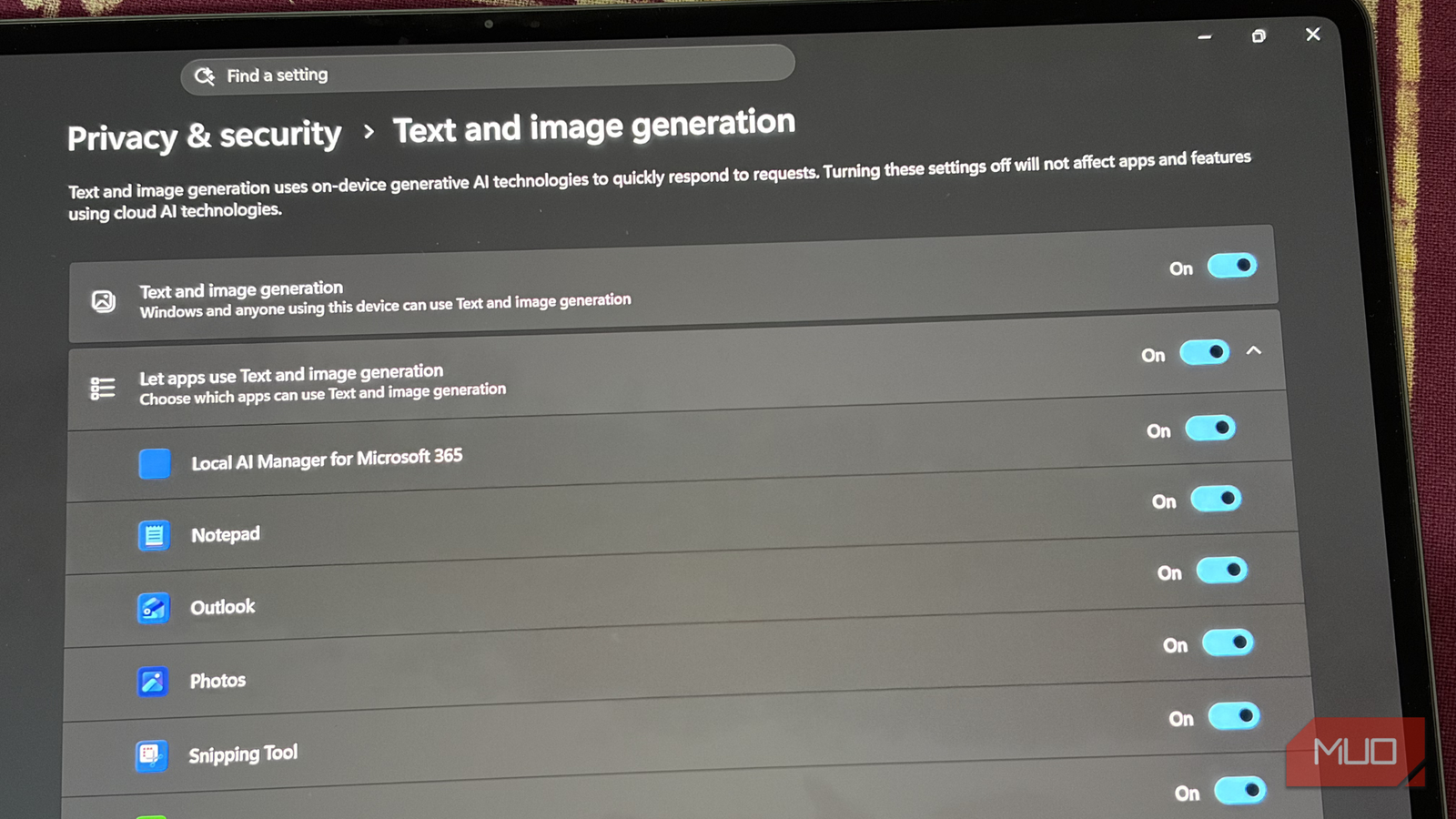
If you’re also curious about which apps are tapping into on-device AI, Windows doesn’t exactly put the setting front and center, but it’s surprisingly easy to find once you know where to look. Open Settings, go to Privacy & Security, scroll to the bottom, and clickText and image generation.
What caught my attention was the Recent activity section. Along with listing every app that’s allowed to use on-device AI, Windows also keeps a log of every request made over the past seven days. It takes the guesswork out of what’s happening behind the scenes by showing you exactly which apps have used these AI capabilities.

What I appreciated most is that Microsoft doesn’t hide any of this. Every app has its own toggle, so you’re always in control of what gets access. On my Galaxy Book6 Pro, apps like Notepad, Outlook, Photos, Snipping Tool, and Xbox had permission to use on-device AI.
Seeing that list also made me rethink which apps really needed access. For example, Notepad uses on-device AI to rewrite text, summarize notes, and assist with drafting, while Photos relies on it for features such as Generative Erase and AI-powered image edits. Those are useful if you regularly use those apps, but I rarely open Notepad or Xbox, so I simply turned their toggles off.
Your list will probably look different depending on the apps you use every day, but now that you know where to find the setting, it’s easy to review everything and disable access for apps you don’t need. And if you don’t use any of these AI-powered features at all, you can simply turn off text and image generation altogether from the same page.
It’s not a miracle fix, and that’s okay
Checking this page gave me a much better understanding of which apps were actually using on-device AI and which ones I could comfortably turn off. Did it completely transform my Galaxy Book6 Pro? No. But even small improvements are worth chasing when they add up over time.
What surprised me is that I’ve only been using this laptop for a few months, and I’m far from a power user. Most of my day is spent writing, researching, and occasionally unwinding with a movie on Netflix. Even with that fairly light workload, I’d started noticing the laptop getting warmer than I’d expected and feeling sluggish sporadically.
Disabling a couple of AI permissions didn’t suddenly make my laptop feel brand new, but it did remove a few things I wasn’t using in the first place. More than anything, I liked knowing what was actually happening instead of just assuming everything was fine. Even if your Windows laptop isn’t giving you any trouble, I’d still recommend taking a quick look at this page. You might find an app using on-device AI that you haven’t touched in ages, and if you don’t need it, switching it off is as simple as flipping a toggle.