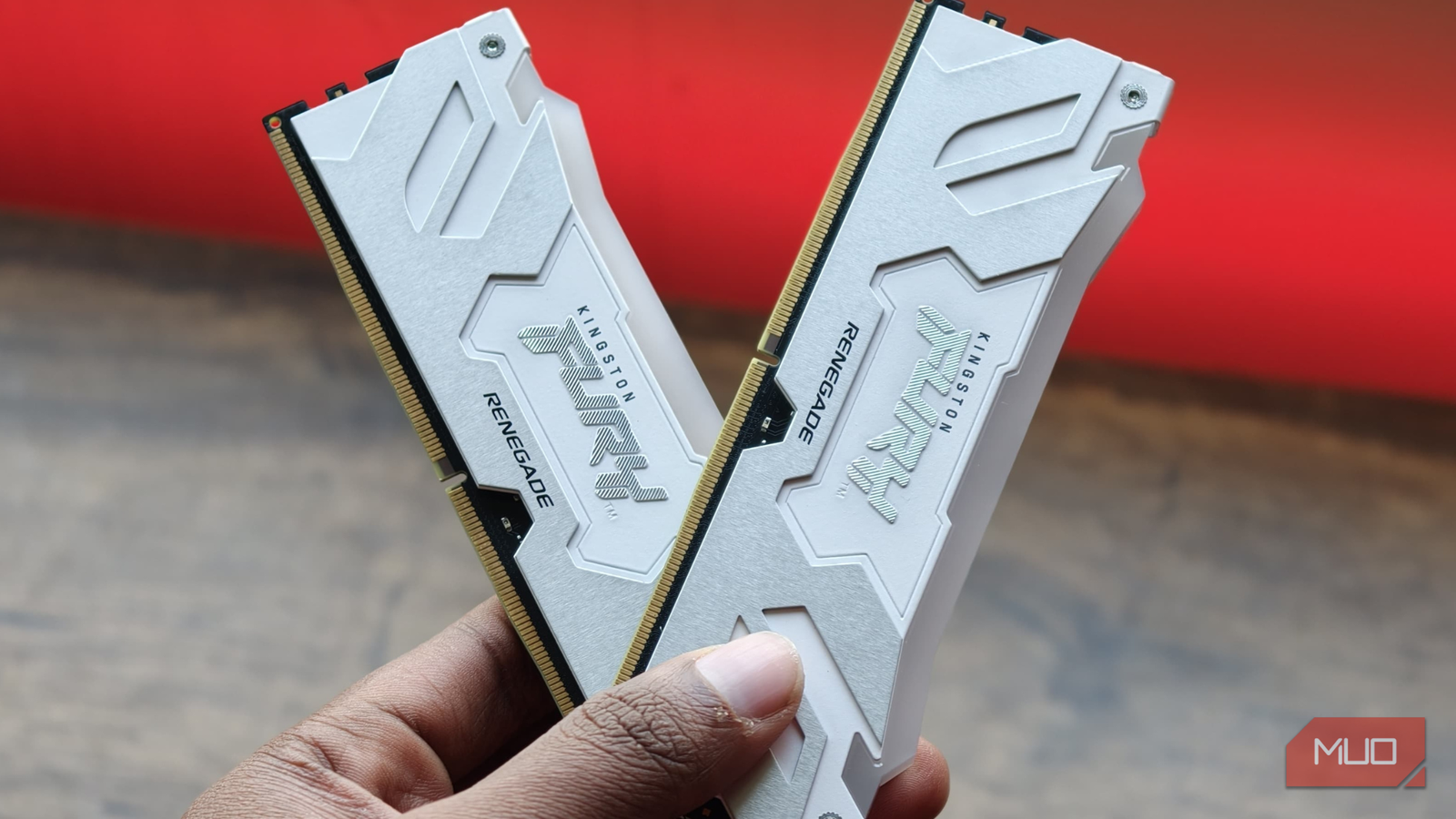
The Blue Screen of Death (BSOD) is a name that sends a shiver down the spine of any PC owner. Memory-related issues are a common cause of these crashes. However, a quick diagnostic test from Windows itself will most likely clear your RAM of being the fault, even when it’s the real problem, sending you off to chase other components that aren’t actually at fault.
I went through a similar experience, and it was wrong of me to trust Windows Memory Diagnostic. After hours of futile diagnosis, I gave MemTest86 a try, a standalone memory diagnostic tool.
After an overnight run of 14 distinct test algorithms, I pinpointed the faulty RAM kit, and finally ended my seemingly endless run of BSODs.
My games stopped crashing after I ran this tiny Windows tool
After weeks of random game crashes, a tiny Windows tool fixed what drivers and settings couldn’t
My PC was crashing, and Windows had no idea why
A clean scan that didn’t match my crash logs

Generally, a BSOD error can mean a thousand things — either a software or a hardware issue. Even if it’s a hardware flaw, it’s important to check the error code you’re getting before blaming the RAM as the culprit (a failing memory often results in a MEMORY_MANAGEMENT BSOD).
Anyhow, my first instinct was to check my RAM because I got a MEMORY_MANAGEMENT BSOD error, so I naturally used the native Windows Memory Diagnostic tool to see if the memory was at fault. To my surprise, the Windows Memory Diagnostic tool actually told me my RAM was fine, and for a moment there, it left me scratching my head because the BSOD errors persisted.
The test Windows runs for your RAM is shorter than your lunch break
15 minutes isn’t enough for modern RAM kits

One thing that I’ve realized is that Windows Memory Diagnostic is unreliable. Often, it can’t pinpoint the actual fault in your memory because it’s designed for quick diagnosis, whereas modern RAM requires far more scrutiny.
The BSODs I was getting only occurred when my RAM was under stress during intense workloads or while playing AAA games with visual settings cranked to the max. They were almost guaranteed, but only happened after hours of stress. Windows Memory Diagnostic runs a basic, fast scan that lasts only around 15 minutes. With its limited testing, Windows Memory Diagnostic couldn’t replicate the exact issue causing my memory to fail; it isn’t well-equipped to keep pace with modern RAM due to the complexity of frequency, timing, and other factors.
MemTest86 picks up where Windows Memory Diagnostic falls short
One overnight test will point out any mistakes in your RAM
To get a better diagnosis of my RAM, I ended up installing MemTest86, an industry-standard tool for checking memory issues that runs outside any OS, from a bootable device. Unlike Windows Memory Diagnostic, MemTest86 aggressively tests your memory with 14 core algorithms, including Address Test, Moving Inversions, Block Move, Random Number Sequence, Bit Fade Test, Hammer Test (with different variations), and an additional experimental option: the DMA test, which can be enabled separately.
Together, these tests check for issues in your memory cells, unstable overclocks, timing instability, pattern errors, aging memory, temperature-related issues, and so on. In a nutshell, this is nearly every possible test to check whether your RAM is working properly, and a lot of these tests don’t appear in Windows Memory Diagnostic.
Depending on how much memory and CPU you have, these tests can take anywhere from 20 minutes to overnight. The CPU is responsible for generating most of these patterns, which is why it also plays a role in this test. Furthermore, you can choose how many passes to run, because on earlier passes, the error might not appear and could be a temperature or timing-related issue, only apparent after prolonged use, which was the case for me. I personally recommend going for 4 passes or above to get an accurate test, which will take you nearly a full night to diagnose.
What to do if MemTest86 finds errors
Don’t replace your kit immediately without ruling out all factors

Since running this test, I’ve replaced my RAM, but if you encounter an error while running MemTest86, don’t worry — this isn’t the end of the world, at least not yet. Errors that trace to a single stick indicate that the stick or the DIMM slot is the culprit. If the error still continues even after replacing the memory, the issue could lie in your CPU’s IMC.
Other than that, some errors could suggest that your overclocking profiles aren’t stable. MemTest86 supports all RAM, including EXPO/XMP-supported kits, and I recommend testing the kit with or without these profiles enabled for greater clarity.
However, if your RAM is encountering thousands of errors during the test, it most likely indicates a faulty kit that might need to be replaced or RMA’d. Regardless, I do suggest swapping memory sticks in your DIMM slots, testing individual RAM sticks, and resetting memory voltages/timings to default before writing off your RAM entirely.
Windows isn’t wrong to trust — just don’t trust it alone
Now, it’s not to say that Windows Memory Diagnostic is a complete waste. It can potentially rule out your memory problems right then and there. However, for most, it won’t, since it lacks many of the testing algorithms that MemTest86 has, and the latter will give you a more definitive answer on whether your RAM is to blame or another component.