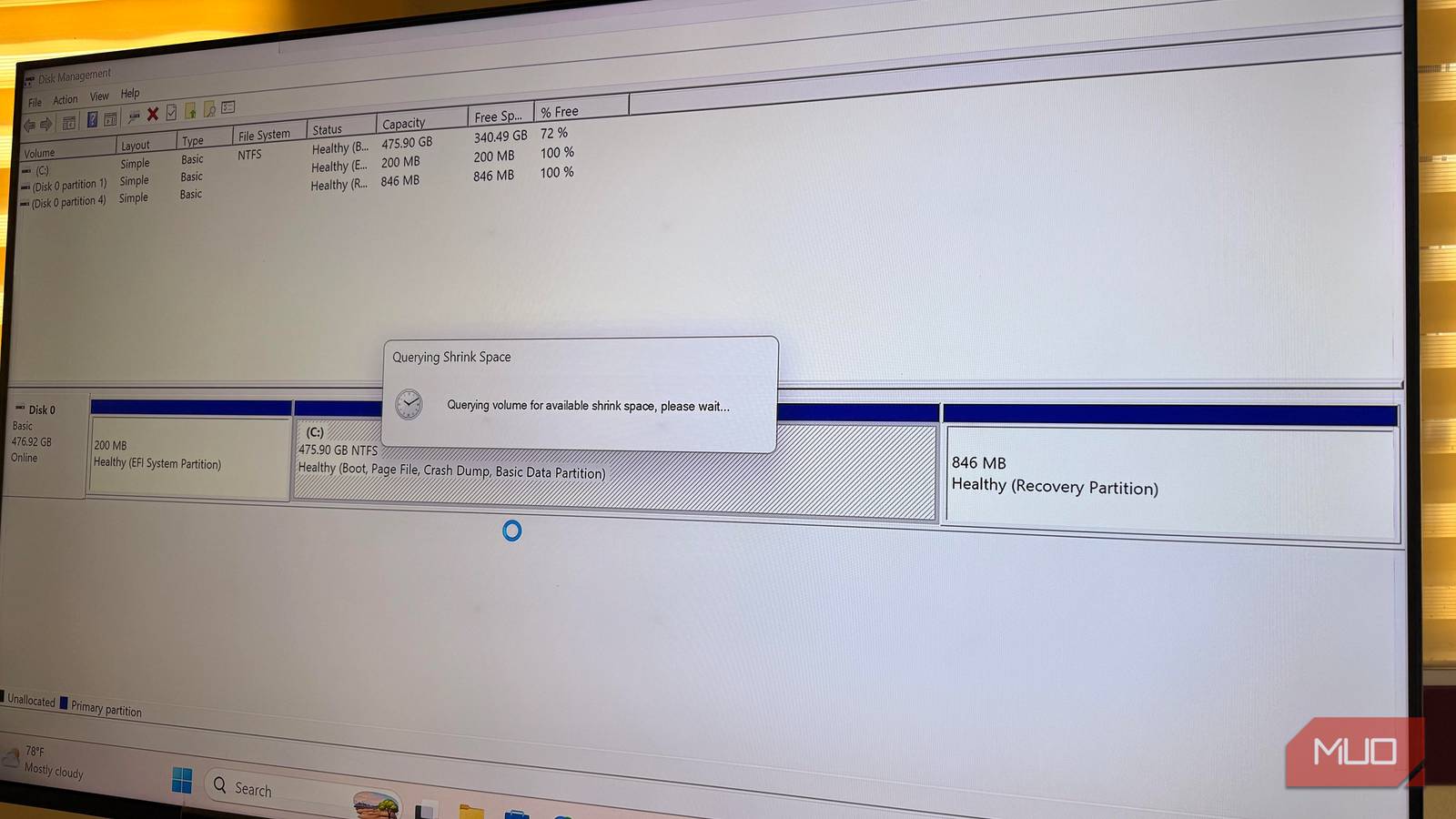
I almost accepted it when Windows told me that it could only shrink 290GB of the 342GB I had free. While there was room to spare on my C: drive, Disk Management was simply refusing to hand a good part of it over.
Since I wasn’t willing to leave that space unrecovered, I turned to a tool that could resize the partition outside Windows. In the end, I realized that the space wasn’t impossible to reclaim. Windows simply couldn’t shrink the partition as far while it was running.
Windows saw 342GB free but would only shrink 290GB
The number didn’t change, even after I started deleting things
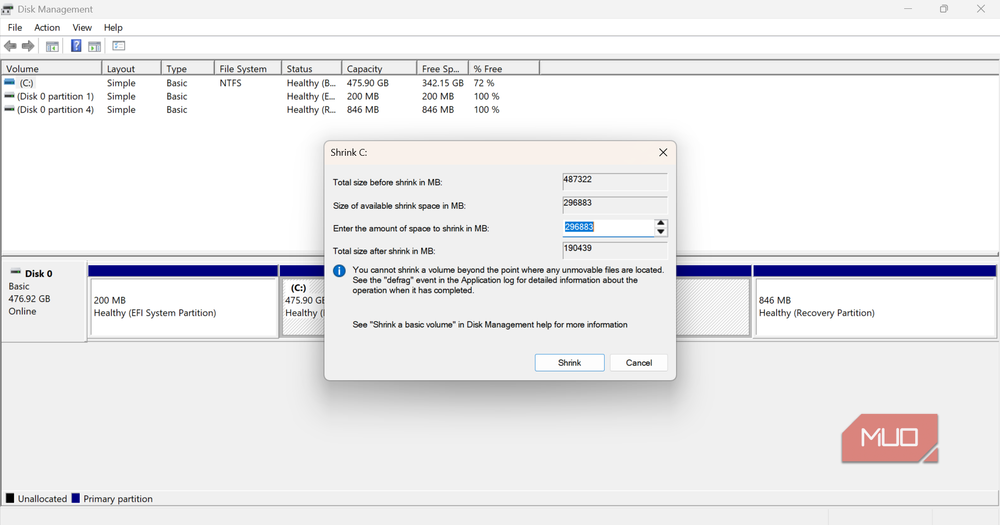
On my C: drive, there was 475.90GB. Of this amount, Disk Management marked 342.15GB as free. When I right-clicked the partition and selected Shrink, it took a few seconds to calculate, and here were the results:
|
Capacity |
475.90GB |
|
Free space |
342.15GB |
|
Maximum shrink |
296,883MB (≈290GB) |
Windows uses GB/MB, while GParted uses GiB/MiB. The units differ, so I’ve kept each tool’s original figures throughout the article.
What I was getting was 296,883MB rather than 342. In other words, all Windows planned to hand back was 290GB. For some reason, it was reporting about 52GB more free space than it was willing to include in the shrink operation.
At least it was withholding the storage for a reason, even if that didn’t make me feel better: “You cannot shrink a volume beyond the point where any unmovable files are located.”
This policy statement meant that Windows had encountered an unmovable file or other data near the point where it wanted to end the volume. I couldn’t identify exactly which item was responsible from Disk Management itselfhttps://www.makeuseof.com/ways-open-disk-management-windows-10/.
I needed to figure out what this might be. I disabled hibernation to remove hiberfil.sys and free space; this seemed unlikely to cost me anything important. Nothing happened to that shrink limit. So I proceeded to clear System Restore points. This time my theory was that shadow copy storage might be planting itself in the wrong spot.
Again I got the same result; 296,883MB, down to the megabyte.
It was at this point I stopped treating the missing space as something I could clean up. Whatever was limiting the shrink, removing those files hadn’t changed the boundary Windows was willing to use.
Free space and shrinkable space aren’t the same thing
Windows has to move more than just empty space
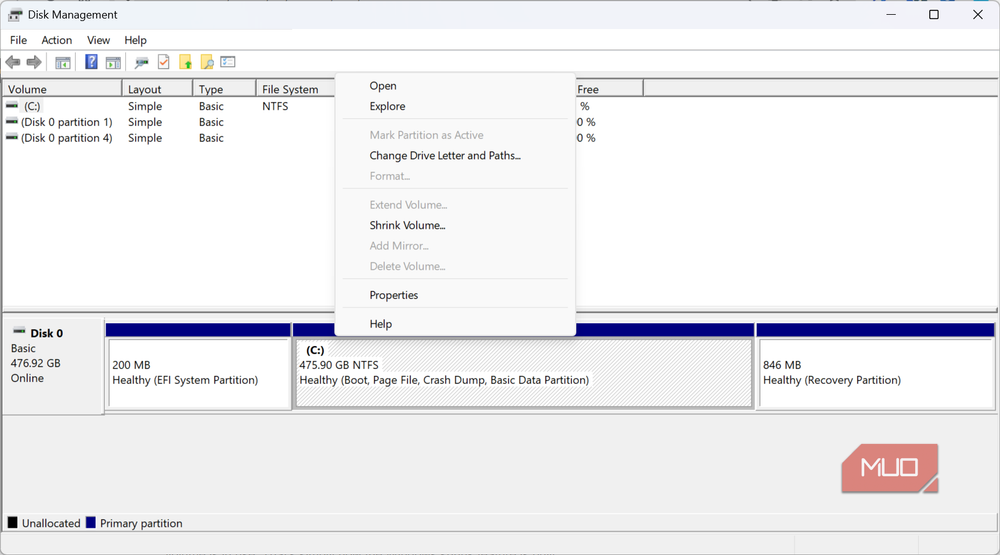
When you shrink a partition, Windows doesn’t simply reclaim empty space wherever it finds it; shrinking reduces the volume from its end, and unmovable files can limit how far it can go.
Windows has to reduce the volume from its end, and files or filesystem structures that can’t be moved can determine where that new boundary can stop. This can be the case even when there is more free space past that specific file.
For this reason even Microsoft’s own documentation on drive shrinking doesn’t promise you’d get the entire free space back. In plain terms, your reclaimable amount is often less than the total free space, since it may be impossible to relocate certain files as long as the volume is in use. That’s simply how the Windows shrink feature is built.
In my case, the difference was roughly 52GB. It wasn’t wasted space or a misreported drive. It was free space that Windows’ own shrink operation wouldn’t reclaim while the OS was running, even after I disabled hibernation and removed the restore points.
GParted went after the space Windows wouldn’t touch
Taking Windows out of the equation changed the result
I finally decided to stop asking Windows to do what it simply couldn’t. I turned to GParted, a free, open-source graphical partition editor. I put it on a USB drive and booted from it. Windows itself was untouched, and I was able to work entirely from outside my Windows installation.
I was no longer running Windows from the partition I was resizing, so GParted could work on it offline rather than trying to shrink a live Windows volume.
The numbers GParted reported after examining the C: partition were very different.
|
Windows |
GParted |
|
|---|---|---|
|
Original size |
487,322MiB |
487,322MiB |
|
Maximum shrink |
296,883MiB |
347,688MiB |
|
Remaining partition |
190,439MiB |
139,634MiB |
|
Additional space reclaimed |
— |
50,805MiB |
50,805MiB is about 49.6GiB, or roughly 53.3GB.
Both tools worked with the same 487,322MiB partition size. While Windows offered 296,883MiB of shrink space, GParted could free up to 347,688MiB.
Comparing the two results, I found that GParted could free 50,805MiB, or about 49.6GiB, more than Windows’ shrink tool allowed.
The resize process itself was clean. It didn’t return any errors or warnings for me. The first reboot into Windows was different, though: instead of going straight to the desktop, Windows ran an automatic disk check before rebooting.
The second boot was normal, and Disk Management then showed my C: partition at 136.36GB, with 339.54GB of unallocated space.
Before resizing a partition, make sure anything important on it exists somewhere else; changing partition boundaries is not something I’d treat as a zero-risk operation.
Windows had a limit that my partition didn’t
Windows really wasn’t lying. It was telling me what its own shrink tool could do while the C: volume was in use. Once I booted outside Windows, GParted could resize the unmounted partition further, freeing almost 50GiB more than Windows had allowed.
Here was the main difference: Windows was telling me what its own online shrink tool could reclaim; GParted, working on the partition offline, could go further.