I’ve used enough Android phones to know that a phone doesn’t suddenly become slow just because it’s a couple of years old. More often than not, performance problems come down to how you’re actually using the phone, not just how old it is. So before you think about retiring your old Android phone, make sure you’re not making these five mistakes.
Ignoring those low storage warnings
Give Android some breathing room
Your Android phone’s performance largely comes down to the processor and RAM, but storage plays a role too. Android uses the local storage to write cache and temporary files while you’re using apps and doing other things on your phone. When your phone is running low on storage, Android has less room to work with, which forces it to delete the cache constantly. That extra activity often always results in a lag.
According to Google’s official support page, Android needs at least 10% of the total storage free to work smoothly. So yes, if your phone is running out of storage, that’s the first thing you need to fix.
You can do the usual, like delete apps you aren’t using and move some of the data to the cloud. If you need a bit of help with this, Files by Google app has a Clean section that can help free up storage quickly.
Not managing background apps
A few resource-hungry apps can add up

Android is pretty good at managing background apps, so you generally don’t need to keep clearing the Recents menu. Still, background activity isn’t something you should ignore completely, mostly because not every app is particularly well-optimized. And it only takes a few rouge apps to make your phone feel slower than it should.
You can find such apps by heading to Settings > Battery. Look for apps with high battery usage and very little screen-on time. This is usually a good indication of an app doing a bit too much in the background.
If you don’t want to uninstall it, head to Settings > Apps > [App Name] > Battery and choose Restricted. This will stop the app from running wild in the background. You’ll need to do this for every app that seems to be doing too much in the background.
Believing virtual RAM makes your phone faster
More RAM doesn’t mean better performance
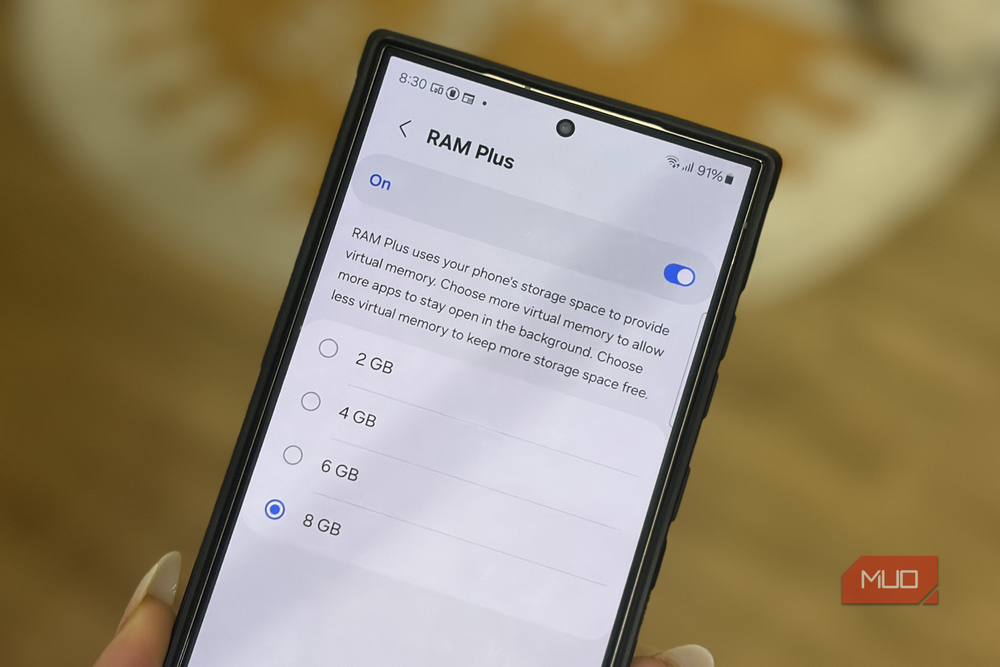
Virtual RAM (or RAM Plus) is one of those features that phone manufacturers love to market. It’s often presented as a clever way to add more RAM to your Android phone and make it faster. In reality, though, it can make things worse.
Virtual RAM uses a portion of your phone’s internal storage as spare RAM. On paper, it looks like your phone has a few extra gigabytes of RAM. But since storage isn’t as fast as actual RAM, your phone takes longer to load data that’s stored in virtual RAM. The problem is even worse on midrange phones where the storage isn’t as fast.
Virtual RAM comes pre-enabled on most phones, but there’s no point in keeping it on if your phone already has 8GB or more RAM. You can turn it off by heading to Settings > Device care > Memory > RAM Plus.
Using battery-saver mode all the time
It’s not meant to be a permanent setting

Android’s battery saver mode can be a lifesaver when you’re away from a charging port, but it’s not something you should use all the time. I see a lot of people leaving it on to squeeze a little more battery life out of their phone, but it’s just not worth it.
When you enable it, Android restricts processing power to save battery. Galaxy phones, for example, cap the CPU usage to 70% when the battery saver is enabled. It also limits screen refresh rate to 60Hz, so things like scrolling and gaming don’t feel as smooth as they normally do.
If you’re keeping power-saving mode just because the battery doesn’t last all day, a more practical fix is to get a power bank or replace the battery if necessary.
Not disabling unnecessary visual tweaks
You don’t need them on

If you’re still not satisfied with the performance after the above tweaks, you can disable all the visual effects and animations Android shows. By default, when you switch apps and open menus, Android plays little animations to make everything look smooth. But on an old or budget Android phone, these same effects can end up making everything look slow.
Turning off animations is a classic trick for making the phone feel snappier. Head to Settings > About phone > Software information and tap the Build number multiple times repeatedly to unlock the Developer Options menu. Return to the main Settings page, choose Developer Options and disable Window animation scale, Transition animation scale, and Animator duration scale.
This saves the processor from spending resources on those animations, so apps and menus feel like they’re opening quickly. If that feels abrupt, you can set these three options to 0.5x instead.