Let me start by saying that I don’t back up half as often as I think I should. I often push it to the next deadline, but end up not doing it, mainly because my device doesn’t make backups feel urgent.
However, after I opened my drive’s health report, this old habit was suddenly much harder to justify. The health report can show specific warnings that the regular “5 signs your PC is dying” listicle omits. These warnings can go unnoticed, and the rest of your computer may carry on normally till it becomes too late.
Your drive can be failing and still work perfectly
The warning doesn’t interrupt anything on your screen

What caught me most off guard was that my computer was working perfectly well while the SSD was reporting information about its condition. I wasn’t experiencing lag and crashes or seeing pop-ups saying “your storage device has failed.” On the surface, as long as Windows was booting and files were opening, it was easy to miss potential problems. This now makes sense to me because normal use isn’t where the useful warning signs necessarily appear.
HDDs and SATA SSDs commonly expose health information through SMART. On NVMe SSDs, similar information is exposed through the NVMe SMART/Health Information Log, which uses a different structure. The information comes from the storage device, while Windows or a monitoring tool reads and interprets what the drive reports.
The information can go unnoticed because normal Windows use doesn’t require you to inspect these detailed health counters. A drive can still read and write normally while its health information is already showing a problem. So the fact that a drive still works doesn’t mean it’s trustworthy, and opening a file only tells me that it still works.
Now, SMART isn’t some crystal ball. Certain drives will still die suddenly without any prior warning. However, when you’re lucky enough to get one, SMART provides a head start.
One scary-looking number rarely tells the whole story
What actually separates a real warning from noise
Just recently, when I pulled up the health reports on a drive, I was shocked by how little the raw numbers explained on their own. I got a reading, but there wasn’t any attached context.
I learned that I have to bring the context myself. My disk happened to be an SSD. SSDs don’t expose the same mechanical indicators as HDDs, and many of their SMART attributes describe NAND flash, reserved blocks, wear, or controller behavior instead.
Some attributes that caught my attention were Grown Bad Blocks (blocks that have become unusable during the drive’s life), Program Fail Count, and Erase Fail Count (failures during writing or erasing). There is also a Media Wearout Indicator that tracks how much of the drive’s rated write-endurance is left. On this particular drive, the indicator was at 74 after more than 15,000 hours of power-on time. I took that as evidence that the drive’s reported wear was not yet close to its own lifetime threshold, but it wasn’t a prediction of how many years the SSD had left.
Another measurement is SATA CRC Errors, and it’s the most likely to trip you up completely. On this particular disk, I saw a raw value of 2. It’s easy to mistake a climbing CRC count for a dying drive, but CRC counts are often unrelated to media failure. It’s often caused by shaky cables or loose connections between the computer and that particular drive. If you misdiagnose it, you may replace a perfectly good drive because of a bad SATA cable, or you may dismiss a real worsening media error as “just the cable.” Both mistakes can be costly.
|
What you’re seeing |
What it can mean |
What I’d check next |
|---|---|---|
|
Grown Bad Blocks, flat at 0 |
No grown bad blocks are currently being reported |
Keep an eye on it over time; check vendor documentation if it starts moving |
|
Media Wearout Indicator, dropping |
Reported wear/endurance has increased with use |
Watch the trend and check the manufacturer’s endurance guidance for this specific drive |
|
CRC errors, raw value of 2 |
Two recorded interface errors, likely from the connection rather than the drive itself |
Investigate the cable/connection if the CRC error count begins to climb |
You should get in the habit of checking the same drive more than once. A reading tells you the status for that very moment, but more readings help you understand if things are getting worse.
Here’s what my own drive was actually telling me
The health flag was the least useful part of the report

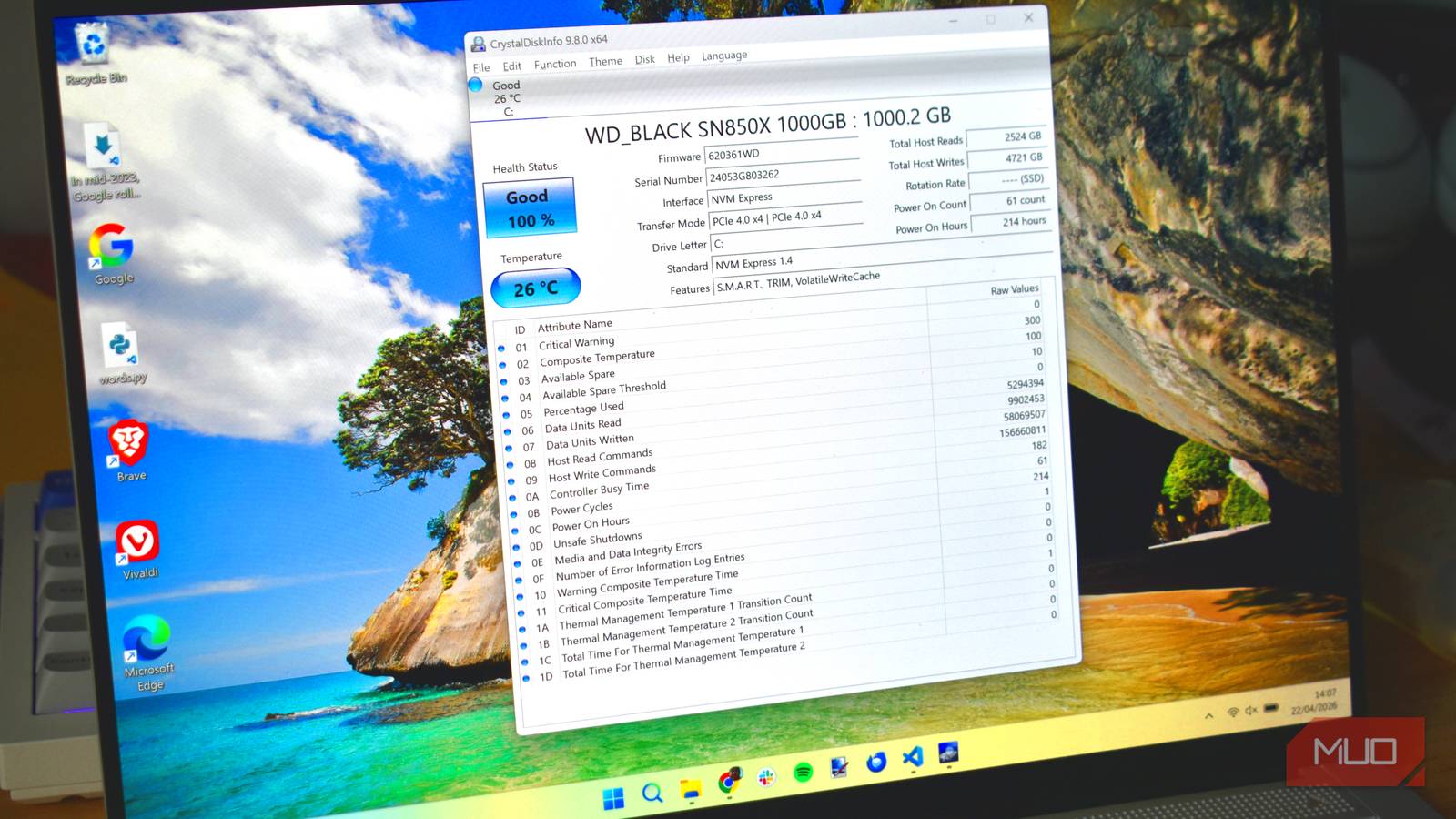
I opened up CrystalDiskInfo. There are several other tools you can use to read SMART data. If you have a machine that has more than one disk, you may need to first pick out the drive by model and capacity (you don’t want to spend time diagnosing the wrong one).
CrystalDiskInfo showed the drive as “Good,” with the relevant wear/life indicator at 74%. But instead of trusting that summary, I looked at the attributes displayed underneath. If I’d stopped at the percentage, I would have missed the underlying evidence.
Program Fail Count and Erase Fail Count were zero, meaning the drive had recorded no failures in those counters. Grown Bad Blocks was also zero. The raw value for CRC errors was still 2, so I wasn’t seeing evidence of the counter increasing during my checks. For this drive, nothing demanded an immediate decision, but seeing what attributes look like on a healthy drive gave more context than a single healthy or failing screenshot. I now know what healthy looks like going forward.
You may also get a drive health reading from Windows’ own storage layer. However, this signal is coarser, meaning that while I may glance at it, I wouldn’t rely on it alone. For external drives or USBs that you check, understand that a blank or missing reading doesn’t mean a clean bill of health. It could mean there is no problem, but could also signal a USB bridge or enclosure that isn’t passing the drive’s health data through.
Protect the data before you play detective
Once your drive throws a genuine warning, make sure its important data exists somewhere else before you start playing detective. Only after you back it up and confirm the backup actually holds the data should you start further investigations.
Stable, healthy readings are reassuring, but they don’t guarantee the drive won’t fail. An odd value that stays stagnant is a call to investigate what the specific attribute means; don’t assume the worst. However, when you see multiple relevant indicators worsening over time, I’d stop treating the drive as reliable storage and make sure I have a replacement plan.
If you get an explicit predictive-failure warning, treat it as a backup-and-replace situation rather than waiting to see whether the drive actually stops working.