I bought my first Mac 25 years ago (an iconic iMac G4 with a whopping 512 MB of RAM), and recently unboxing my shiny new MacBook Air M5 gave me the same rush of excitement I felt back then. As I explored its features and started customizing it to suit my needs, I realized some of macOS’s most useful tools hide in menus and settings you might not think to explore. Some are relatively new, while others have been around for years.
Spotlight can now do much more than look for files
Mac’s search function is now a useful productivity tool
Spotlight is essential for finding files and launching apps, but macOS Tahoe introduced powerful features you can use without leaving the search interface. Now, hitting Command + Space brings up expanded actions that let you do certain tasks directly from search results instead of opening individual applications.
This feature is especially useful for improving productivity at work. For example, when I’m researching an article, I might need to open a document, locate a reference file, or launch a particular app. It may sound like a simple shortcut, but being able to perform these repeated actions so fluidly within Spotlight makes a big difference over the course of a workday.
Liquid Glass makes macOS feel more personal
I gave my MacBook a makeover
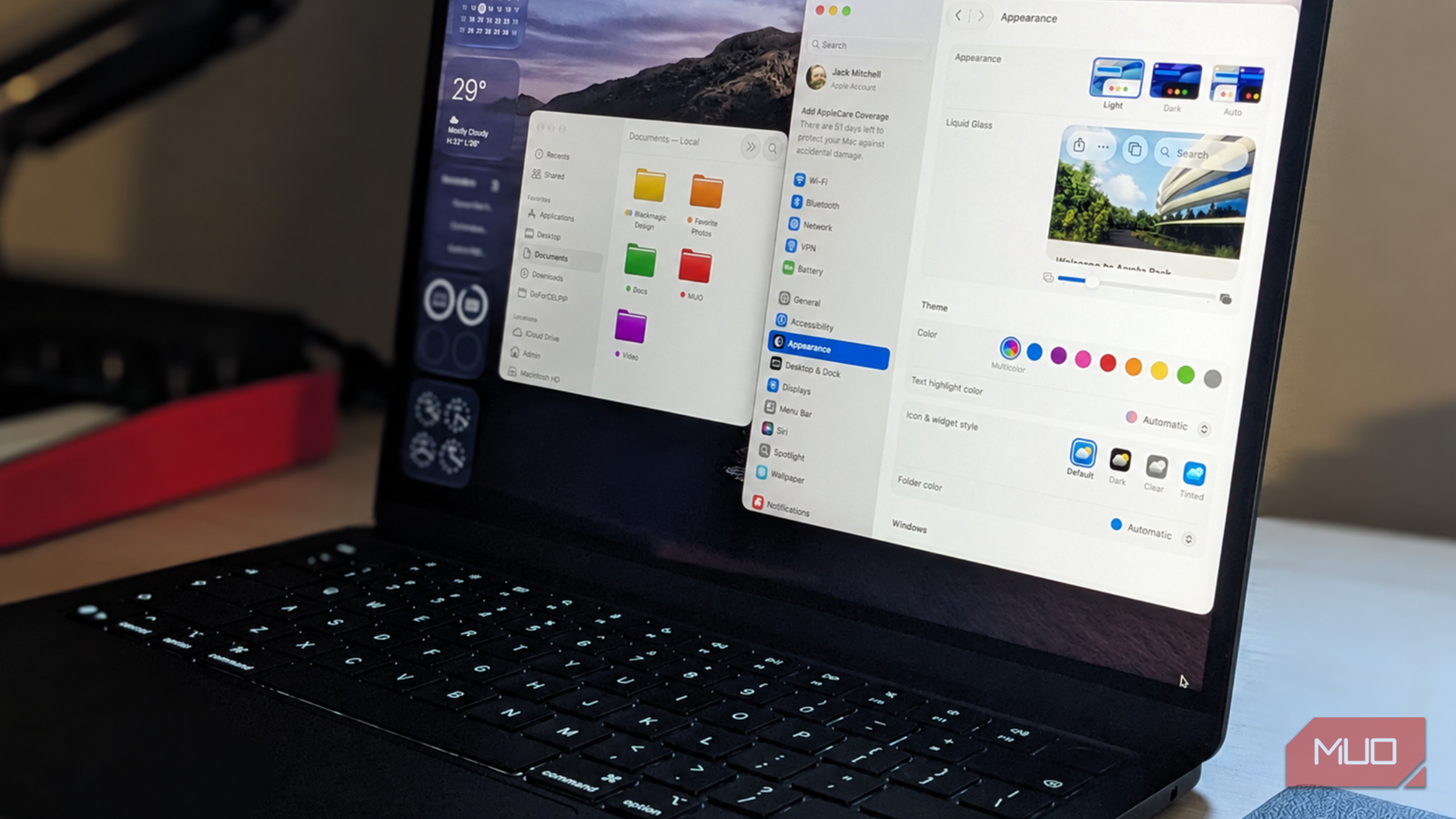
One of the biggest upgrades in macOS Tahoe (and iOS 26) was Liquid Glass, Apple’s redesigned interface that relies on layers and features translucent elements, as the name suggests. You can customize it to suit your preferences instead of settling for the default design, including switching between light and dark appearances, customizing supported app icons, and changing folder appearances.
Because I regularly work with research, screenshots, and article drafts, I like being able to assign different colors to different types of work. This feature makes Finder feel more intuitive and organized, rather than a collection of identical-looking files. While not strictly a productivity tool, Liquid Glass’s custom aesthetics and organization make a big difference to the overall work experience.
Liquid Glass is even more customizable and adjustable in macOS Golden Gate. To get started, right-click a folder in Finder to explore its customization options, or go to System Settings > Appearance to adjust macOS’s overall aesthetic.
Window tiling makes multitasking much easier
No more dragging windows around my desktop

One of my favorite features in Google Chrome is the Split View function, which divides my browser into two windows, say, for writing and research. Here, macOS goes a step further with window tiling, which is ideal for multitasking because it lets me arrange various applications side by side or across the desktop.
I can drag a window towards the edge of the screen to position it, or choose from available layouts by hovering over the green window button in the top-left corner. This is particularly useful when researching a project. I can keep reference material visible while drafting, compare information across two browser windows, or consult my notes without repeatedly minimizing applications.
While it’s not new to macOS, it’s worth exploring window tiling to save time managing your desktop.
Control Center is now more useful
Save unnecessary clicks by customizing quick settings

I overlooked Control Center for a long time; however, I’ve recently been focused on improving productivity using apps like Notion, and this feature fits neatly into this mindset. It made me realize just how much time I spent opening System Settings to change something simple, and it offers a straightforward solution.
In macOS Golden Gate, I can customize Control Center to make frequently used controls easier to access. Instead of accepting the default arrangement, I can explore the available controls and prioritize the ones I actually use. To get started, I can open Control Center from the menu bar and explore its customization options. I can also visit System Settings and look for Control Center to manage the available controls.
Time-saving tools like these are easy to overlook, since they only save a few clicks. However, these small differences make macOS more comfortable and productive after just a few days, and Shortcuts is another example.
Automate repetitive tasks with Shortcuts
One action can replace several manual steps

Shortcuts is an efficiency tool that lets me combine actions into workflows that support my day-to-day operations. For example, I can create a shortcut to help prepare my typical writing environment by opening the applications I use for research, drafting, and note-taking.
Other shortcuts assist with text processing, file management, and various tasks across compatible applications. macOS Golden Gate also provides additional Apple Intelligence-related shortcuts on compatible Macs, using its included features and language support.
To get started, open the Shortcuts app, explore its gallery, and build your own workflow. I tend to keep things simple, only automating a handful of useful steps, but it still makes a difference and kicks me into “work mode” as soon as I sit at my desk.
These small changes transformed my MacBook experience
After buying a new MacBook, it’s easy to get comfortable using its default settings. However, macOS is highly customizable by design, and it’s well worth taking time to learn your device’s features and see what works for you.
Whether I’m exploring Spotlight, customizing the interface, organizing windows, or automating repetitive tasks, the features here have improved productivity across my workflow. While not all are exclusive to recent versions of macOS, I’ve been guilty of overlooking some genuinely helpful tools from the past, and rediscovering them on my new machine has actually been a lot of fun.