
Most Samsung Galaxy phones have built-in tools to help you understand what’s wrong with the battery, but they’re not perfect. They’re built to make things simple, and you actually miss a lot of data by trusting them. Getting into a hidden menu that will tell you what you need to know takes a short time, and what you find there is a lot more specific than any label your settings app will ever show you.
Regular settings apps just give you vague labels
Samsung Galaxy phones look simple on the surface, but you can go pretty deep if you know where to look. There’s a hidden diagnostics menu buried underneath called SysDump, and it gives you way more access to the phone’s raw data than anything you’d normally see.
The apps you’re used to, like Device Care or Samsung Members, are designed to keep things simple, so you’re not overwhelmed with technical details. While that’s easy to use, it means you won’t get to see the real number that tells you what’s really going on inside your phone.
That convenience means you’re stuck looking at an app that tells you that a phone is “Normal,” “Weak,” or “Bad.” It’s basically lumping a bunch of detailed readings into one vague label. So you could have a battery that’s actually pretty worn down, and your phone will still cheerfully tell you it’s “Good” or “Normal,” when that’s really not the full picture.
If you want to skip past all that and see the actual numbers, you can get into the SysDump menu. To get there, open up the regular Samsung phone/dialer app and type in *#9900#. That starts a system package called com.sec.android.app.sysdump and pulls up this low-level diagnostic screen.
From there, you can run Run dumpstate/logcat, which basically tells the phone’s battery software to generate a giant log file showing everything happening in real time. This also comes with system files that track your battery’s status.
This file isn’t small, either; it can run past 20MB. Once it’s done generating, you tap Copy to sdcard, and it gets saved onto your phone’s storage, usually in a folder called “log,” with file names like dumpState_S911 or dumpstate_board.log.
This hidden log shows your actual charge cycles
You might need to turn off the security setting first
The SysDump log shows your actual battery cycle count under a variable called mSavedBatteryUsage. This isn’t like those basic cycle counters that only count a full charge from 0 to 100; instead, the Samsung system adds up every partial charge and discharge you’ve ever done, no matter how small.
This will not be simplified or smoothed over. So instead of just “Good,” you’ll find mSavedBatteryAsoc, which is basically the battery’s real charge capacity compared to how it was when new, shown as a percentage.
It logs this as one big number that you just divide by 100 to get your real cycle count. So if you see something like 33248, that actually means you’re at 332.48 cycles. There’s also a metric called mSavedBatteryBsoh.
One thing worth knowing: on newer versions of One UI, this code might not work right away because of a security feature called Auto Blocker, which is designed to stop random dialer codes and system commands from running. You may need to turn that off temporarily in your privacy settings before the code will actually do anything.
Keeping this hidden is probably partly to avoid people pointing to battery wear as grounds for a warranty claim. However, using this dialer code is really the only way to see the exact numbers Samsung’s own engineers use internally, instead of the dumbed-down version everyone else sees.
Lithium-ion batteries don’t degrade in a straight line, so it helps to actually see the real curve over hundreds of cycles instead of guessing.
Looking at the raw numbers can help you catch when the software itself is throwing off the readings. When a phone’s charging is capped at 80% or 85% for battery protection, that constant capping can mess with the fuel gauge’s ability to properly calibrate itself, which can make the reported battery health look worse than it actually is over time.
Basically, once you know how to read these raw numbers, you no longer have to rely on some watered-down software guess. You get a much clearer picture of where your battery actually stands, and you can tell when it’s genuinely time for a replacement.
Hiding these numbers keeps people from making warranty claims
Knowing your real capacity can save you money

This all ties into the broader debate over right-to-repair and whether companies should hide diagnostic information from you in the first place.
Handing raw hardware numbers to everyday users is pointless and confusing for them. It just makes people needlessly paranoid about their battery, and the numbers themselves can look confusing or unreliable if you don’t already know what you’re looking at.
Since companies get that pushback, phone software today is basically built around smoothing things over on purpose. Companies know that regular users aren’t interested in those numbers, and “Normal,” “Weak,” or “Bad” are much easier to understand.
Still, there is a much less innocent reason that some people think is true but cannot be proven. This could help companies avoid a flood of warranty claims. A battery might have already dropped below that standard 80% capacity mark, which is usually the line you need to cross to get a free replacement under warranty, but the dumbed-down interface on your phone will still cheerfully tell you everything’s “Good.”
This kind of smoothing keeps people completely unaware of how worn out their battery actually is, which works out nicely for the manufacturer’s wallet. So it’s hard to say what is fair and what isn’t.
This is great, but a little confusing
The raw numbers in SysDump are genuinely useful, but they come with a learning curve. Once you understand what these values actually represent, you stop depending on a vague status label to tell you whether your battery is worth replacing. If your phone is approaching or past the 80% capacity threshold that typically qualifies for a warranty replacement, knowing that number before you walk into a store is the kind of information that can actually save you money.
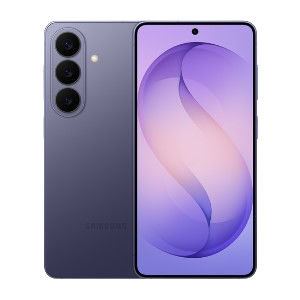
- SoC
-
Snapdragon 8 Elite Gen 5
- Display
-
6.3-inch Dynamic AMOLED 2x
- RAM
-
12 GB
- Storage
-
256 or 512 GB
- Battery
-
4,300 mAh
- Operating System
-
Android
The Samsung Galaxy S26 features a 6.3-inch 120Hz display, a Snapdragon 8 Elite Gen 5 chip, and a 4,300 mAh battery. It includes a 50MP main camera with enhanced AI software, 256GB of base storage, and a slim 6.9mm profile, focusing on fast daily performance.