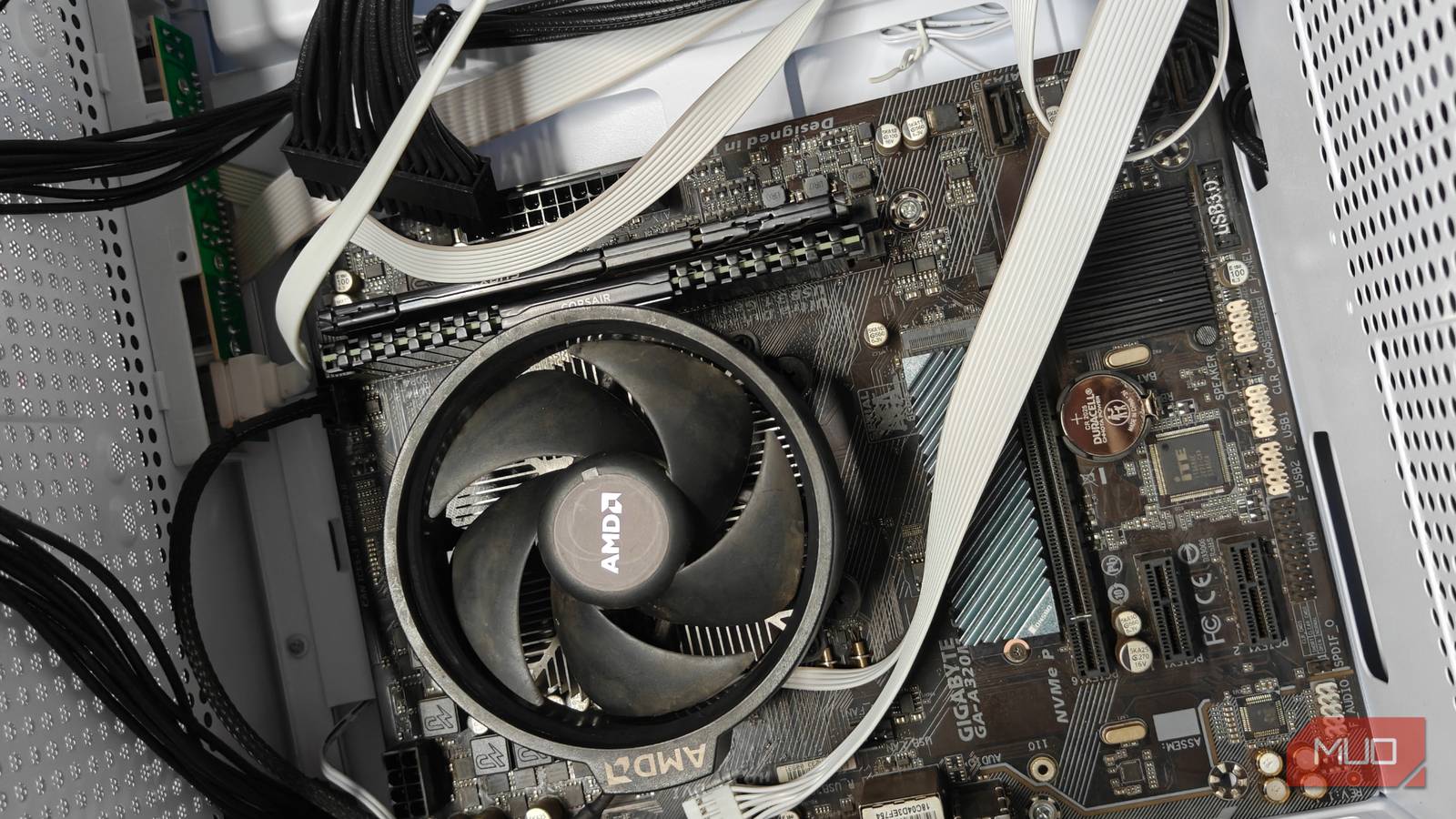
I cannot emphasize enough how important it is to configure your BIOS settings to achieve maximum performance from your PC, especially if you have a new rig. As tempting as it is to tweak these settings, the BIOS menu isn’t something you should experiment with. It is foundational firmware for your hardware, and even a single incorrect change can cost you dearly. As such, for those who are unfamiliar with the BIOS section, here is a list of settings to steer clear of unless you really know what you’re doing.
Skip manual RAM tweaking
XMP/EXPO: the safe speed boost
Modern RAM kits are super-fast and super expensive, too. There’s a good chance that the kits installed on most people’s computers aren’t running at their advertised speeds, which is why enabling XMP/EXPO should be the first step for any PC user. Anyhow, XMP/EXPO are performance profiles that boost your memory’s frequency. Even if these profiles are overclocked, you don’t need to worry, since they’re manufacturer-approved and have been rigorously tested to ensure your memory will work just as fine with them enabled.
That said, your motherboard offers other options for manually adjusting your RAM’s specifications, but trust me when I say it’s unwise to do so. Memory is easily susceptible to instability with the wrong timing, clock, and voltages. Finding the perfect setting takes hours of testing, and even if your RAM works fine under stress testing, it can still crash in video games. Manual tuning will yield only a marginal performance improvement, and it isn’t worth the time invested. It can also introduce latency, which can adversely affect certain workloads, such as gaming.
Avoid BIOS updates unless required
Don’t fix what isn’t broken

I’ve been into computers for more than a decade now, and if there’s one thing I’m still cautious about and avoid as a PC owner, it’s a BIOS update. I don’t mean to exaggerate how scary updating your BIOS is. I was guilty of bricking my PC a few years ago after a failed update when I tripped over my extension cord and accidentally cut off the power to it.
I understand that BIOS updates are sometimes necessary when you want to install a new CPU or add a new feature, but most of the time they’re not mandatory. Therefore, I avoid updating a motherboard’s BIOS unless absolutely needed.
Overclocking your CPU might be a bad idea for the majority

Now, this might be a debatable one, since CPU overclocks can be advantageous, but only if you know how to. Overclocking isn’t an easy task by any means; it requires hours of testing to narrow down the sweet spot for your clock speeds and voltage. For an amateur, this can be troublesome. In some cases, overclocking and adjusting your CPU’s voltages can adversely affect performance, as increased power and temperatures can backfire, leading to thermal throttling.
Not to mention that overclocking and adjusting voltages from stock can void your warranty and significantly shorten your chip’s lifecycle. If your goal is gaming, modern video game titles prioritize GPU performance, and the CPU hardly becomes a bottleneck. Nevertheless, if you still want to squeeze that extra bit of performance from your CPU without overclocking, the BIOS menu offers other settings, including the ones that adjust C-states or P-states, which are more beneficial for performance and, above all, safe to enable.
There’s no reason to enable RAID on consumer PCs
This drive configuration is best suited for NAS

RAID, or Redundant Array of Independent Disks, is a configuration for your storage drives that makes them work together. On paper, this sounds like a great idea, and, depending on the RAID type, you can use it to maximize performance by utilizing multiple drives or to protect against data loss.
RAID isn’t suitable for every workload or service. It’s perfect for data center and NAS solutions, but far from ideal for an average PC owner who doesn’t understand the considerations behind it. For instance, if you enable RAID in your BIOS, it switches your drive from AHCI/NVMe mode to RAID, rendering it unbootable. Furthermore, initializing RAID will also completely wipe your drive of any existing data.
Enabling CSM can break Windows 11
Legacy boot mode isn’t suitable for modern systems

Windows 11 had far more BIOS requirements than any of Microsoft’s earlier OSs: TPM 2.0 and UEFI. While TPM 2.0 is a small chip on your motherboard/CPU for data protection, UEFI is modern boot firmware that bridges the hardware and the OS. Older Windows and other OS use legacy BIOS, and with modern UEFI systems, they’re unbootable. This is why modern motherboards have the option to enable CSM (Compatibility Support Module) to emulate the earlier BIOS system.
CSM should only be enabled when you’re booting an older OS or have installed an older PCIe device that supports legacy BIOS rather than UEFI. Otherwise, it isn’t recommended and serves no purpose. Once in legacy mode, your PC will also stop recognizing the drive where your Windows 11 is installed.
Change these settings only if you know exactly what you’re doing
Most of the time, these BIOS settings are reversible, such as when you’ve changed the default speeds for your RAM or CPU by removing the CMOS battery or restoring it to default values. But other times, like when you have enabled RAID, you can bid your old data farewell, as switching from AHCI/NVMe mode causes permanent data loss.
Changing certain BIOS settings, such as overclocking, voids your hardware’s warranty and can shorten its lifespan. Overclocking isn’t generally recommended for every PC user, since there are too many caveats to consider. Unless you have a good reason to fiddle with these BIOS settings and really know what you’re doing, leave them as is.