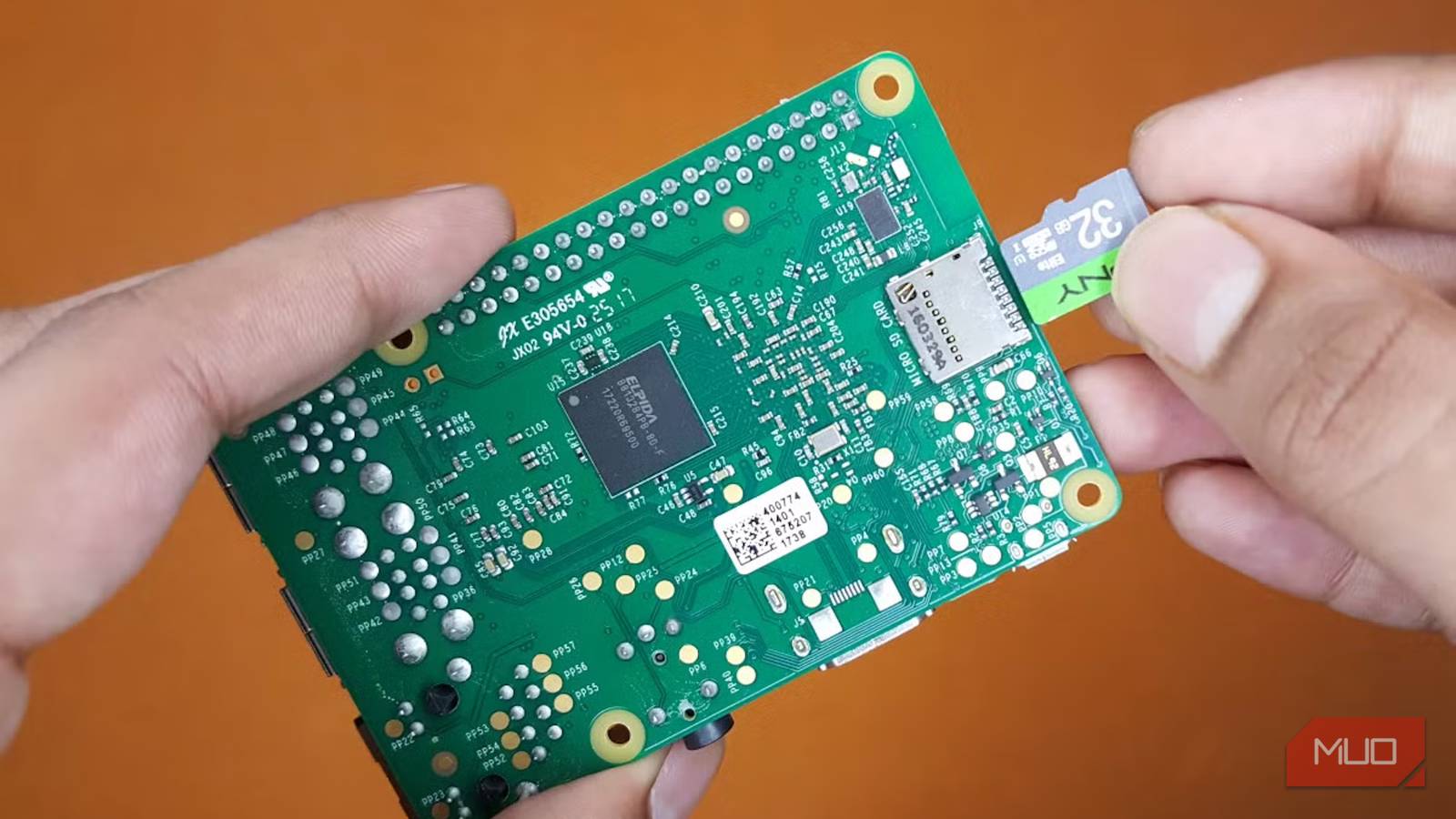
If you’ve spent time with a Raspberry Pi, you’ll know how easy it is to wind up with a dead device thanks to a corrupted file system. Thankfully, microSD cards are easy to swap out, but they definitely aren’t cheap. They’re also built for things like saving photos inside cameras. They aren’t built for the heavy usage required to run a Linux operating system.
Whenever your Raspberry Pi is powered on, it’s using that microSD card. Between creating temporary files and writing to system logs, that microSD card takes quite the beating. And this continuous usage can considerably shorten the lifespan of even the best card.
The good news is that there are two fixes that will give your microSD card the rest that it deserves. The even better news is that they (probably) won’t cost you a cent.
Stop the churn with Log2ram
Save those logs somewhere else
The main culprit when it comes to killing microSD cards is the way Linux writes log files to storage. It does it continuously, and Linux distributions are configured to write those logs to the /var/log directory as standard. And the more logs that are written, the more likely your microSD card is to call it a day.
But there’s no reason that these logs have to be saved to your microSD card. Log2ram is a simple tool that is designed to give your memory card a rest. Once up and running, Log2ram creates a virtual mount point in your system’s RAM and moves all of your Raspberry Pi’s log files to that new location.
You needn’t worry about those logs going missing when you restart your Raspberry Pi either. Log2ram automatically syncs the logs stored in RAM to your memory card periodically, so they’re always there when you need them. The whole process gives your memory card space to breathe, vastly reducing the amount of data written to it.
Setting up Log2ram is quick and easy, and perhaps most importantly, it’s completely free. It’s also something that every Raspberry Pi owner should at least consider. But it isn’t the only option, and depending on how you use your Raspberry Pi, it might not be the best.
Boot from a USB drive instead
Ditch the memory card entirely
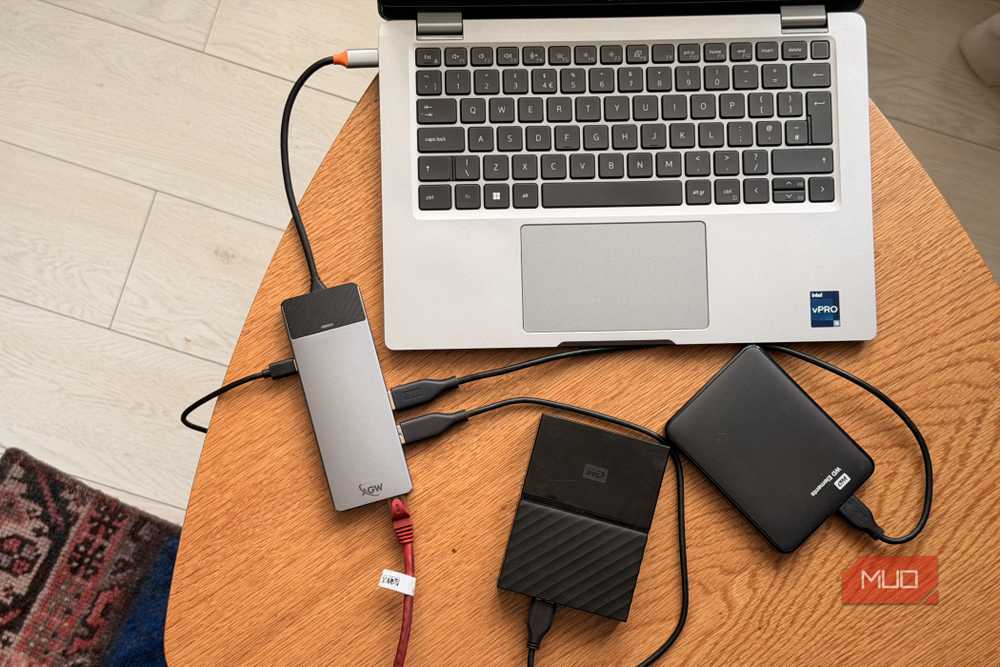
Each Raspberry Pi is configured to use a microSD card as its system storage by default, but that doesn’t mean that you have to stick with it. Modern models, including the Raspberry Pi 4 and Raspberry Pi 5, support booting from a USB-attached drive as well. Heck, they can even be booted from a network drive if that’s more your speed.
While many people continue to use the microSD card approach, this new-ish feature opens the door to using external hard disks and SSDs instead. The Raspberry Pi 5 has two USB 3.2 Gen 1 ports, which are rated for 5Gbps, so this approach doesn’t mean putting up with subpar performance. But more importantly, it means you won’t have to worry about your chosen Linux distro destroying your microSD card anymore.
External hard disks and SSDs are built to withstand the constant reading and writing activities that microSD cards simply can’t cope with. One oft-overlooked advantage of using an external drive to boot a Raspberry Pi is capacity. It gives you the option of choosing one with considerably more storage than your microSD card, especially if you choose a hard disk rather than an SSD.
Admittedly, this approach is only free if you have a spare drive lying around. But if you’re anything like us, you probably have, and this is a great way to give it a new lease of life.

- Storage Capacity
-
4TB
- Dimensions
-
3.5inch HDD
- Brand
-
Seagate
- Spindle speed
-
7200 RPM
The Seagate SkyHawk 4TB is a surveillance-optimized 3.5-inch HDD built for 24/7 video recording systems. Using ImagePerfect firmware, it supports multiple HD camera streams with reduced frame loss. Featuring SATA 6Gb/s, 64MB cache, and enhanced durability, it’s ideal for DVR and NVR setups requiring reliable, high-capacity storage.
The set it and forget it solution
Choose the right option for your needs

Choosing to use Log2ram or boot from a USB drive will depend on your own needs. For most people, Log2ram is likely the simplest approach because it doesn’t require any additional hardware. The fact that this approach won’t cost you a penny just sweetens the deal.
For others, using an external storage device via a USB connection could be the better option. It opens the door to drives with larger capacities, all while avoiding the fatigue issue that microSD cards often succumb to. This approach isn’t free, of course, and how much it costs you will depend on whether you choose a hard disk or SSD approach. The storage capacity will also have a huge bearing on how much you spend, and it’s fair to say that large-capacity SSDs aren’t cheap right now. The ongoing RAM and flash storage shortages have seen prices increase considerably, with no relief in sight.
Both of these approaches are solid options. And importantly, they’re preferable to doing nothing at all. Left to its own devices, a Raspberry Pi will eventually chew up its microSD card and spit it out. The result will be a device that refuses to boot. Depending on what you use your Raspberry Pi for, that could be a huge problem. It’s a ticking time bomb that could result in downtime and, more importantly, lost data. Log2ram or using a USB drive can help you avoid both. All you need to do is choose the best approach for your needs, and sooner rather than later.
- Brand
-
Raspberry Pi
- CPU
-
2.4GHz quad-core Broadcom BCM2712
- Memory
-
8GB
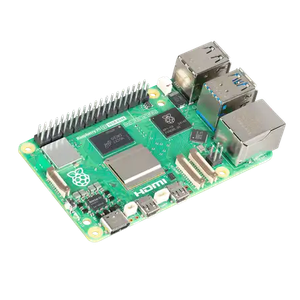
The Raspberry Pi 5 (8GB RAM edition) is a compact, single-board computer built around a 2.4GHz quad-core Broadcom BCM2712 ARM Cortex-A76 processor. This iteration introduces the in-house RP1 I/O controller, which manages peripheral interfaces to improve data transfer speeds. Notable hardware features include dual 4K micro-HDMI outputs with HDR support, an upgraded VideoCore VII GPU, upgraded USB 3.0 bandwidth, and a dedicated PCIe 2.0 interface designed for M.2 NVMe SSD expansions via an optional HAT. Power is delivered via a 5V/5A USB-C connection supporting Power Delivery, and the standard 40-pin GPIO header maintains backwards compatibility.