Three minutes into checking Google Maps on a sunny sidewalk, my Galaxy S25 dimmed to the point I couldn’t read it. The phone boasts 2,600 nits of peak brightness, which should overpower afternoon sun, but dragging the manual slider to maximum did nothing. For weeks, I assumed the sun was just too strong for any phone to handle, or that my display panel had a defect. The hardware was fine, but a built-in software safeguard was throttling panel output the entire time. Reclaiming the screen I paid for meant hunting down a single buried toggle that Samsung refuses to put in the main settings app.
The real reason Galaxy screens dim outdoors
Peak brightness isn’t what you actually get

Reaching peak outdoor brightness is not as simple as dragging a slider. The phone has to be in auto brightness mode, and the front sensor needs to detect genuine direct sunlight before the display pushes anywhere near its advertised peak. I tested this by maxing the manual slider with Extra Brightness enabled, and the screen topped out around 750 nits, about half of what the automated system reaches under sunlight.
Stepping outside triggers High Brightness Mode, which drives the panel’s actual brightness higher. Samsung’s Vision Booster software kicks in alongside it, adjusting colors and lowering contrast so text and interface elements stay readable under glare. For the first few minutes, the display looks sharp and the phone is doing exactly what Samsung designed it to do.
The panel, processor, and battery all run harder at those brightness levels, and the glass absorbing sunlight adds to it. Once internal temperatures cross roughly 40°C, Samsung’s thermal management system overrides auto brightness, Vision Booster, and High Brightness Mode all at once. The screen drops to indoor levels, losing nearly half its output in under four minutes. Brightness and CPU performance both get throttled, and that’s what makes the screen unreadable outdoors.
Disabling the hidden thermal brightness cap
Raise the threshold, keep the brightness
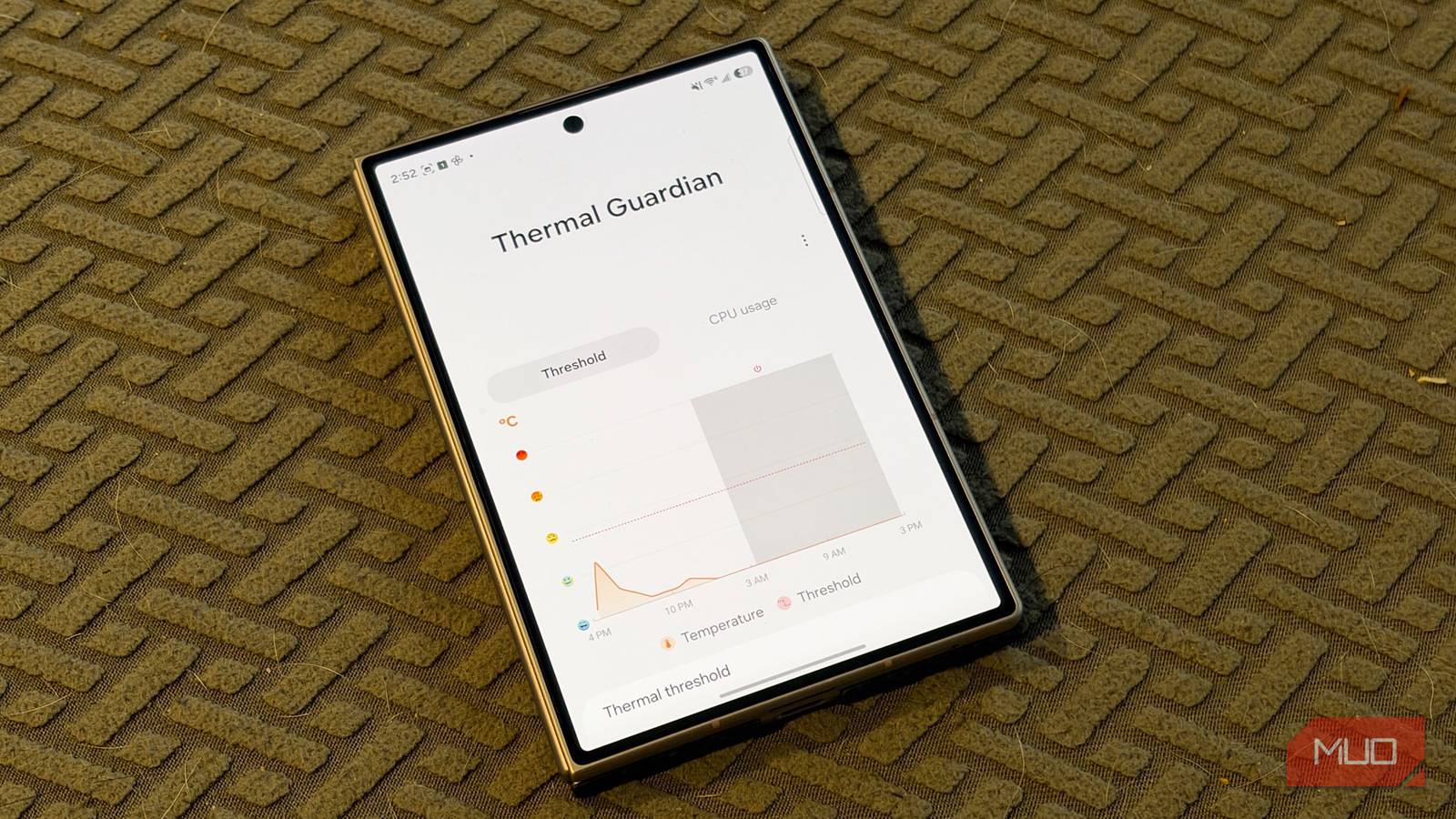
Samsung does provide a way to adjust that thermal threshold, but the setting isn’t anywhere in your regular phone settings. It lives inside Good Guardians, a Samsung utility app available on the Galaxy Store. You won’t find it on the Play Store or preinstalled on your phone. Open the Galaxy Store, search for Good Guardians, and download it. Once it’s installed, open the app and tap on the Thermal Guardian module to install it separately.
Thermal Guardian displays real-time temperature readings for the CPU, battery, and device skin, and gives you a thermal threshold slider that controls how warm the phone is allowed to get before throttling activates. Samsung caps the adjustment at two degrees, so you’re not unlocking anything extreme. I raised mine by one degree, and the dimming took much longer to show up outdoors.
Beyond the threshold slider, there’s an additional settings panel where you can choose how aggressively the phone restricts performance when it heats up. One of the options controls whether brightness gets pulled down during heating. Disabling it reduces how much the phone dims the screen as temperatures climb. So if the threshold slider buys you extra time before throttling kicks in, this one loosens the brightness cap on top of that.
Brighter outdoors, but at a cost
A warmer phone is the price of visibility

After a week with the threshold raised and the brightness restriction turned off, the screen was genuinely usable outdoors in a way it hadn’t been before. The phone does run warmer, something I noticed on warm days when the back felt hot to hold. Battery life dips a bit faster too, since pushing more brightness for longer stretches pulls more power from the battery. I did keep the other restrictions in that panel enabled, like CPU boosting and motion smoothness, so the phone can still manage heat in other ways while the screen stays bright.
The two-degree cap on the slider suggests Samsung has built in a ceiling they consider safe for daily use. For me, the trade-off is clear: a warmer phone beats one I can’t read outside.
Before you head outside
To get the most out of these changes, make sure adaptive brightness is turned on. It sounds counterintuitive after all that trouble with automatic dimming, but manual mode locks the display well below its peak output. With it enabled, the light sensor can push the panel to its full range in direct sunlight. Pairing that with a dark theme helps even further, since darker pixels on an OLED panel draw less power and generate less heat, giving the raised threshold more room to work before the phone warms up.