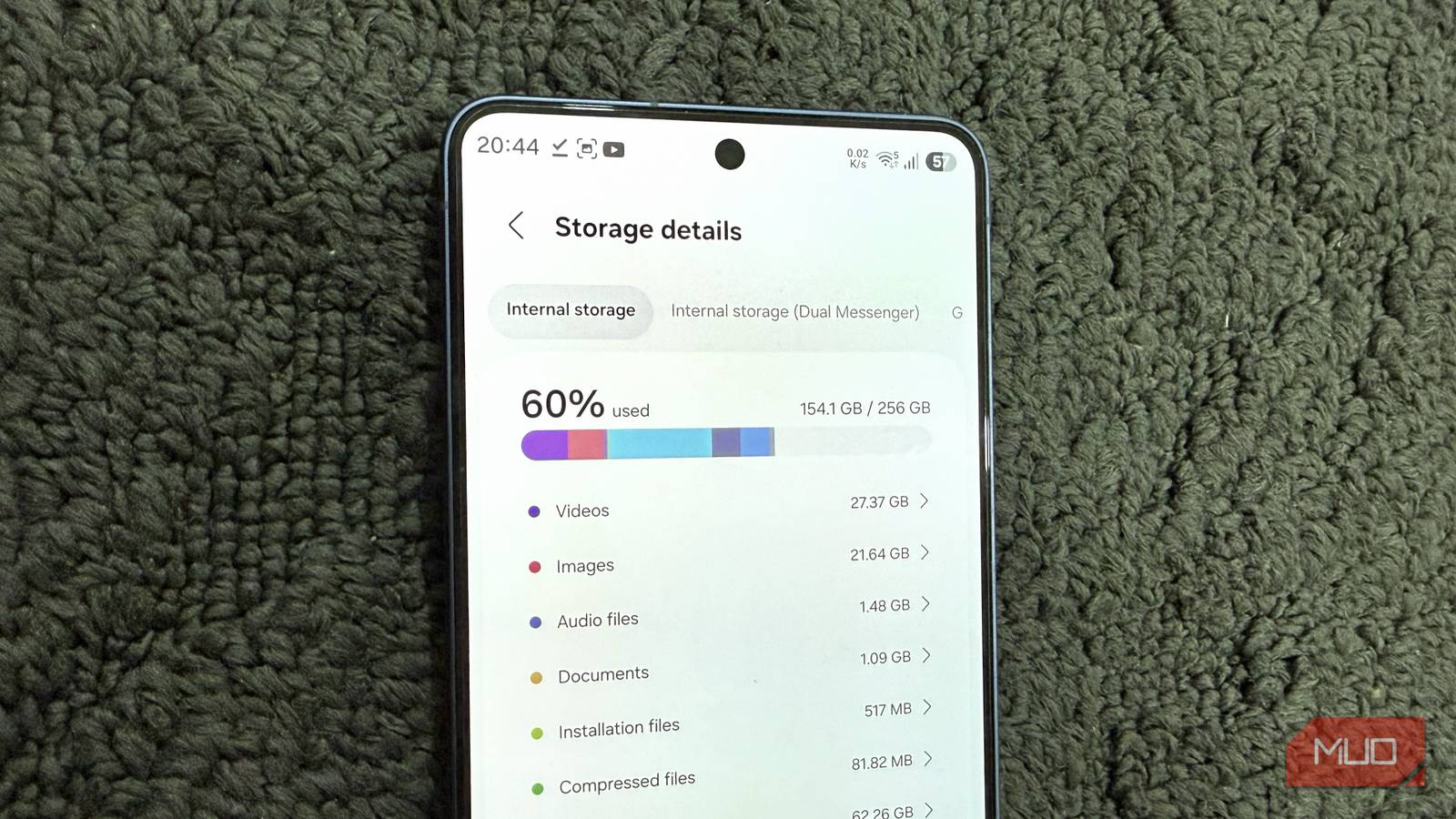
Buying a Galaxy phone with plenty of storage is a good start, but what’s even more important is managing it smartly. But even if you’re careful about the number of apps you install and keep your photo library in check, storage will still disappear.
A lot of it isn’t entirely your fault, though. Several of Samsung’s built-in features and system apps can take up gigabytes over time without making it obvious. Once you know what to look for, freeing up 10-20 GB barely takes minutes.
RAM Plus isn’t free
It’s also not as helpful as it sounds
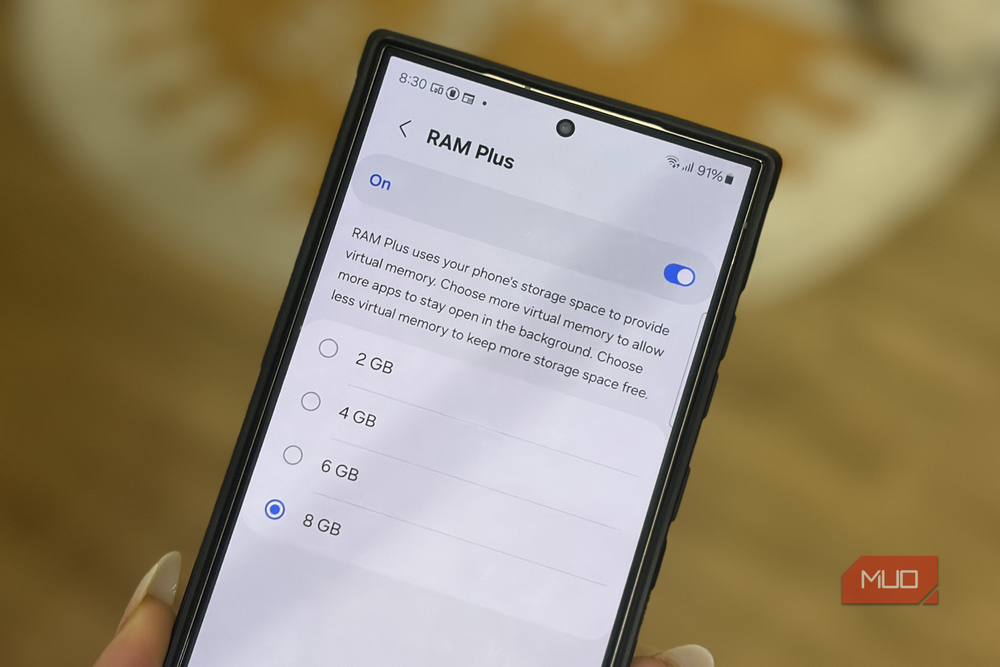
Samsung’s RAM Plus feature sounds like a gift. Your phone needs more memory and a simple toggle gives it to you. But there’s a big catch. The feature doesn’t just unlock extra physical RAM on your phone. Instead, it reserves a part of your phone’s internal storage and uses it as makeshift RAM when the actual RAM starts filling up. Depending on your Galaxy phone, that craved-out space can be anywhere from 2GB to 12GB.
And since RAM Plus is enabled by default on most Samsung phones, your 128GB Galaxy phone may already have several gigabytes of storage set aside without you ever noticing.
Most importantly, RAM Plus isn’t as useful as it sounds. Physical storage is slower than RAM, so when your phone leans on it, things like app switching and multitasking can take a hit. Ironically, those are the exact things extra RAM is supposed to help you with. Also, if your Galaxy phone already has 8GB or more RAM, you probably don’t need extra RAM anyway.
Disabling it can free up reserved storage, and you can use it for other things. You can do this by heading to Settings > Device care > Memory > RAM Plus and restarting your phone.
Photo edits leave behind hidden backup files
Your phone is storing two versions of the same photo

Every time you edit a photo or a video in Samsung Gallery, it saves the original copy as a backup. Yes, that happens even when you overwrite the original file instead of saving a copy. Even something as simple as cropping an image slightly or trimming a video by a few seconds forces your phone to create a backup. It’s a handy safety net in case you want to undo edits later.
But the problem is that all those pre-edit backups never actually clean themselves up. When I checked my phone, pre-edit backups were using close to 3GB of storage. Of course, if you edit photos and videos often, yours could be even higher.
To check and remove these backups, head to Settings > Device care > Storage > Device care > Pre-edit backups. Don’t worry, this only removes backup copies, not the edited versions you see in the Gallery, so it’s safe to try.
System logs may be wasting storage for nothing
The easiest gigabytes you’ll ever reclaim
Like most Android phones, your Galaxy phone also logs almost everything that happens in the background. This includes app crash reports, system events, debugging data, and other diagnostic data. Honestly, though, you’ll almost never need this information. The only time these logs are actually useful is if your Galaxy phone is acting up, and you send it for a repair. Samsung technicians usually rely on these logs to diagnose what went wrong.
And they’re not light, either. I recently cleared them on my four-month-old Galaxy S26 and recovered around 2GB of storage. The annoying part is that Samsung doesn’t give you an easy button to clean these logs. The only option is to open the Phone app and dial *#9900# and choose the Delete dumpstate/logcat option in the SysDump menu. It’s a bizarre way to do routine maintenance, but it works.
System apps can take up more storage than you realize
Not all of them are important
When it comes to freeing up space, most of us only look at apps we’ve installed ourselves, which sounds fair. But that doesn’t mean you should ignore those system apps from Google or Samsung entirely. Some of them can be massive while also being optional.
A good example of this is Samsung Language Core. It’s an on-device engine that powers language features like translation, grammar correction, spell check, and more. If you’ve used Writing Assist inside Samsung Keyboard, this is the app that powers it. But the problem is, Samsung Language Core also takes up around 3GB, which is a lot. More importantly, you can remove it without losing much. Most of those Writing Assist features will still work — it’s just that your Galaxy phone will offload the processing to Samsung’s servers instead of handling it locally.
Similarly, Google’s AICore app powers on-device language processing features for Gboard and takes up as much as 6GB of storage, even if you don’t use Gboard or any of those features.
These are just a couple of examples. Head to Settings > Apps, sort by storage, and you’ll see dozens of such apps. The catch is that you usually can’t uninstall these apps the normal way, nor should you without looking them up. But that doesn’t mean you just have to live with them. Canta is a handy app that lets you remove such pre-installed apps without root. It even flags which apps are safe to remove and which ones you should leave alone.