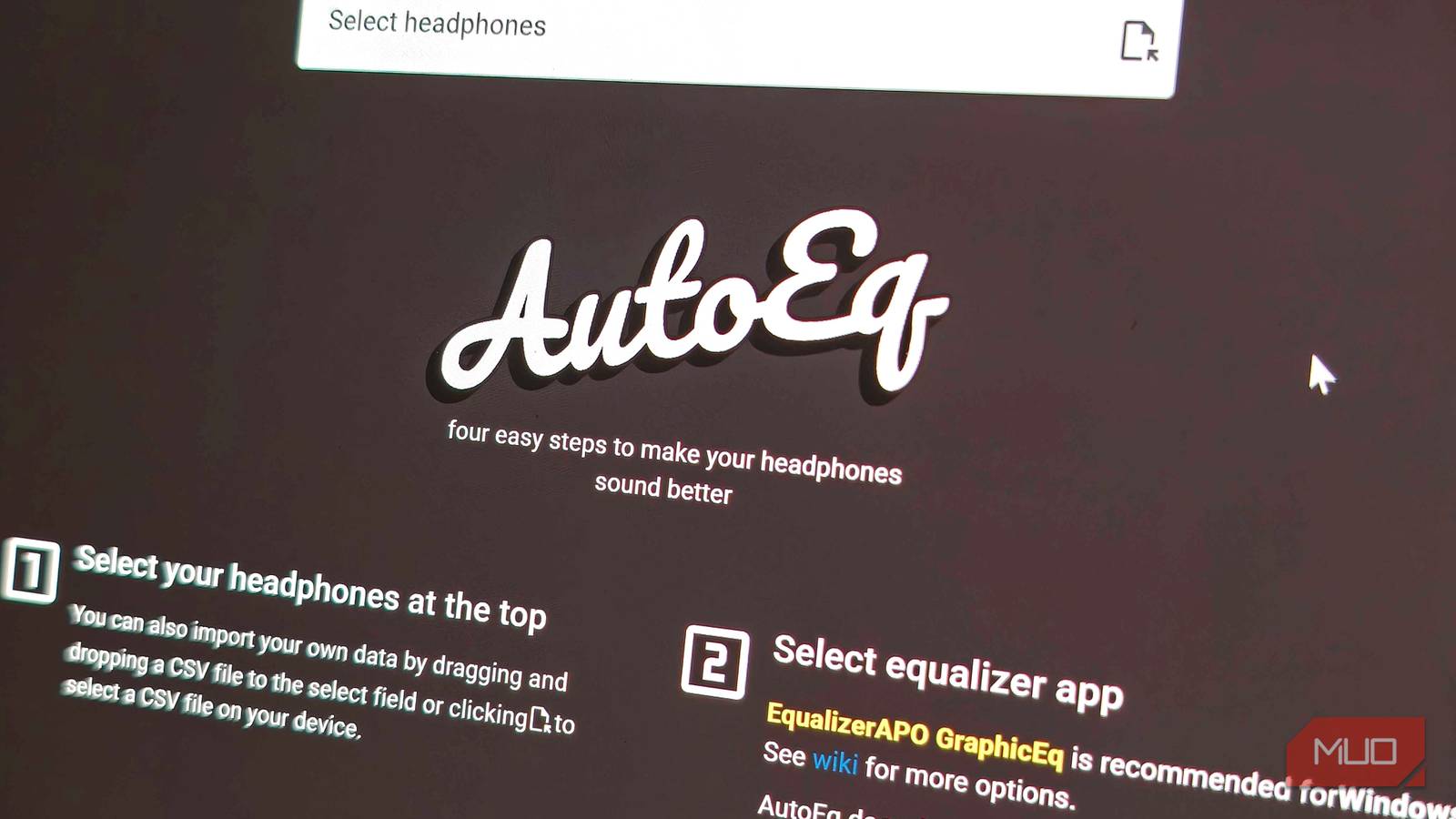
I’m always looking to find ways to make my headphones and earbuds sound better. Better still, I find ways to make them sound better for free. And this time out, I’ve found the golden ticket: AutoEQ.
It’s a database filled with detailed frequency responses for popular headphone and earbud models compiled by leading sources such as oratory1990, Crinacle, Innerfidelity, and Rtings, all leading voices in EQ design.
In short, you take the custom-designed EQ, copy it into a suitable EQ app, and off you go; your music sounds better instantly.
AutoEQ is your free ticket to better audio
A huge number of headphones and earbuds are available

AutoEQ maintains a database of more than 6,000 headphone, earbud, and IEM models, all with specific tuning to help push them towards what many consider the ideal listening profile, the Harman curve.
The Harman curve is a “target curve” any good set of headphones aims to match. While not everyone agrees, it’s generally accepted that the Harman curve is a close approximation of what will sound good for the broadest spectrum of people, and there is a decent wedge of data to back this up.
That’s a core part of what AutoEQ does: it moves your headphones’ tuning towards this curve with the goal of making your music (and other audio) sound much better than the default tuning.
AutoEQ isn’t guessing at what’s better
It’s a precision process
Under the hood, AutoEQ isn’t guessing. It takes a headphone’s measured frequency response, compares it against the Harman curve, and calculates the exact gap between the two at every frequency — that gap is the “error curve” it’s trying to correct.
Turning that error curve into something an equalizer can actually apply takes more work than just inverting it. AutoEQ smooths the curve first, capping how steeply it’s allowed to swing so the resulting filters don’t chase impossible peaks. Then an optimizer fits a small number of parametric filters, like bass and treble shelves plus a handful of peaking bands, to match that smoothed target as closely as it can.
That’s a core part of what makes AutoEQ so awesome. It’s not a universal, one-size-fits-all fix you can apply to every set of cans, buds, or in-ears. Each set of frequencies is uniquely calculated and crafted, then added to the database. And then, remarkably and selflessly, given away for free, for the love of better audio.
You have to pair AutoEQ with a suitable EQ app
These are available on all major platforms
Now, AutoEQ on its own is outstanding, but it’s only one part of the equation. You see, AutoEQ only creates the EQ. It’s not a player, and it won’t automatically make your music better, despite what the name says. I mean, it will make it better, but you need a separate equalizer app to get the job done.
Thankfully, AutoEQ’s custom EQs work well with an extensive range of apps covering Windows, macOS, Linux, and Android, and even some hardware solutions.
AutoEQ’s recommended apps by platform include:
- Windows: EqualizerAPO with or without Peace GUI
- macOS: AUNBandEq with AU Lab and BlackHole or Soundflower. Paid options such as eqMac and SoundSource “offer easier setup” but come with a price tag.
- Linux: PulseEffects / EasyEffects
- Android: Wavelet
Unfortunately, Apple doesn’t allow system-wide control of audio streams on iOS, which means using AutoEQ is very difficult, if not impossible.
Note that these are AutoEQ’s recommended apps. From my experience, which I’ll get into in a moment, these are excellent and easy-to-use picks.
But the AutoEQ GitHub notes that “In many cases it’s still possible to make AutoEQ generate EQ settings for your headphones by choosing another similar app.” This means, theoretically, you can copy AutoEQ’s custom tunings into other apps with parametric EQ support, but they can’t guarantee success.

- OS
-
Android
- Price model
-
Free (with in-app purchases)
I paired AutoEQ with Wavelet on Android
It’s a super-simple process

Some apps, like Wavelet, make it incredibly easy to use AutoEQ’s custom EQs, as they’re built into the app. Well, I say built in: you fire up the app, scroll through the list of available EQs, find your headphones or earbuds, and load the EQ.
For example, I had a pair of Soundcore Life Q35 headphones nearby, so I decided to try it with these. These headphones launched a good few years ago. I reviewed the Soundcore Life Q35 back in 2021, but given their LDAC support and quad-mic ANC, they’re still a great pair of headphones even now.
I selected them in the Wavelet app, added the custom EQ, and saw the changes to the default tuning: reduced bass, raised mids, and toned-down treble all add to a more balanced listening experience.
AutoEQ only works for headphones it knows about
The only downside on the consumer-end is that AutoEQ only knows about headphones that have been measured. If yours hasn’t been, you’re not in the database.
That means you can’t easily add a custom EQ, and you’re left figuring things out for yourself. However, all is not completely lost. Apps like Wavelet allow you to add a custom EQ graph of your own making. So, for example, I previously used Claude to help me create a custom EQ curve for the Nothing Headphone (1), which doesn’t feature in the database.
It’s far from perfect, as I don’t have the required audio equipment to take precise measurements. But the AI tool helped collate information from other EQ measurements of these headphones to build a custom tuning that pushes toward the Harman curve.
It’s an extra few steps, but something well worth considering if you feel your headphones just aren’t quite right, and you want better audio.