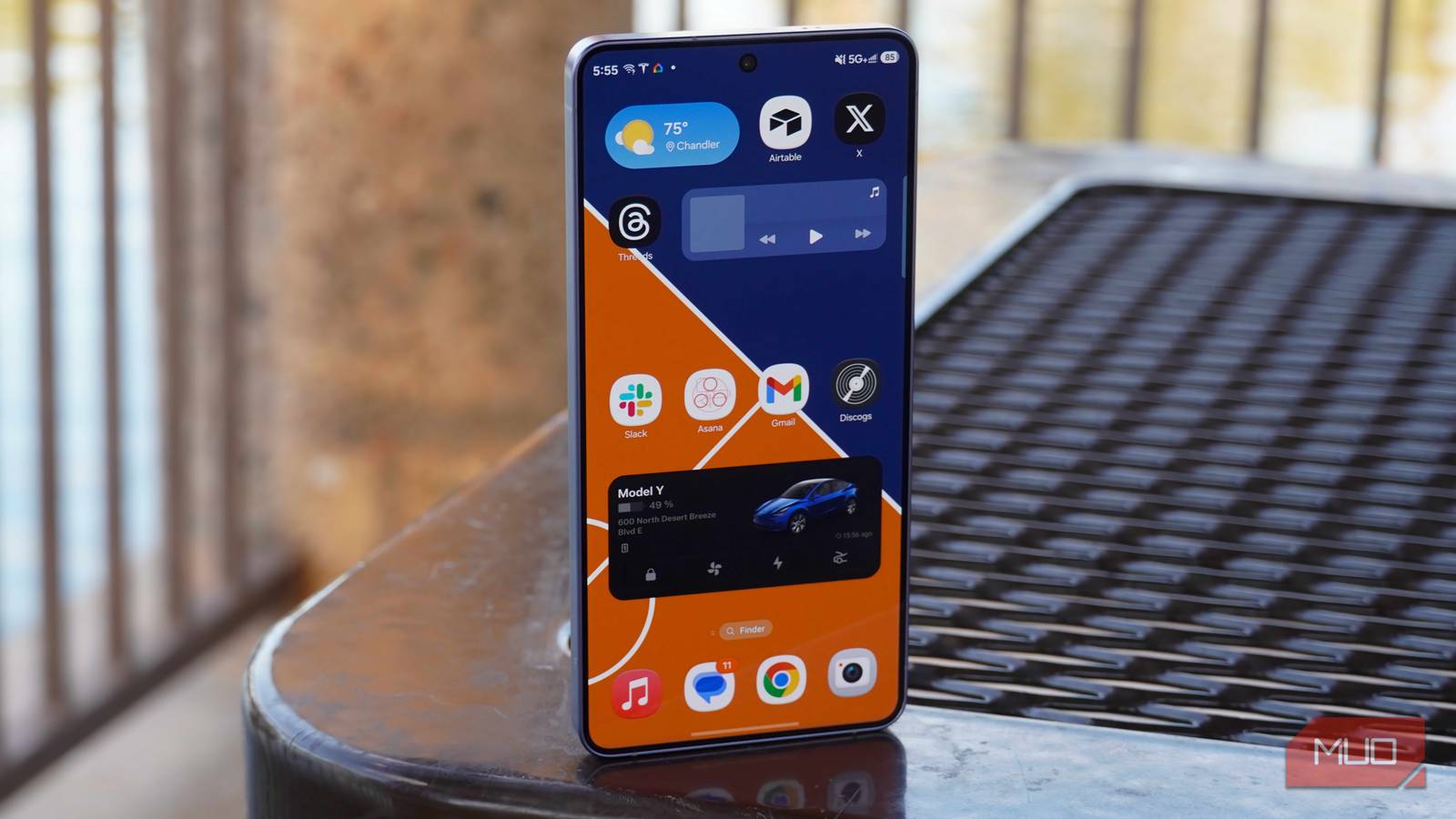
Galaxy phones get a lot of flak for bloatware, annoying ads, and slower charging speeds. And yes, all of that is true. But there’s no denying that Galaxy phones are the most feature-packed Android phones on the market. There’s a surprisingly long list of One UI features you won’t find on any other Android phone, and once you get used to them, switching away feels like a downgrade.
Secure Folder
The private space no other Android matches

Secure Folder on Galaxy phones gives you a separate space where you can save your private apps, photos, and files. You can secure it with a PIN, password, or a fingerprint that’s separate from your main one. All your data remains completely separate from the main profile, and it’s all encrypted. It kind of gives you a secret phone inside your phone, which also makes up for the lack of multi-user profile on One UI.
It’s also possible to hide the Secure Folder icon from the app drawer entirely, so there’s no obvious way to tell it exists. I know Pixel has Private Space, but it feels like a half-hearted attempt at something similar.
Fix your Wi-Fi without downloading anything

This may not appeal to everyone, but if you’ve ever struggled with flaky Wi-Fi and no idea where to start, your Galaxy phone has you covered. There’s a built-in Wi-Fi analyzer tool that you can use to fix your home Wi-Fi. I don’t blame you for not knowing about it because it’s hidden by default.
Its home Wi-Fi inspection tool, for instance, can help you map the Wi-Fi signal strength around your house, which is handy for tracking down those dead zones and figuring out if moving your router would actually help. There’s even a Wi-Fi channel scanning tool, which shows you which Wi-Fi channels in your neighborhood are overcrowded, so you can switch to a less congested one and get a noticeable speed bump. It’s nothing glamorous, but it’s one less to install should you ever need it.
Samsung DeX
No need to carry your laptop everywhere
Samsung DeX has to be one of the most underrated One UI features. It turns your Galaxy phone into a PC — all you need is a monitor or TV, and you’re all set. You can even connect an external keyboard and a mouse for a PC-like feel. You get resizable windows, a taskbar, and a drag-and-drop file management.
It’s no gimmick either. DeX can run browsers, Office apps, email clients, and they all behave more like their desktop counterparts than their stretched-out phone apps. I recently started using DeX with my 55-inch TV wirelessly, and it’s a great way to multitask. I can play Instagram Reels or a video from the Gallery on the TV screen while using other apps on my phone.
Good Lock
Customize without rooting your phone

Good Lock is Samsung’s official customization app, and it’s the main reason Galaxy phones punch so far above every other Android phone when it comes to personalization.
Good Lock is basically a hub app that lets you download individual modules. Each of these modules target different things — home screen, lock screen, keyboard, notifications, themes, and so on. Some of these Good Lock modules unlock genuinely useful features, like an internet speed meter, hidden camera settings, button remapping, better one-handed mode, and more. Heck, there’s even a display module that lets you set screen timeouts and refresh rates on a per-app basis.
And the best part is that these modules are constantly improving, so your Galaxy phone keeps getting new features almost every week.
Temporary cloud backup
Free cloud storage? Yes please

This is one of those features most Galaxy users don’t even know exists even after using it for years. Samsung offers a temporary cloud backup option that lets you back up your phone’s entire data to Samsung Cloud for 30 days. We’re talking about apps, photos, videos, contacts, messages, settings, and even Secure Folder data. Most importantly, it’s completely free.
It’s designed specifically for device switches, but it’s also a neat way to factory reset your Galaxy phone without losing any data. Sure, it’s not something you’d need every day, but I’d rather have it and not use it than need it and not have it.
Modes and Routines
Automate almost anything
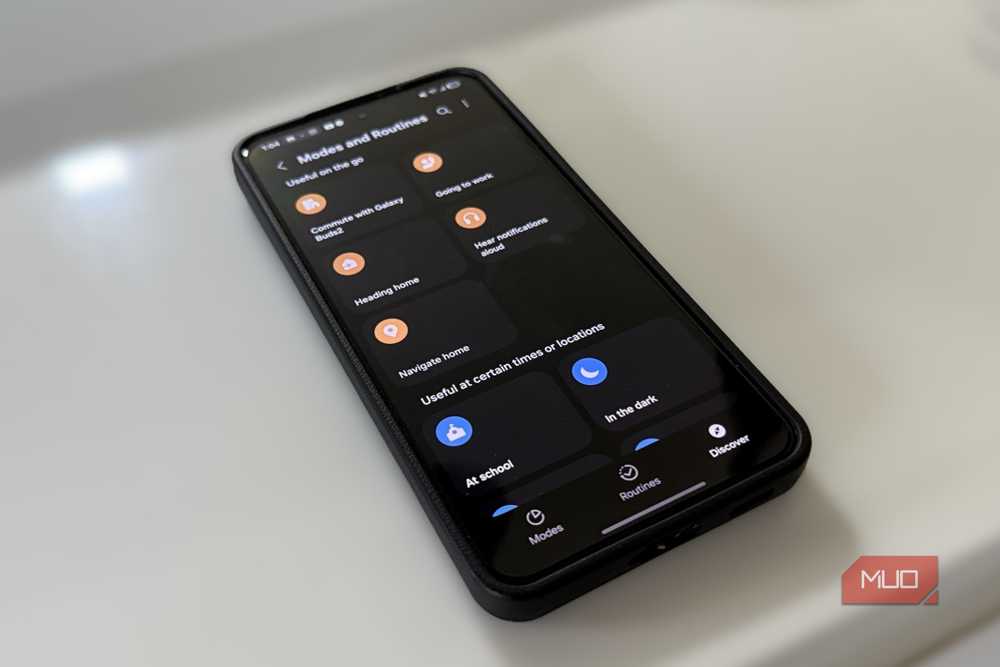
Samsung’s Modes and Routines are quite handy for automating various everyday actions on your phone. Modes are essentially presets for your phone’s behavior. Samsung gives you a few out of the box — Sleep, Work, Exercise — but you can build your own from scratch. Each mode can automatically adjust your display settings, notification behavior, sound profile, and even wallpaper. The idea is to make your phone behave differently depending on what you’re doing.
Routines are a bit different. They work on if-then rules. You can automate things, like increasing the volume to 80% when you connect your earbuds, have a custom battery saver kick in when your phone drops below 50% and you’re away from home, or even set one that reads the weather forecast out loud as soon as you dismiss your morning alarm. It’s all about how creative you can get. I know Pixel devices have Rules but it pales in comparison to Samsung’s Modes and Routines.