Somewhere in your house you probably have a drawer that contains certain household tools such as a bubble level, document scanner, a magnifying glass and maybe some others. Here’s the thing: the phone in your pocket already replaces all of them, using sensors and apps you probably didn’t know were there. Here are five tools I stopped buying once I realized my phone could do the job for free.
The level hiding inside your search bar
Use your phone as a level

A bubble level is a helpful tool to help you hang pictures, build anything, or mount something on the wall. It ensures that whatever you’re making or hanging is both plumb (perfectly vertical) and level (perfectly horizontal). Most people own a simple bubble level you can buy from any hardware store for $20, but what if you don’t have one or don’t want to buy one?
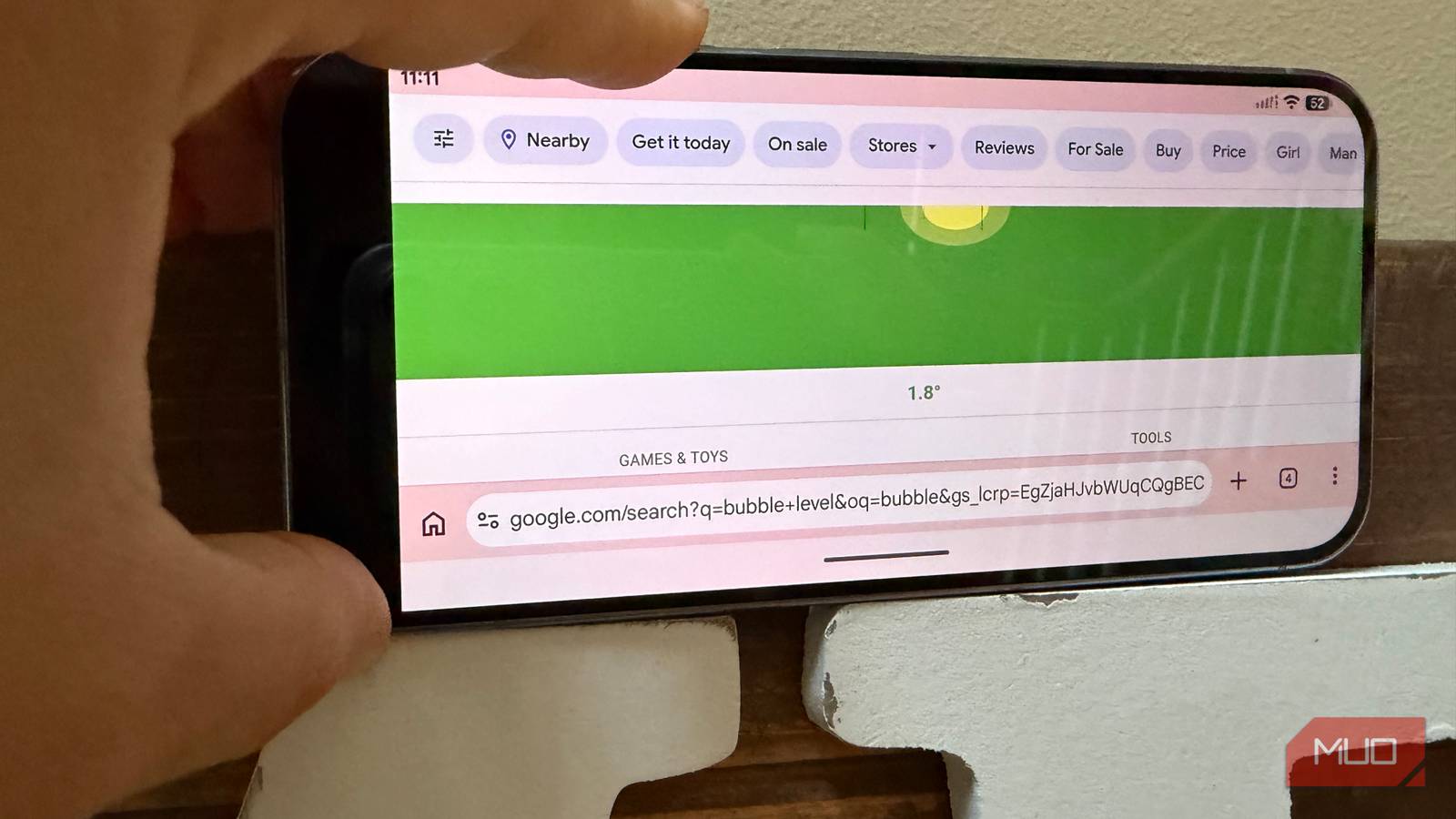
There’s a free bubble level you can access on your phone that uses your phone’s accelerometer and gyroscope to make anything level. All you have to do is open the Google app (or search on Google.com from any mobile browser app), and type “bubble level”. Then press “Touch to activate”, and on some devices you might get a permission request that says “Google.com would like to access motion and orientation” to which you can press Allow.
Then you’ll see the bubble level tool activate on your screen, allowing you to place your phone against surfaces you want to test for being plumb and level, just like a physical bubble level.
This next tool on my phone lets me turn any stack of papers into a shareable PDF.
Turn a photo into a share-ready PDF in seconds
Use your phone as a document scanner

Back in the day, most people owned a document scanner which would allow you to turn any page or stack of papers into a PDF, which was perfect if you needed to sign a contract or fill out a form.
Today, your phone can do this for you, for free, and it even optimizes your scans by improving contrast and color for a perfect black-and-white scan. Your phone can even adjust perspective so that you don’t have to worry about getting the scan perfectly straight.
This scanner lives in the Google Drive app (which, by the way, is ending Photo backup soon). To access it, just open Google Drive > press the plus icon in the bottom right and tap Scan. From here the app will guide you to position each page of the document within view of the camera. You can scan multiple pages by tapping the arrow in the bottom right once you complete a scan. You don’t even need a tripod, as the scanner corrects hand movements and imperfect alignment. When you’re done scanning, the app will automatically convert the images to a PDF and let you upload the final file to Google Drive or share it.
The next tool is one you use everyday.
The flashlight trick that unlocks a brightness slider
Use your phone as a flashlight with adjustable intensity

Your phone’s flashlight is an indispensable tool you probably use daily. When you have your phone with you, you don’t need a separate flashlight, which can be an expensive purchase if you buy a nice one with variable light intensity. Your phone’s light is adjustable (assuming you have a Google Pixel or Samsung Galaxy with the latest software), but only if you access the flashlight in a particular way.
To access your flashlight’s intensity adjustment, first add the flashlight as a settings quick tile: pull down your notification shade with two fingers > tap the pencil/edit button > go to Utilities and press the plus next to Flashlight. Now you have a shortcut to your flashlight in your notification panel. To adjust brightness, just tap and hold the flashlight icon.
Your phone can help you find your way, as we’ll see with the next tool.
You don’t need a compass — your phone already has one
Use your phone to not get lost

Sometimes you need to know which way North is, and you don’t need to have a compass with you if you have your phone. Of course, if you’re lost in the woods with no internet connection, your phone won’t help unless you have offline maps, but a compass works everywhere thanks to your phone’s magnetometer.
Open Google Maps and tap the My Location dot icon to center on your position. Then, tap the compass icon to enter heading mode, which rotates the map to align with the direction your phone is physically pointing. As you turn your body, the red pointer on the compass icon continuously points toward North, allowing you to find your way.
An even easier way to find true north, especially if you don’t have an internet connection or have Google Maps installed, is to open the Compass app on your phone, if it has one (if you have a Pixel or Galaxy, you should have a Compass app).
This next tool is helpful if you find it difficult to read small text.
Read any fine print without reading glasses
Use your phone as a magnifying glass

If you have a Google Pixel, there’s a native Magnifier app in the Play Store that only installs on Pixel phones. Using digital zoom, the Magnifier app for Pixel can punch in by 30x, but the image can become quite blurry and pixelated at these higher magnification levels. The main benefit of using the Magnifier app versus the other method I’ll discuss below is that it can do text recognition in real time, so if you’re looking at a menu, you can have the app highlight the word “chicken” anytime it sees it.
For everyone else without a Pixel, you have a built-in magnifier if you just open your camera and zoom in. Obviously, if you can stick to the lower zoom levels like 2x and 4x (depending on what phone you have), you’ll be staying with the optical zoom capabilities of your phone and the resulting image will be clearer. Once you punch in more, digital zoom takes over and the results are not as sharp.
The toolkit in your pocket

Perhaps you don’t need to spend money on little tools, especially a bubble level, flashlight, compass, magnifier or document scanner. The super-computer in your pocket, with its many sensors and apps, has you covered.

- Brand
-
Google
- SoC
-
Tensor G5
Google’s flagship smartphone, the Google Pixel 10 features the Tensor G5 processor, an outstanding triple-camera system, and seven years of software updates. This is a phone you can rely on for years to come.