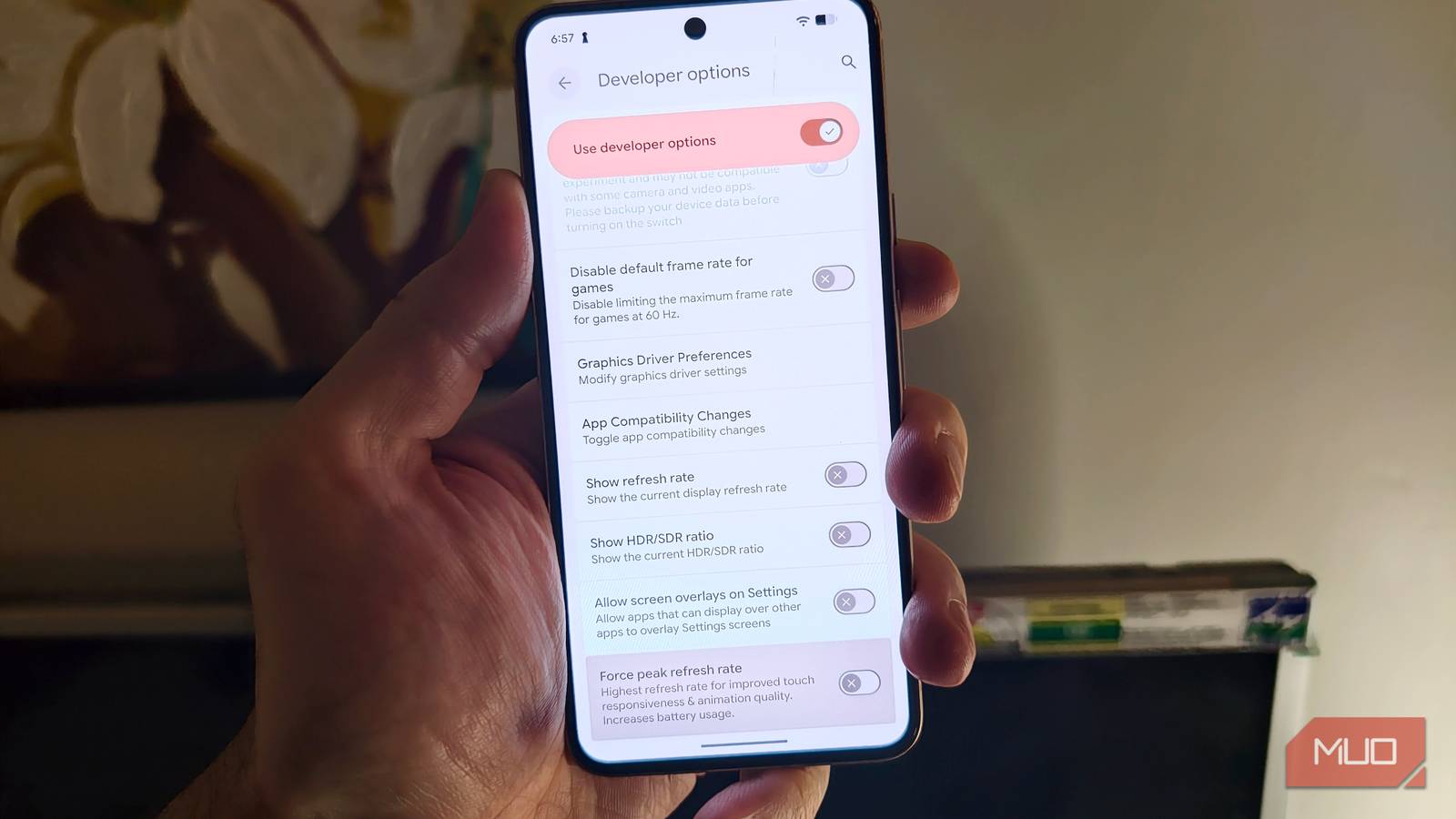
While smartphones are improving every day with new hardware, not everyone has access to the latest flagship devices. The bottom line is: how long can you use a device before it starts lagging?
I’m testing this using my Pixel 8
Not that old, but definitely not new

I wanted to test this very theory by using a 3-year-old smartphone and testing if I could improve the user experience by tweaking a few key settings. To start off, I needed access to Developer options, which are hidden by default on most Android handsets. Enabling these additional options would give me access to multiple additional settings.
- Open Settings.
- Search and tap on About Phone.
- Look for the Build number or Software information.
- Tap on the Build number seven times in one go.
- Enter your lock screen PIN or passcode if prompted.
You should get a prompt stating that Developer options have been enabled. You can then access these options under the System window in the Settings app. From here, you can improve your device’s performance by tweaking a few settings.
Reducing the animation speed can make the device feel snappier
You also get the option to shut down animations entirely

Android smartphones use animations to improve the experience of opening apps, pulling down the notification shade, and more. But on older or budget phones, these animations can lag and make the experience worse. Thankfully, you can tweak these settings via developer options.
Three settings in particular are worth checking. Window animation scale is responsible for how quickly elements like pop-up windows, dropdown menus, and dialog boxes appear and disappear. Transition animation scale controls how quickly screen-to-screen transitions take place, and the Animator duration handles the speed of animations within apps,
By default, most Android smartphones set all these values to 1x. After playing around with the settings, I changed each to 0.5x, and the difference was immediately noticeable. Menus appeared more quickly, screen transitions felt smoother, and the animations were still there.
You can also set the animation scales to Off (0x), which removes the animations entirely. While that does make the interface feel even faster, I prefer not to use it. Without any transitions, Android can feel abrupt and slightly jarring. I suggest you try the different options and choose the one that works best for your needs.
Recent Android devices automatically switch between refresh rates

Most modern Android handsets support variable refresh rate displays. This feature automatically adjusts the refresh rate based on the task you are doing. For instance, if you are viewing images, the system lowers the refresh rate; if you are gaming, it should increase automatically. While this improves battery life, it can make an older device appear sluggish.
I often noticed a micro-stutter when the system couldn’t tell what task was running, dropping to 60Hz for a split second while I scrolled through my X feed or checked Instagram. To tackle this, I activated Force peak refresh rate. You can enable this option by going to Settings > Developer Options, then toggle on Force peak refresh rate.
This forced the display to maintain its highest possible refresh rate at all times. Yes, this absolutely drains the battery a bit faster. However, you do get a buttery-smooth scrolling experience with fewer frame drops.
Limit background processes to avoid glitches and lag
Older phones may not be suited for heavy multitasking
Relatively old devices or recent budget and midrange phones can struggle with multitasking. While every device works a bit differently, many Android smartphones try to keep as many apps running in the background, which can make your smartphone feel sluggish.
To tackle this issue, I adjusted the background process limit. By default, I found the value to be set to the standard limit. I changed it to a maximum of four processes. Enabling this option automatically closes background processes if more apps are running than the set value. The user experience does improve, and active apps don’t lag or crash as much. But you will need to reopen the apps that shut down automatically.
Keep your expectations in check
Tweaking the Developer Options can make an older Android phone feel noticeably faster and more responsive. It is important to keep your expectations in check, as tweaking these settings won’t magically make your device turn into the next biggest flagship. You’re not actually boosting the performance; it’s adjusting the speed of animation, which makes it feel faster. You won’t suddenly be able to play games at 60FPS if you couldn’t before.
But it can genuinely improve the experience for a casual user. So start by making small changes rather than blindly enabling every performance-related toggle you find.