Webpage archive tools like The Wayback Machine have rescued me from plenty of dead links, but it has one weakness that is unfortunately unavoidable. It can only recover a page if someone was thoughtful enough to archive it before it disappeared.
I wanted a private version where I chose what sites to snapshot, capture them in advance, and keep several recoverable formats on hardware that I controlled.
So, I installed ArchiveBox on an Ubuntu virtual machine and started building my own little private corner of internet history. To see whether it actually deserved to be compared to the Wayback Machine, I created a small webpage, archived it, shut it down, and tried to recover both the page and its small downloadable file.
I turned an Ubuntu VM into my own Wayback Machine
One URL became several independent versions of the same page
I spun up a fresh Ubuntu 26.04 VM with 4 GB of RAM and installed ArchiveBox via Docker. That was all quite straightforward, and I ended up choosing the stable 0.7.4 release over the redesigned 0.9 development branch to avoid any gotchas.
The downloaded Compose file was huge, coming in at 278 lines and containing search, scheduling, Pi-hole, Nginx, WireGuard, and a heap of things I didn’t really need. I replaced it with the single service that I actually needed:
services:
  archivebox:
    image: archivebox/archivebox:0.7.4
    command: server --quick-init 0.0.0.0:8000
    restart: unless-stopped
    ports:
      - "192.168.91.136:8000:8000"
    volumes:
      - ./data:/data
    environment:
      ALLOWED_HOSTS: "*"
      PUBLIC_INDEX: "False"
      PUBLIC_SNAPSHOTS: "False"
I initialized the collection, created an administrator, and started the dashboard with these three commands:
docker compose run --rm archivebox init
docker compose run --rm archivebox manage createsuperuser
docker compose up -d
Chrome could then access the private, login-protected interface on port 8000. Finally, I disabled ArchiveBox’s option to submit my captured URLs to Archive.org because I wanted to keep everything self-hosted and local:
docker compose run --rm archivebox config --set SAVE_ARCHIVE_DOT_ORG=FalseMy first test was to just use the example.com domain. ArchiveBox retained the original address but also created a timestamped snapshot with the following:
- Wget HTML clone
- Self-contained SingleFile page
- Screenshot
- Rendered DOM
- Readable article extraction
- WARC file
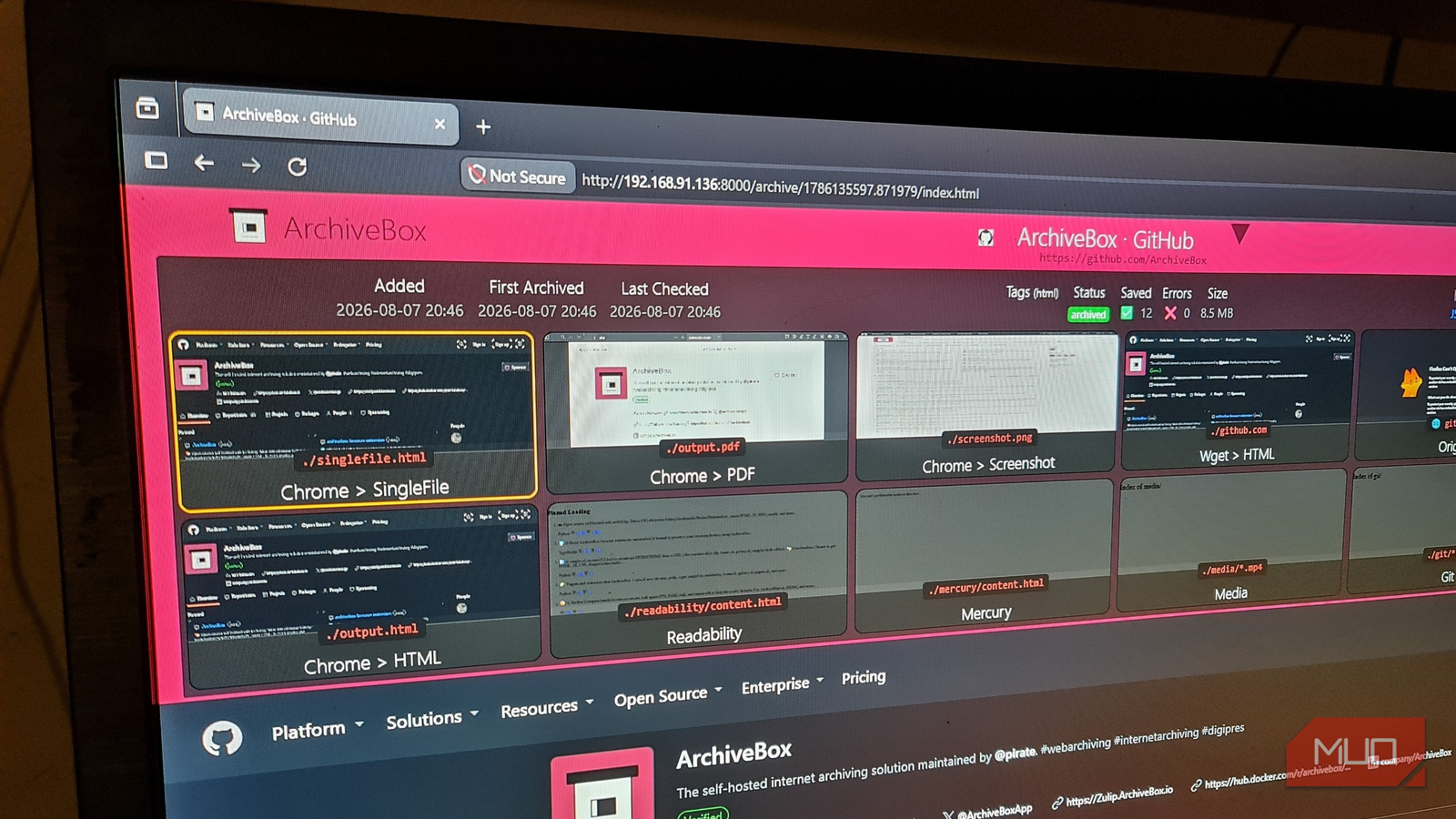
After taking the snapshot, the results page looked more like a recovery menu than a bookmark tool. I could search for the page, then open multiple copies of the site in differing formats. SingleFile kept it browsable and close to the original, Readability stripped it back to its text, and the PDF screenshot waited in reserve in case the other formats failed.

- OS
-
Linux, macOS, BSD, Docker
ArchiveBox is a free, open-source web archiving platform that creates searchable, timestamped snapshots on storage you control. It preserves pages as HTML, PDFs, screenshots, WARC files, extracted text, and more.
I deleted a web page and rewound it anyway
The source vanished, but my private archive still had everything
Example Domain was a useful quick check, but it’s hardly in any danger of being removed from the internet any time soon. I wanted to test that ArchiveBox could actually preserve a page correctly that had disappeared entirely. Since I couldn’t possibly know when or if an actual website would go down, I opted to create my own and host it on the same server.
I created a small website based on my OpenWRT multi-WAN setup, featuring an image, some basic recovery notes, and a small downloadable configuration file written in Python. I also hard-coded a unique marker COPPER-FINCH-8247, which gave me something to look for inside the archived copies.
I served the page from the same Ubuntu server hosting ArchiveBox on port 8081. I had ArchiveBox create a snapshot of it at depth level 1 so it would download and retain the configuration file, the HTML page, and the image.
Once it was completed, I pulled the plug on the web page. I stopped the Python server and moved its source directory completely offline. When I refreshed the browser, the IP address produced a connection error, while ArchiveBox continued to work on port 8000.
SingleFile and Wget both retained the styled pager and its image. The PDF, screenshot, rendered DOM, and extracted page text gave me accurate and interactive fallbacks, all of which included the COPPER-FINCH-8247 marker.
Before archiving the page, I calculated the SHA-256 hash of the original downloadable configuration file:
sha256sum openwrt-failover.confWhich returned:
8c2557843c18f429543c74a5c136958d729c0c4ae33d002cf2972fb513bfb117After archiving the page, I compared the Wget version of the .conf file and confirmed that the hashes were identical. And that was my Wayback Machine moment. I had successfully archived a page, deliberately took it offline, and still recovered its layout, local images, readable content, and a byte-for-byte copy of its download.
My Wayback Machine now lives in Firefox
The browser extension made preservation practical outside my test lab
The ArchiveBox dashboard worked better than I expected, but opening it and pasting a URL every time I needed to archive a page would waste valuable seconds. Thankfully, ArchiveBox has an official Firefox extension, so I installed it and told it where my local instance was running:
http://192.168.91.136:8000Because I was already signed in to ArchiveBox in Firefox, the extension just reused that authenticated session. I could now use the extension to one-click archive the page that is open in my browser at the time.
For a first real-world test, I archived my newly published article about creating a cloud-backed NAS since it was far more demanding than my homemade page. This was a long-form article, on a commercial website, with multiple images, scripts, advertisements, and content extending far below the initial viewpoint.
ArchiveBox was able to produce accurate and usable copies in SingleFile, Wget, PDR, screenshot, rendered DOM, and article text extraction formats. I could open the archived article well below its introduction and see that all the formatting and images were still intact.
The only format that didn’t work was Original, which produced a Firefox warning. That’s because the MUO page was simply unable to display its live page embedded inside ArchiveBox, likely for security reasons. Other than that, every copy I would actually depend on remained locally available, even offline.
Running my own Wayback Machine comes with a catch
I control the archive, which means I am also responsible for it

Anyone who has ever self-hosted even semi-important infrastructure knows that it’s not immortal. If this VM breaks before I can back up its data directory,I’ll be waving goodbye to all those snapshots.
ArchiveBox also can’t promise a perfect replay of every single login, video player, or JavaScript-heavy interface. Redundancy also costs space. The example.com domain occupied a measly 384KB across 17 files. My controlled test increased that collection to 1.5MB and 52 files. Adding the MUO article pushed it up to 34MB and 158 files.
Less than 40MB for three websites isn’t exactly sending me running to resize and expand partitions, but it can definitely add up once I start archiving more sites. That’s because bookmarks are just URLs, while ArchiveBox stores HTML pages, images, PDFs, screenshots, WARC data, and metadata.
That tradeoff absolutely still works for me, though, because I’m not going to preserve every single page I casually open. That would quickly turn a useful archive into a storage closet. Documentation, research sources, online shopping, old fixes to weirdly specific problems, and anything else I may need to cite have earned a place.
In the end, storage is fairly cheap compared with losing an obscure technical fix, research source, or buried answer in a Stack Overflow thread.