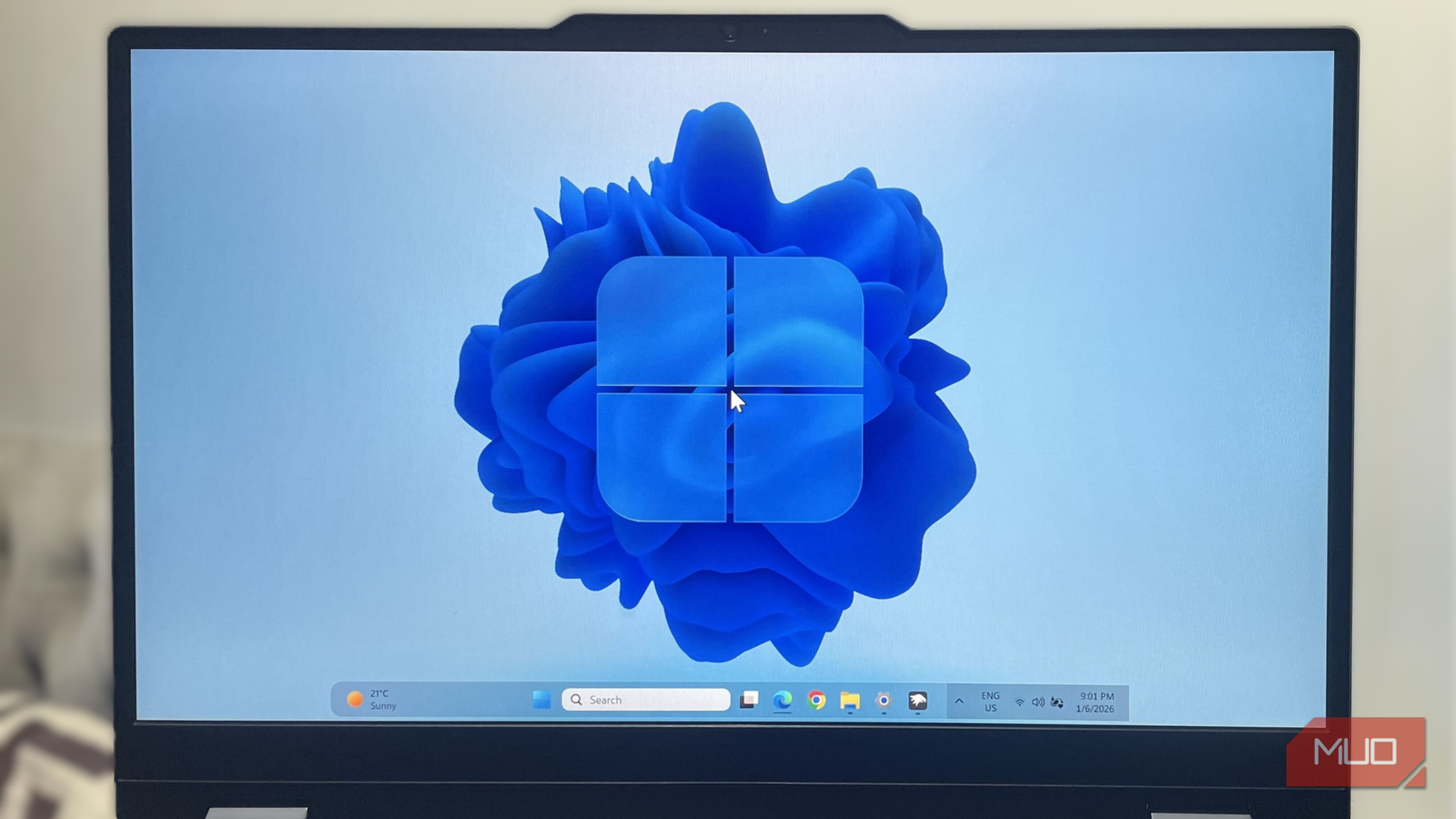
Windows 11 looks modern, but it strips away a lot of the customization that made earlier versions of Windows feel like yours. Some of the changes to the taskbar, Start menu, and File Explorer have made them less productive too, not just less personal.
The good thing about Windows, though, is that you always have options. Windhawk is a free, open-source app that helped me fix all those shortcomings, one small mod at a time.
Make the taskbar much more flexible
Bring back the customization Microsoft took away
For something that’s visible almost all the time, the Windows 11 taskbar is pretty disappointing. My biggest complaint with it is how inflexible it is. Thankfully, Windhawk has enough mods to fix just about everything wrong with the taskbar.
For instance, there are Windhawk mods that let you resize the taskbar and move it to the top or the sides, just like Windows 10. You can even make it semi-transparent, give it the retro XP look, or make it feel closer to macOS. I went with the semi-transparent option since it blends better with my wallpaper.
Windhawk also lets you hide specific icons if you find them useless. I got rid of the language indicator and the notifications icon since I never touch either of them. Finally, you can make use of that empty space on the taskbar instead of just leaving it blank. I set mine up to show CPU, RAM, and network usage stats in real time, so I can glance down and immediately know if something’s hogging resources.
Size, style, and search, all fixed

The Start menu is the same story as the taskbar when it comes to customization, and Windhawk fixes that too. Size is the first thing I changed. The default Start menu feels oddly large on a big monitor, and there’s just so much wasted space around it. Windhawk has a module that lets you resize it however you want.
I’ve also switched things up style-wise. Windhawk’s Windows 11 Start Menu Styler module offers tons of layout options and themes. I went with the SideBySideMinimal theme since it hides the recommended section entirely and just shows my apps in a compact layout.
The biggest upgrade, though, is the Start Search Bing Redirector module, which does what you’d expect. When you use the Start menu for web searches, it intercepts those requests and redirects them to your default browser, where they open with your go-to search engine.
Make it shorter and prettier

The right-click menu is another thing that got worse with Windows 11, and Windhawk has mods for that too.
The first thing I did was use the Classic context menu on Windows 11 module to bring back the old right-click menu. Windows 11 buries a lot of useful stuff behind “Show more options,” which doesn’t make any sense. Sure, the old menu is longer, but I fixed that too with another module.
The Remove Context Menu Items module lets you remove specific entries from the context menu. I ended up deleting most of the shortcuts from the apps I didn’t need, so the menu is now short and only shows the useful stuff.
There’s also the WinUI Context Menu Animation, which isn’t exactly necessary, but makes the menu look pretty. It adds a vertical slide animation to the context menu and all Win32 menus. It even lets you tweak the animation and fade times so you can get it just right.
Give File Explorer a serious upgrade
No need to replace it
Windows 11 File Explorer isn’t exactly bad, but it can use a few Windhawk upgrades. For starters, there are themes that let you give Explorer a whole new look. You can go transparent, no command bar, or full minimal. I went with the transparent look to match the taskbar and Start menu tweaks I’d already made.
Windhawk also lets you hide those useless tabs from the sidebar. I got rid of Home, Gallery, and OneDrive since I don’t need any of them. I also enabled an Esc-to-close shortcut so that I can easily close the File Explorer window once I’m done using it instead of clicking the X button every time.
Folder sizes were the biggest upgrade. By default, File Explorer doesn’t show folder sizes at a glance. That means you’re forced to open the properties window again and again just to see how much space a folder is taking. Windhawk’s Better file sizes in Explorer details fixes this. It forces Explorer to show folder sizes, though this can increase the CPU usage by a little.
Windhawk is godsend
I’ve tried several Windows customization tools, but nothing comes close to Windhawk. And it’s not just because it’s free and open-source. My favorite thing about it is how it brings all the useful customizations into one place.
The mods I talked about here are just a start. There are plenty more that you can explore. If there’s anything about Windows 11 that’s been bugging you, there’s a good chance Windhawk already has a mod that fixes it.