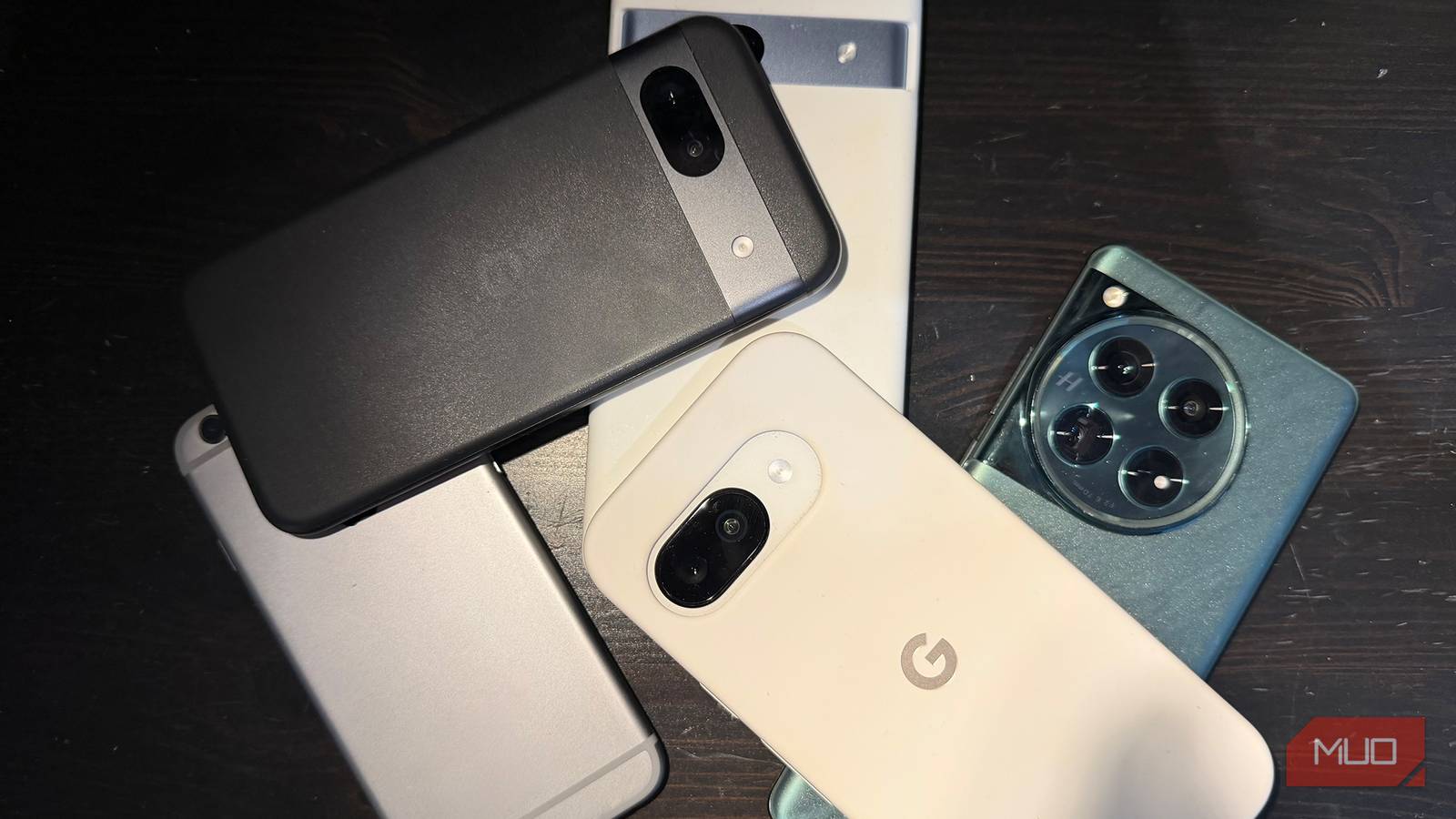
I’d gotten so used to tapping the fingerprint sensor on my Galaxy S24 Ultra and breezing through passkey logins that I barely thought about what was happening behind the screen. Then I realized I had no good answer to a pretty basic question. If this phone died tomorrow, would I also lose access to every account I’d secured with it?
I already understood why passkeys make a compelling replacement for passwords. What I hadn’t figured out was who stores them and what happens if the device holding them disappears. So I dug into that, and the answer depends a lot on which passkey provider you’re using.
My phone isn’t necessarily carrying the only copy
Synced passkeys already have an escape route
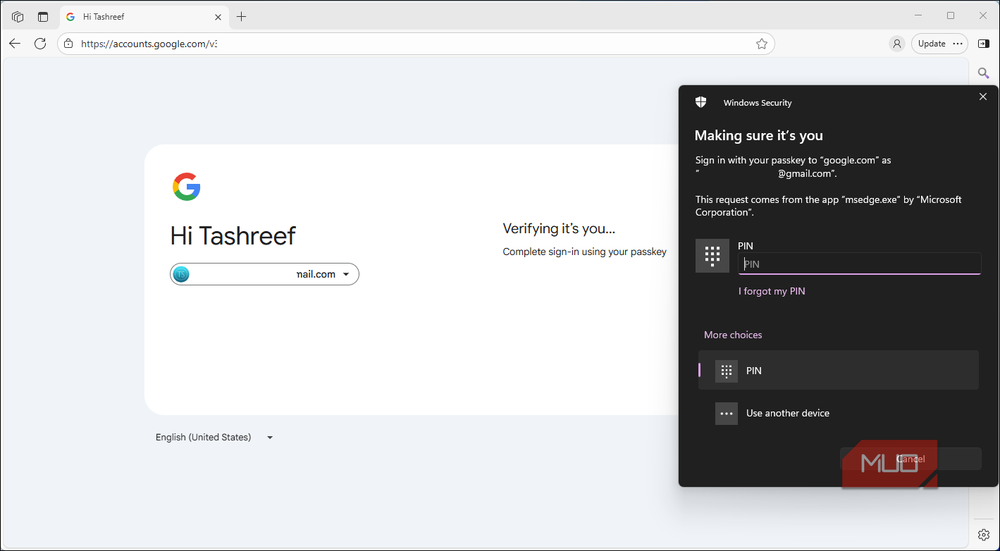
If you create a passkey on Android and save it to Google Password Manager, the credential isn’t marooned on that phone. Google Password Manager encrypts and synchronizes passkeys through your Google Account, making them available on other supported devices where you use the same account.
So a dead phone doesn’t automatically take those passkeys with it. Google lets you recover synced credentials on a replacement device after you sign in to your account and verify with the screen lock on your old phone. If your setup uses a Google Password Manager PIN, that can also unlock your synced passkeys on a new device.
Apple handles this similarly with iCloud Keychain, which syncs passkeys across approved Apple devices. Its recovery process can use your Apple Account, trusted phone number, and device passcode, while a recovery contact gives you another route if you’ve set one up. Third-party password managers that sync passkeys can provide the same kind of redundancy, so knowing where your passkeys are actually stored can save you some unpleasant guesswork after your phone has an appointment with concrete.
Unfortunately, the website you’re logging into can’t recover the passkey itself. It only stores the public key used to verify you, while your passkey provider or device keeps the private key. If that private key is gone and you can’t recover it through the provider, the site usually can’t rebuild it. You’ll need another account-recovery method, and then you’ll need to enroll a new passkey.
Some passkeys really can die with the hardware
Device-bound means exactly what it says

The reassuring answer above comes with a major caveat: passkeys can be either synced across devices or strictly device-bound. A device-bound credential isn’t synchronized to your other devices.
FIDO uses that term for credentials whose private keys stay on a single authenticator, including passkeys stored on many hardware security keys. Microsoft uses the same idea for Entra passkeys kept in the local Windows Hello container. If that device is the only place the passkey exists and you lose it, that credential is gone.
You may still be able to recover the account through another registered passkey, a security key, a recovery code, a password, or whatever recovery process the service offers. Once you’re back in, you can create a new passkey. The catch is that every service handles recovery a little differently, so having one passkey set up doesn’t automatically mean you have the same safety net everywhere.
This is also where QR-code sign-ins can give the wrong impression. Cross-device authentication lets a computer show a QR code while a nearby phone holding your passkey approves the login. Google’s version still needs that phone to be present, unlocked, and talking over Bluetooth. A phone with a dead motherboard is very much out of the conversation.
For accounts you really can’t afford to lose, it makes sense to register another authenticator when the service allows it. A hardware security key can store its own passkey, which gives you another way back in that doesn’t depend on the same phone.
I check the recovery path before trusting the login now
The spare key shouldn’t be trapped in the same pocket
The main thing I took away from this wasn’t that passkeys are fragile. Synced passkeys give you a much easier way back in after losing a phone, but I wouldn’t leave the recovery side of it vague anymore.
My actual takeaway is to never leave your account recovery to chance. For any account you’d really hate to lose, you should run these few checks while all your devices are still cooperating:
- Know where your passkey actually lives: Is it stored in Google Password Manager or Apple Passwords? Is it in a third-party manager, or does it exist only on one authenticator?
- Make sure you can recover your passkey provider: Your password manager may already be the front door to dozens of accounts. Double-check its recovery settings before you get locked out.
- Double up on authenticators: Don’t bet everything on a single device. If a service lets you register a second passkey on another authenticator, do it.
- Stash emergency codes: If a service offers backup codes or an alternative safety net, store them somewhere secure.
- Don’t make SMS your only fallback: A text message isn’t much help while you’ve also lost access to your phone number. Keep another independent recovery method where the service allows it. There are already good reasons to move away from SMS-based two-factor authentication.
Once you’re back into the account, remove the lost device or its passkey where appropriate. Google, for example, lets you review registered passkeys and sign out devices tied to automatically created Android credentials.
I want my backup somewhere else
A dying phone is only half the problem to prepare for. Losing the phone, its SIM, and access to the account that synchronizes your passkeys at the same time is the uglier version. Your backup should give you a route that doesn’t depend on the same device that’s already gone.