Samsung buries some of its best display features that most people never think of looking at. The standard settings menu gives you brightness sliders and dark mode, and that’s usually where people stop, assuming that’s everything the phone can do. There are plenty of hidden spaces in the phone, but there’s one setting that overrides the usual auto-brightness limits entirely and pushes the display to its maximum calibrated output, and it does it automatically.
This open-source Android app is the only video downloader you’ll ever need
Time to ditch those ad-filled websites.
You’ve got to dig into advanced features to find the hidden toggle
Your phone’s hidden diagnostics menu can tell you a lot about your battery, but you can also see that Samsung tends to hide some display tricks that affect both how good your screen looks and how much power it uses. The big one is a feature called Video Brightness.
Since pushing a Dynamic AMOLED 2X screen draws a lot of power and generates a lot of heat, not every Samsung phone gets this feature.
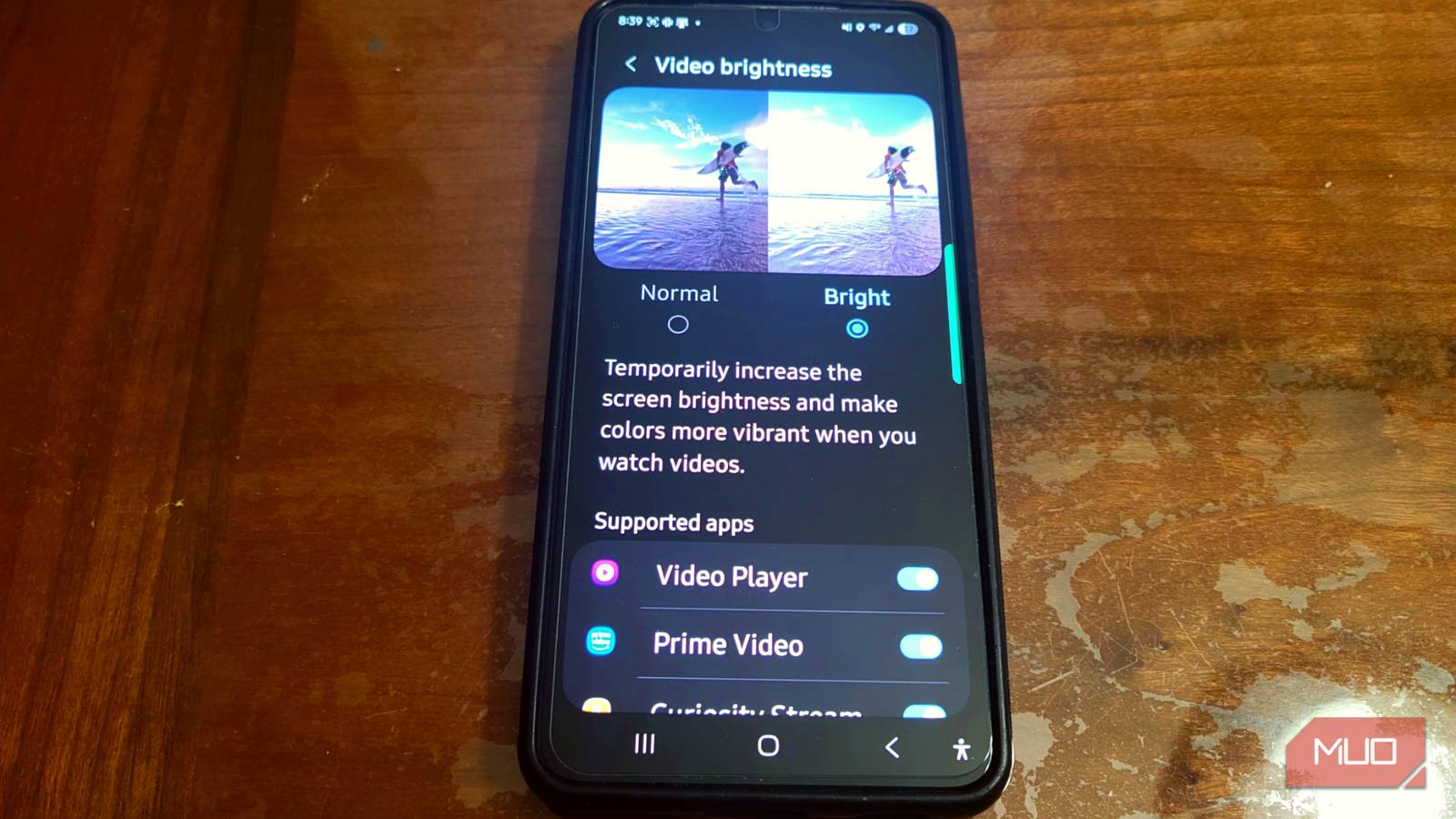
You’ll need to dig a bit to find this setting since it’s not in the regular display options. Open up Settings, then scroll past the usual display and battery stuff until you hit Advanced features.
Tap into that, and you’ll see a bunch of extra tools. You need to look for Video brightness in there. Once you’re in, you’ll see Normal and Bright Mode. Normal is the default, and it just uses the standard Android brightness behavior based on your ambient light sensor.
To actually turn this on, switch it from Normal to Bright. Once you do that, a list pops up showing all the compatible streaming apps you’ve got installed. Apps like Netflix, YouTube, Disney+, Twitch, Google TV, and the built-in Video Player. Each app has its own toggle, so you get to pick exactly which ones benefit from this.
Pick the one you want, and now whenever you open that app and go full-screen, your phone automatically cranks the brightness. Basically, it tells the system to ignore the normal auto-brightness limits and push the screen to its max calibrated brightness, which works even if you have a custom launcher.
Your phone changes how it handles video the second you go full screen
The software just overrides everything to give you a better picture

When you open certain media apps on a high-end Samsung Galaxy phone, the software kicks in right away to boost contrast and make colors look much better. Samsung’s One UI is set up to step in the moment an approved streaming app goes full-screen with video. Instead of letting the light sensors and the usual auto-brightness system slowly adjust the screen, the window manager just overrides things.
It does this by using BRIGHTNESS_OVERRIDE_FULL, which temporarily ignores the normal power-saving settings and skips past the phone’s usual auto-brightness behavior altogether. Basically, this tells the display to raise the sub-pixels to their highest calibrated brightness, setting things up for a really good-looking picture without you having to touch anything.
This automatic mode basically turns a regular phone screen into something closer to a movie-theater look, and you don’t have to permanently change any settings yourself. When you’re watching HDR content, the phone switches over to the wider DCI-P3 color range, which gives you a lot more color depth and vibrancy than the standard sRGB range most media uses.
At the same time, bright spots like explosions, reflections, or neon lights get pushed to really high brightness levels so they look better. There’s also tone-mapping going on, which is basically when the software looks at each frame and adjusts things, so dark scenes still show detail while bright parts stay colorful.
Put it all together, and you get a picture that feels close to a calibrated theater screen, right there in your hand, with every frame looking as good as it can. That said, running the screen this bright generates a lot of heat and burns through the battery fast. Samsung knows this, so the feature is built to only kick in temporarily and only when it makes sense.
The software keeps an eye on what you’re doing. If you switch to split-screen or open a pop-up window, it turns the override off so you won’t get uneven brightness or hot spots on the screen. The second you close the media app or minimize the video, the boost shuts off immediately.
Raising the brightness like this uses too much power

Pushing a modern phone screen to its highest brightness settings always comes with some hardware trade-offs, mainly around power use and heat. The brightness can do this because it increases the voltage going to the individual organic sub-pixels. That extra electrical current is what gives you the brilliant peak brightness and vivid colors, but cranking up the voltage like that also means your battery drains faster.
This isn’t noticeable in short bursts but will be an issue when you have long viewing sessions. The higher current doesn’t just eat into your battery faster; it also turns extra electrical energy into heat inside the screen. That’s what ends up warming the battery itself. So you need to keep in mind that it can speed up the chemical wear and tear on your phone’s lithium-ion battery.
On top of draining the battery faster, running the display at these high voltage levels also slightly raises the long-term risk of screen burn-in, also known as permanent image retention. Burn-in happens because the red, green, and blue sub-pixels don’t age at the same rate.
When they’re pushed with high voltage and heat, they wear out quicker than they normally would. This is especially a problem when you’re watching something for a long time that has static, high-contrast elements on screen, like bright white subtitles on Netflix or a TikTok navigation bar that’s always sitting there.
I’ve had a phone with burn-in before; it’s so very annoying, and it’s really noticeable. I traded my last phone in for that very reason. So I recommend being very careful.
Adjust your brightness without limits
Video Brightness is a genuinely useful feature if you watch a lot of content on your phone, but the battery life is a real reason to be careful. So I don’t recommend this if you’re constantly watching videos or streaming content that pushes the display to its limit. However, if you find it useful or need it every once in a while, you should use it.

- SoC
-
Snapdragon 8 Elite Gen 5
- Display
-
6.7-inch Dynamic AMOLED 2X
- RAM
-
12 GB
- Storage
-
256 or 512 GB
- Battery
-
4,900 mAh
- Operating System
-
Android
The Samsung Galaxy S26+ is a premium, large-screen smartphone that serves as the middle option in Samsung’s high-end lineup.