A lot of people use VPNs to limit their digital footprint. Windscribe, TunnelBear, AtlasVPN, and others do a great job masking your IP address or encrypting your traffic. But in most cases, you don’t really need a VPN to reduce your footprint on the internet, since most browsers already have built-in privacy features. Besides, using a VPN doesn’t really stop companies from tracking you through your browser, accounts, or device habits.
I use Chrome; I know it’s not the most privacy-conscious browser since Google owns it, but it does have some really useful privacy features. Once I started digging through Chrome’s privacy settings and turning some of them on, I realized I was giving websites much less information than before without having to keep my VPN running all the time.
Third-party cookies were the first thing I killed
Companies can track you across the web through cookies

When you visit a website today, you’re immediately hit with a cookie banner, and most people don’t think twice before clicking “Accept all cookies” just to get rid of it. Among the “all cookies” you accept, there are usually first-party and third-party cookies. Unlike first-party cookies, which are useful for things like keeping you signed in, third-party cookies are created by a domain other than the website you’re currently visiting.
These domains are mostly ad companies that use third-party cookies to share data across multiple sites, track your activity, and build a profile so they can feed you personalized ads. So, when you look at a product on one online store and later see ads for the same product on an entirely different website, that’s just third-party cookies at work.
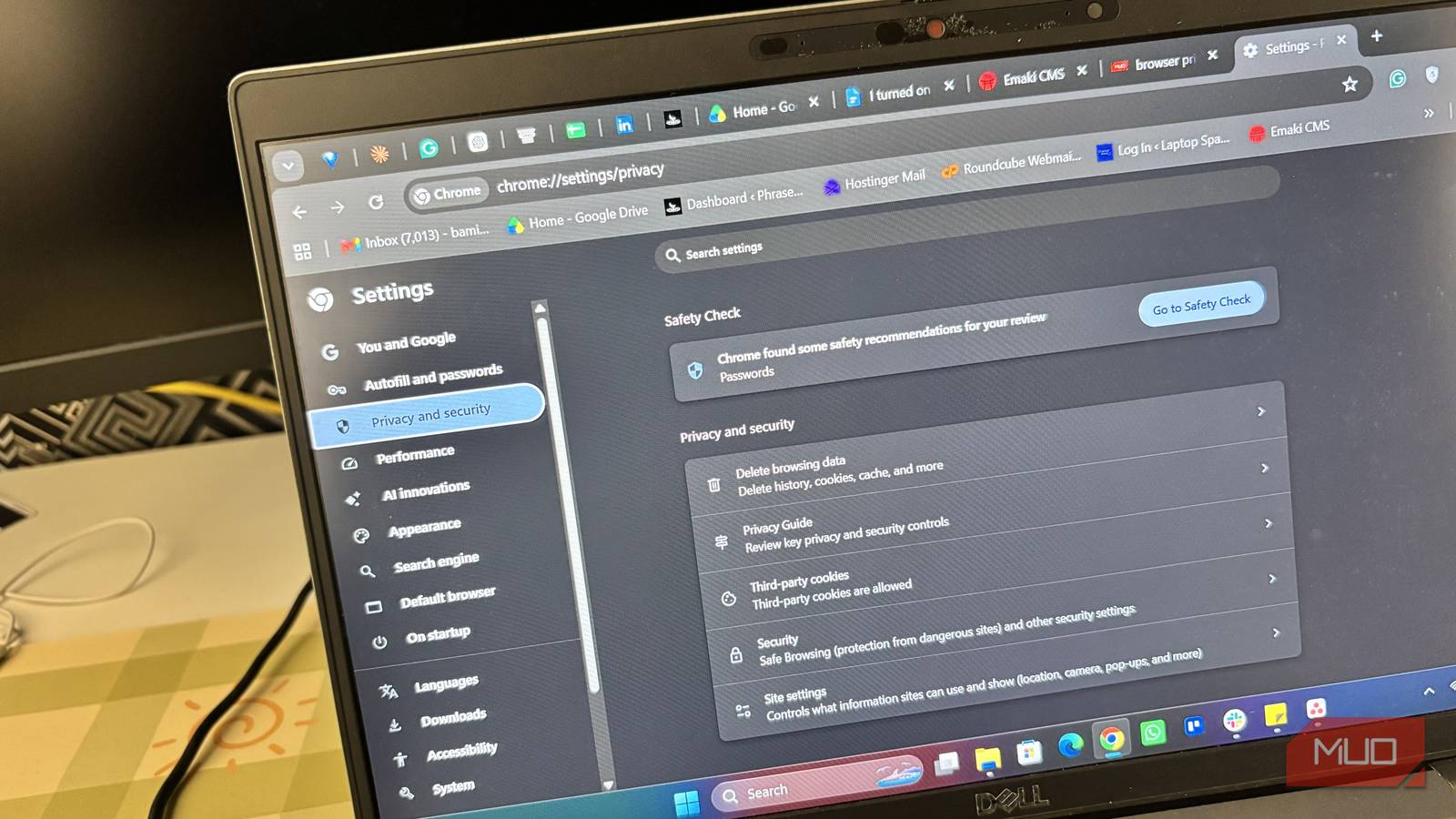
Third-party cookies are restricted by default on both Mozilla Firefox and Apple Safari, but you need to do that yourself on Chrome. Go to Settings -> Privacy and security -> Third-party cookies. From there, you can choose to block third-party cookies.
There’s a trade-off, though. Some websites rely on third-party cookies for certain features, so blocking them may cause something to stop working properly. Chrome lets you add exceptions for websites that need them. I don’t mind that trade when the alternative is letting every website and advertising network freely connect the dots between my browsing sessions.
Access to my location is off-limits
Chrome lets you block every request instead of approving them one by one
My IP address can give websites a rough idea of where I am, but that’s different from the location information my browser can provide when a site specifically asks for it. And I don’t want every random website accessing that.
By default, Chrome asks for permission before sharing your location with any website. That means a site can’t access it — you have to approve or deny each request. That does the job for the most part, but there’s also a stricter option if you don’t want to deal with prompts at all. Chrome lets you block all websites from accessing your location entirely. You can find this under Settings -> Privacy and security -> Site settings -> Location, where you can set location access to Don’t allow sites to see your location.
I used to keep it on the default “ask first” setting, which still gives you per-site control. But switching to a full block is a cleaner approach if you’re confident you don’t need location-based features at all.
VPN can change your IP address, so websites don’t know where you are. But it doesn’t stop your browser from sharing location information when you allow it.
HTTPS isn’t optional on my browser
An encrypted connection keeps people from snooping on your traffic

HTTPS websites are secured versions of HTTP sites that protect your data from being intercepted while it travels between your browser and the website. In simple terms, HTTPS encrypts the information you send and receive, so even if someone manages to access the network traffic, they can’t easily read or tamper with it.
Chrome has a feature called HTTPS-Only Mode. When enabled, Chrome tries to upgrade website connections to HTTPS instead of leaving them on unencrypted HTTP. And if a website does not support a secure connection, Chrome shows a warning before loading the page. To enable the feature, go to Settings -> Privacy and security -> Security, then turn on Always use secure connections.
A VPN still earns its keep sometimes
It covers gaps that browser settings simply can’t

After changing these settings, I wouldn’t say I’ve stopped needing a VPN entirely. There are still situations where I want one.
If I’m using an unfamiliar public Wi-Fi network, for example, I’d rather have my traffic routed through a VPN’s encrypted connection. A VPN can also hide my real IP address from websites by replacing it with the VPN server’s IP address. There’s also the obvious benefit of connecting through servers in other locations. That’s useful when I need to access a service restricted by location.
Privacy was hiding in settings I’d never opened
I used to think having a VPN running was enough to make my browsing more private, but that’s only one part of the picture. Chrome’s privacy settings can’t hide my IP address or give me the same protection a VPN provides on an untrusted network. But they can limit other forms of tracking that a VPN doesn’t address. That’s why I use both differently now. I keep Chrome’s privacy features enabled for everyday browsing and turn on my VPN when I actually need to.