As a fan of both Plex and Kodi media players, I shied away from trying out Jellyfin for far too long. As it happens, there are many advantages to this platform, including a centralized server with no paywalls, true privacy, full ownership, and easy remote access.
So what was the catch? Well, frankly, I didn’t like the interface, which is a significant factor when organizing and playing files in a home media setup, especially compared to Plex’s familiar, intuitive interface and the vast array of customizable Kodi “skins” on offer. However, once I stopped using the default app, I began to see Jellyfin in a whole new light.
I overlooked Jellyfin’s biggest advantage
The official Jellyfin app isn’t the only way to access your media
Jellyfin is designed around a client-side server model. This means the Jellyfin server manages your media library, downloads metadata, tracks your watch history, and keeps everything organized. The app you use to access it is just a client.
This is an important distinction, as a lot of us (myself included) took the easy option of downloading the official Jellyfin app on our laptops and only using it to access the media library. In reality, several compatible clients exist, each with their own features, benefits, and interfaces, that in many cases do the job better.
You don’t have to rebuild your media setup; everything, including your library, user profiles, and watch history, remains the same. You are simply accessing it from a different front-end.
I tried installing it in Kodi first
Kodi makes Jellyfin feel like a premium home theater system
After setting up my Jellyfin server, I immediately downloaded and installed the Jellyfin Kodi repository, thinking this would be the best way to combine Jellyfin functionality with customizable interfaces and familiar aesthetics. While installation wasn’t exactly straightforward, I eventually linked Kodi to my Jellyfin server using a six-digit quick connection code, and all was right with the world.
As expected, playback was smooth, and artwork looked far better than on the official Jellyfin app, especially as I was using the Bingie skin that emulates Netflix’s interface. Kodi supports a huge range of video and audio formats with minimal configuration, and the whole setup felt highly dependable. Rather than worrying about whether a particular file will play correctly, I can usually start a movie or TV episode knowing Kodi will handle it without complaint.
So, if you’re an existing Jellyfin user seeking customization and flawless playback, I’d certainly recommend linking Kodi as your front-end media player. However, I wanted more: a reliable app that let me access my files remotely across devices, as I do with Plex.

- OS
-
Windows, macOS, Linux, Android, iOS/iPadOS, tvOS, Android TV, Raspberry Pi, …
- Developer
-
XBMC Foundation
- Pricing model
-
Free, open-source
- Initial release
-
June 29, 2004
Kodi is a free, open-source media-center application that enables you to organize, stream and play videos, music, and photos from local or network storage on a wide range of devices. It supports plug-ins, live TV/DVR, and a “10-foot” user interface optimized for TVs, while being self-hosted and under your control.
Kodi isn’t the only Jellyfin client worth trying
Many impressive alternative options are available across all platforms
While Kodi has become my preferred way to access Jellyfin on a TV, it’s far from the only option available. For example, Android users can download Findroid, which features a clean, lightweight interface. Phyn is a paid option that works on Android and iOS. Desktop users who don’t want to go down the Kodi route can download the Jellyfin Media Player from GitHub, which integrates well with Windows, macOS, and Linux.
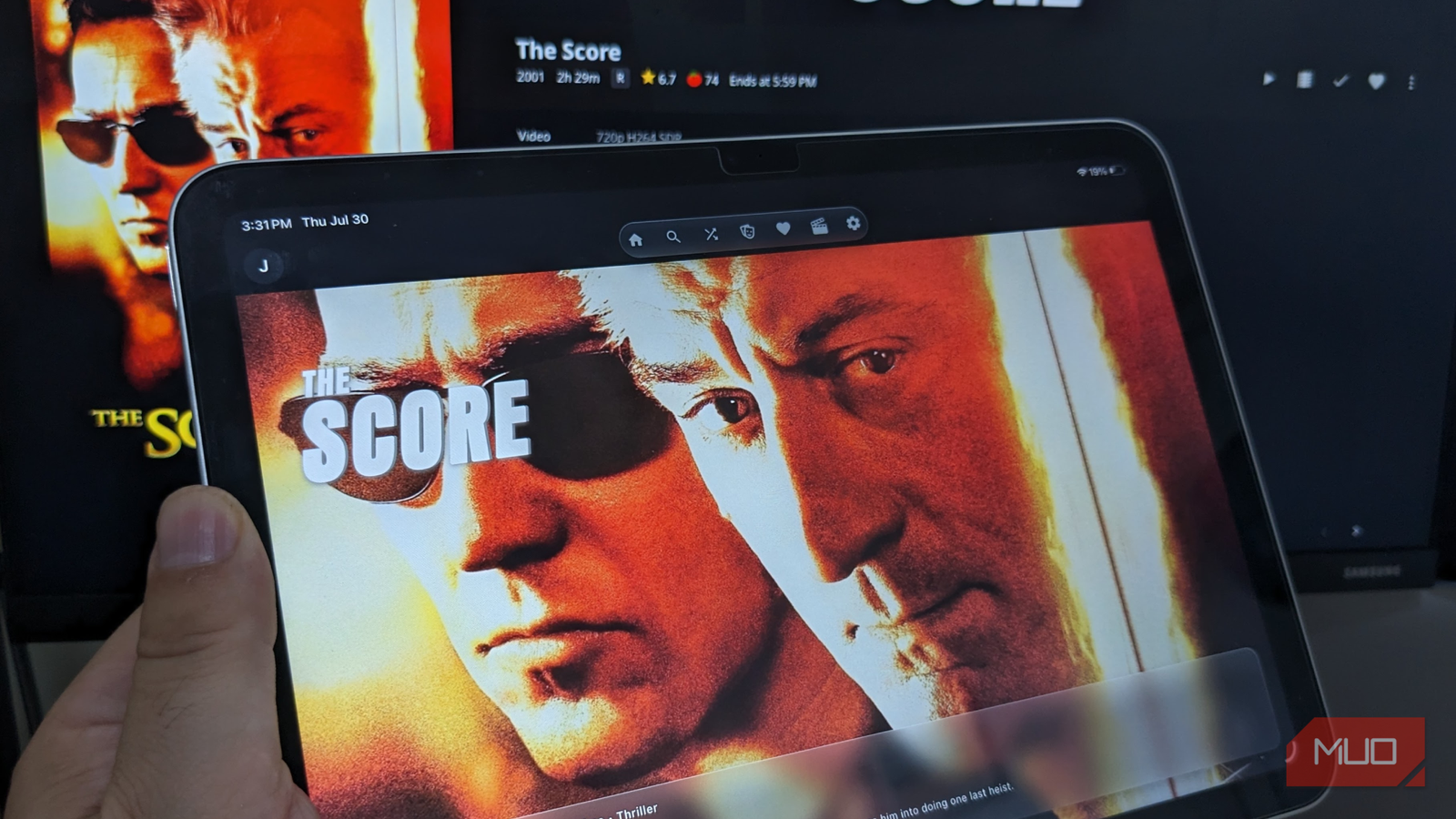
As an Apple user, I had strong choices available to me, including Infuse for Apple TV and Moonfin for my MacBook and iOS devices. I chose to install Moonfin, as it is free and uncluttered, with a seamless interface that categorized all my movies and shows into 22 genres, and has some cool features, like “random shuffle” whenever you’re unsure of what to watch, IMDb and Rotten Tomatoes integration, and setup was as easy as entering my server address and entering my quick connection code.
The great thing is, you don’t have to commit to a single client. I can use Findroid on my Pixel phone, Kodi on my living room TV, and Moonfin on my iPad, with Jellyfin doing all the heavy lifting in the background. Sure, it may take a little more time to set up than Plex, and Kodi integration can be fiddly, but I like that there are so many high-quality options available.
Choosing the right client made me appreciate Jellyfin far more
I didn’t stop to consider that there might be more options for using Jellyfin beyond the official app. Now I see it as just one option among many, and this has been a total game-changer that might replace Plex entirely.
One of Jellyfin’s great strengths is that the server and client are separate, so I can tailor each device’s experience to get the optimal viewing experience without rebuilding my media library or changing how my server operates. While the media stays where it is, the access improves the experience dramatically.
If you are new to Jellyfin, or growing tired of the same old setup, I would definitely recommend experimenting with other clients to get the most out of this flexible platform.

- OS
-
Android, iOS/iPadOS, Android TV, Fire TV, Web browsers
- Developer
-
Jellyfin Community
- Pricing model
-
Free (open-source)
- Initial release
-
December 8, 2018
Jellyfin is a free-and-open-source media-server system that lets you self-host your movies, music, TV shows, photos and more and stream them to any device without subscriptions or third-party tracking.