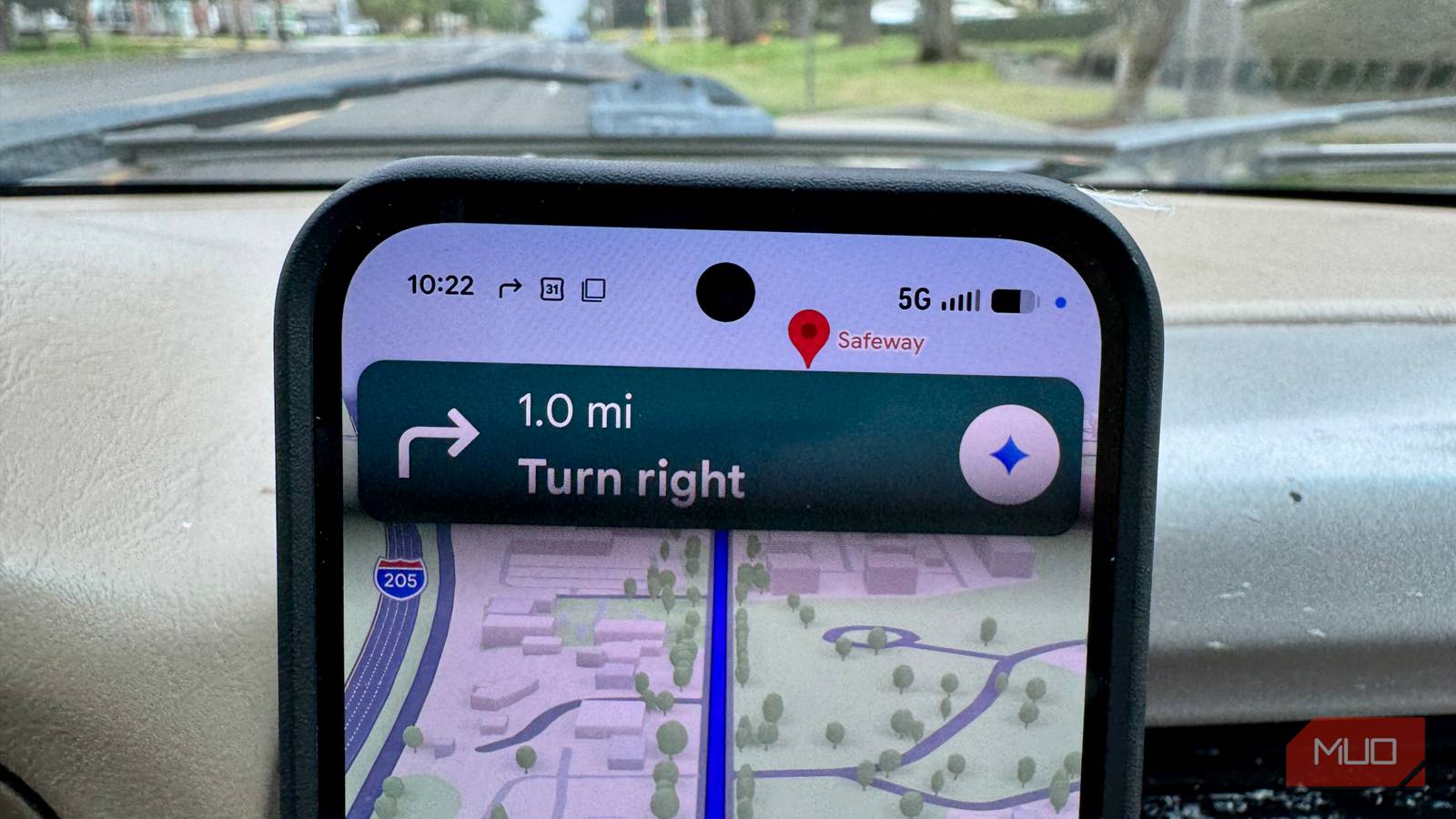
I used to leave myself three separate reminders every time I parked: a note in my phone’s notes app, a countdown timer for the meter, and a quick photo of where I’m parked, as well. Google Maps is supposed to take care of all three, so I gave it a quick test on both my Pixel 9 and my iPhone 15 Pro Max.
Turns out, I was able to leave a note and set a countdown timer, but I didn’t see a way to take a photo in the Maps app. Here’s how it all went.
My old system was overkill
I don’t usually overcomplicate simple tasks, but parking got away from me somehow. Between using my timer app, a quick note on my phone, and photographing “level 2, near the elevator,” I spent more effort tracking the parking spot than I spent finding it. It’s the same trap many other folks fall into with note-taking in general: we use a handful of single-purpose tools doing a job one app could handle on its own.
None of these tools are bad on their own, of course, but they aren’t necessary.
Google Maps already tracks your parking, notes and all
The notes and timer fields work like advertised
On my Pixel 9, the save-parking option doesn’t come from tapping the blue location dot, despite that being the flow most documentation describes. Instead, it showed up directly on the “Arriving at” card once I reached my destination, with a Save parking button built right in. I had to nudge the pin to the actual spot manually, since GPS placed it a few car-lengths off.
From there, tapping into the saved pin opened a card with Parking notes and a Time left dropdown, both of which worked exactly as expected. I typed a quick description of the parking spot into the notes field and set a four-minute timer, and both stuck around until I cleared the pin myself.
It worked this same way on iPhone, too, though that device saved my parking spot automatically, sort of like Apple Maps does when you use your phone connected to USB or CarPlay. You do need to drop into the settings in Google Maps on your iPhone to toggle the auto save on or off.
Android has no auto-detect layer for parking at all right now, and matching the iPhone’s Location access permission level didn’t change that.
Google’s documentation says automatic parking detection on iOS requires connecting your phone to your car over Bluetooth, USB, or CarPlay. I tested that claim directly: I drove and parked with Bluetooth off and not connected to USB twice, and Maps saved my parking location automatically both times anyway.
The difference turned out to be a setting, not a connection. My iPhone’s Location Services permission for Maps was set to Always, which appears to be enough on its own to trigger the auto-save behavior. I repeated the test with Bluetooth paired to see if it changed anything, and the result was identical either way. Of course, this depends on your Location Services setting being set to Always on, which not everyone will want for privacy reasons.
I ran the identical test on the Pixel 9, Location permission set to “Allowed all the time” for Maps and without Bluetooth or USB. Nothing saved automatically. Android has no auto-detect layer for parking at all right now, and matching the iPhone’s Location access permission level didn’t change that.
Google’s help page still promises a photo option that isn’t there
I checked two phones and current builds, nothing

Google’s own support page still says you can add a photo to your saved parking spot, the same way you can add a note or a timer. I looked for it on both the Pixel 9 and the iPhone 15, both running current app versions, and I didn’t see a photo option anywhere in the parking card on either one.
I couldn’t find any record of Google announcing this change. The original 2017 rollout of the feature included photos, and coverage of Google’s automatic parking update late last year never mentioned photos going away either. It’s possible this is a staged rollout still catching up to older documentation, but as of my own testing, it’s still not there.
How to set this up yourself
Hop into Settings to make this work

On Android: open Google Maps and drive to your destination as usual. When you arrive, look for Save parking on the arrival card, or tap the blue location dot if it appears there for you. Adjust the pin if needed, then tap into it for Parking notes and Time left.
On iPhone: go to your profile picture in Maps, then Settings, and check that Automatically save parking is turned on. If your Location Services permission for Maps is set to Always, you may not need to connect to your car at all for it to work. You can also save manually the same way as on Android.
If you’d rather not leave Location Services on Always, you can still save your spot manually on either platform, you’ll just be doing the tapping yourself instead of letting Maps handle it. Maps also has several other features worth digging into beyond parking, if you want to get more out of the app while you’re in there.
One less thing to juggle
I won’t be taking photos of my parking spot in the Google Maps app, still, since that option simply isn’t there for me right now. But between the notes field, the timer, and the fact that my iPhone now handles the whole thing without me thinking about it, I’ve stopped opening my timer app and skipped scribbling notes to myself. Maps was ready to do both jobs for me all along.