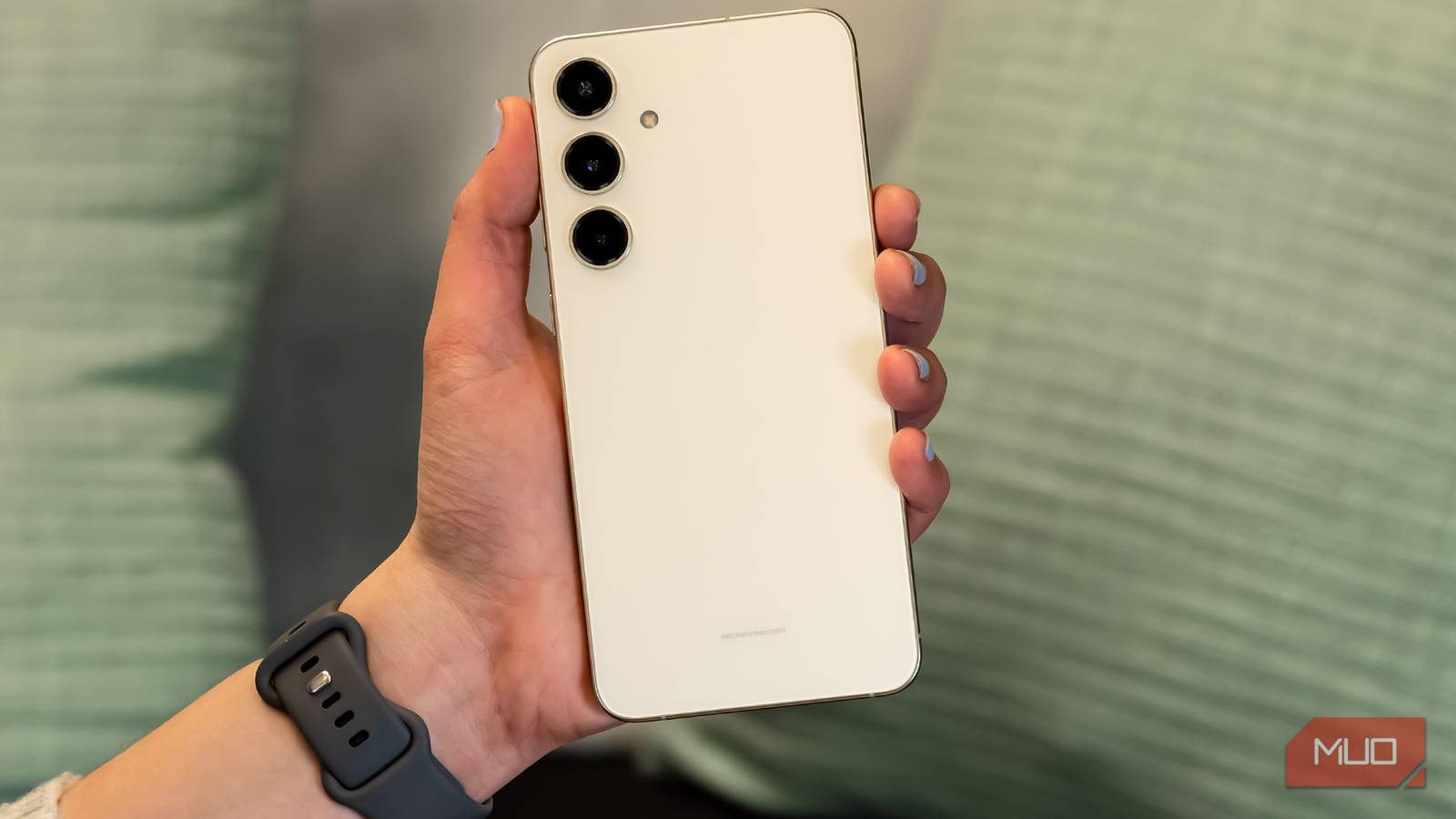
I have a three-year-old Galaxy S23 I use for testing, and somewhere along the way it had stopped feeling like a flagship device. It just wasn’t as snappy as the day I bought it.
But since it was my secondary phone, I wasn’t planning to upgrade it. So I did the next best thing. I spent 10 minutes making a few tweaks, and it made my old phone feel brand new again.
Swap that default launcher
Your stock launcher is probably slowing you down

The default launcher on most Android phones is usually heavy and bloated. This isn’t something you’ll notice when your phone is brand new, but as it picks up updates and the hardware ages, it starts to show.
So the first thing I did was swap the default launcher on my Galaxy phone. Now I know there are plenty of good ones out there, but since I wanted speed over looks, I went with KISS Launcher. It’s a free, open-source minimalist launcher that weighs just 250KB.
Unlike the stock launcher, there’s no Google Discover when you swipe left and no home screen widgets eating RAM. There’s just the main home screen and the app drawer. That’s it. And it’s not like it’s barebones. The search bar is the real deal. It can open apps, contacts, device settings, and even websites. This simple change alone made my old phone like a new one.
Free up storage
Know the 10% storage rule

This may sound obvious, but I didn’t realize Android phones have a storage rule they need to follow. Performance starts taking a hit once free storage drops below roughly 10%. It comes down to how the storage itself works. Most Android phones use UFS flash storage, which needs empty blocks to write data efficiently. When those blocks run low, the phone has to work harder to erase old data, reshuffle files, and do basic things. Everything from app loading to touch interaction slows down because of this one thing.
Freeing up storage wasn’t as difficult as I thought. There were plenty of apps I hadn’t opened in a while, so removing them was a no-brainer. Emptying the trash folder in Gallery and Files, clearing app caches, and moving a few large files to the cloud was enough to recover more than 10% of the total storage.
Turn off animations and limit background processes
Animations on your phone are there to make everything feel smooth. That transition effect when opening an app, the drawer sliding up, the screen fading between menus — all of that happens almost every second. But once your phone gets old, those same animations start working against you. Most of the time, you’re left waiting for them to finish before you can do the next thing.
Thankfully, you’re not without options. You can cut those animation speeds in half or turn them off entirely, so that’s what I did. For this, you’ll need to unlock the Developer Options menu on your phone and look for Window animation scale, Transition animation scale, and Animator duration scale.
While you’re in the Developer Options menu, there’s one more thing worth tweaking, which is the background process limit. By default, Android decides how many apps can stay alive in the background. This usually works well, but if your phone feels slow, it’s worth changing. I capped my phone to at most 3 processes at a time, which is quite aggressive. Yes, apps now do take a second longer to reload when I switch back to them, but everything that’s actually in the foreground feels noticeably more responsive.
Disable RAM Plus and change performance mode
Your phone might be holding itself back

RAM Plus, RAM Expansion, RAM Boost — these are all fancy names for the virtual RAM feature you’ll find on most Android phones. They all work on the same idea. Your phone borrows a chunk of storage and uses it as extra memory, so apps can stay open in the background longer. Most manufacturers advertise this as some kind of magic feature that gives you free RAM, but the reality is slightly different.
Since storage is slower than RAM, fetching data from it takes longer than usual. So, things like switching apps or managing background processes become noticeably slower any time your phone is using that borrowed RAM. So yes, it might sound counterintuitive, but disabling the RAM Plus feature on my Galaxy phone actually made it faster.
Another thing I did was switch the processing speed from Optimized to High. This lets my phone process data faster at the expense of slightly more battery use, which seems like a fair deal. Much like virtual memory, this setting goes by different names on various Android skins, and some don’t have it at all. But if you have a Galaxy phone, you can find it under Settings > Device care > Processing speed.