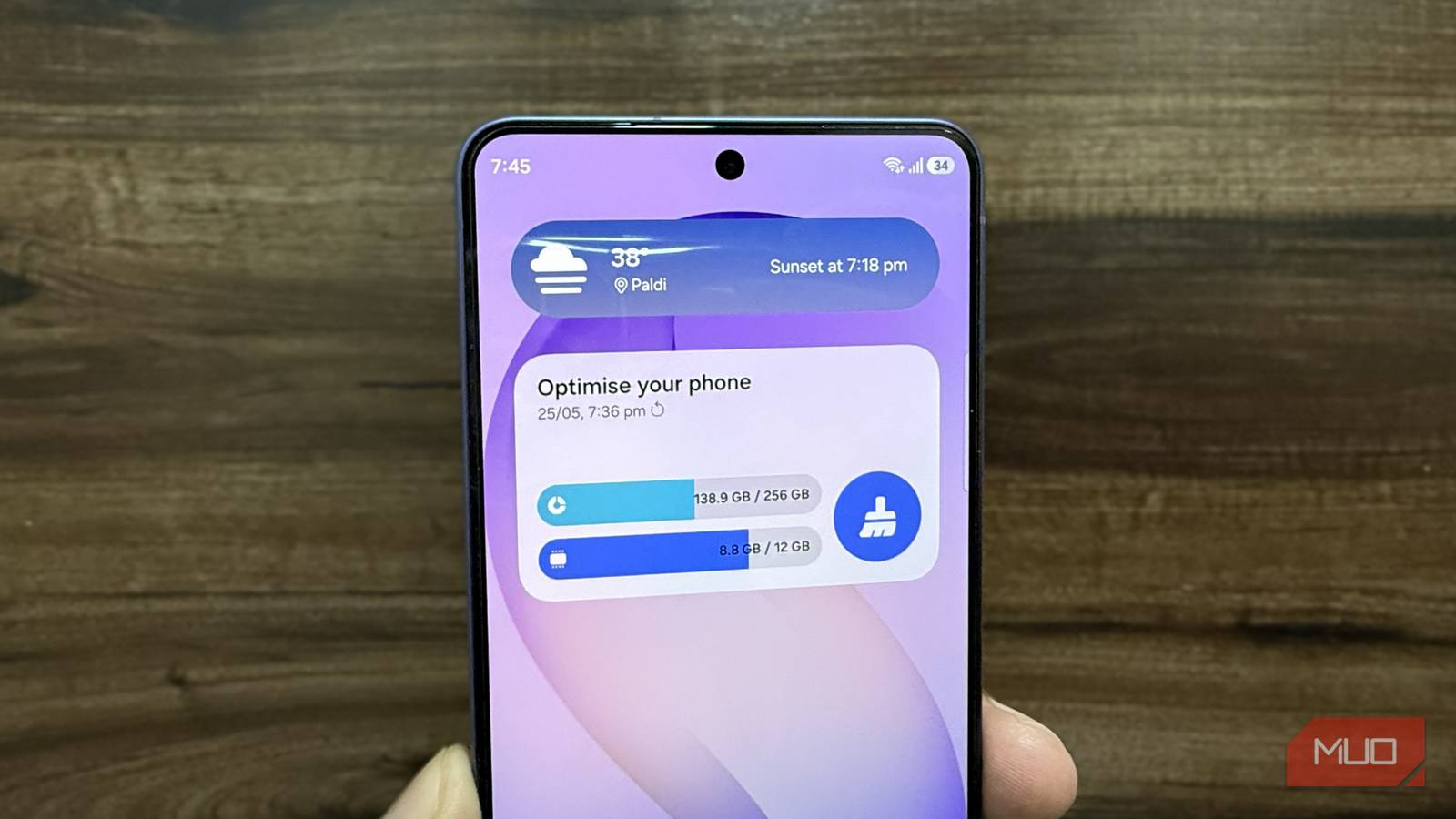
Check your battery stats on a Samsung phone, and you may find Device Care near the top of the list. It is an odd name to see there, especially when you have never opened it, yet it has still been using battery.
I had always treated it as harmless background clutter. But seeing it there made me wonder why Samsung needed a maintenance app running when I was not using it.
What Samsung Device Care actually is
Not the simple tool it pretends to be

Device Care is Samsung’s built-in maintenance suite for Galaxy phones. It sits inside your settings, bringing battery monitoring, storage management, memory tools, security checks, and diagnostics into one place. Since it is part of One UI, it works with the phone’s own system controls rather than behaving like a separate cleanup app.
It also has an automatic side. When the phone is idle, Device Care can perform optimization tasks such as closing background apps and cleaning memory without waiting for you to open it. You don’t need to approve each task for it to happen. But that doesn’t mean every Device Care tool runs automatically. Storage cleanup, diagnostics, and many of its other controls remain there for you to use when you need them.
The thing is, Android has its own systems for managing battery and background activity. Adaptive Battery learns your usage patterns and restricts background activity for apps you rarely open. For a phone that is not critically low on storage or struggling with a rogue app, Device Care is doing work that overlaps with what Android is already handling underneath.
It restricts your apps, not itself
Apps lose access while Device Care keeps its own
Device Care doesn’t just run maintenance in the background. It monitors how often you open each app. If you’ve not used one for a while, Device Care puts it to sleep. A sleeping app can still run in the background, but with limits on how often it syncs or sends notifications. Leave it unused for longer, and Device Care moves it into deep sleep, where it cannot sync, refresh, or send notifications until you open it manually. This works fine for apps like a calculator or a photo editor, which have no reason to run in the background, anyway.
The problem is that unused doesn’t always mean unimportant. Device Care only looks at whether you have recently opened the app. A fitness tracker connected to a wearable or a security camera app waiting to send instant alerts may never be opened manually. Similarly, a medication reminder, opened once during setup and quietly doing its job every day, still looks inactive to Device Care. It treats all of these the same way.
And yet, Device Care itself is exempt from any of these restrictions. Open its App info page, and the Optimized and Restricted battery modes are grayed out. Samsung locks it permanently to Unrestricted. The Disable button is also grayed out.
Disabling what Samsung won’t let you
The permanent fix Samsung hides from settings

There is no master switch to turn off Device Care. Samsung doesn’t let you restrict its battery usage, disable it, or uninstall it through your phone’s settings. What you can do is force stop Device Care through its App info page, which halts all background activity. The catch is that it returns the next time you restart your phone.
If you want Device Care gone rather than merely paused, you will need ADB (Android Debug Bridge). It connects your phone to a computer and lets you control system-level settings that are normally locked. Before that connection can work, you will need to enable USB debugging. Open Settings, go to About phone -> Software information, then tap Build number seven times to unlock Developer mode. Then go back to Settings, open Developer options, and toggle on USB debugging.
After that, download the SDK Platform Tools and extract the zip file to a folder like C:platform-tools. Then open Command Prompt and type cd C:platform-tools to navigate to that folder. Connect your phone with a USB cable, and when it asks whether to allow USB debugging, check “Always allow from this computer” and tap Allow. Type adb devices to make sure the connection is working.
Once your computer recognizes the phone, type adb shell pm disable-user --user 0 com.samsung.android.lool and hit Enter. Command Prompt will confirm that Device Care has been disabled. Disabling Device Care also removes its battery monitor, storage scanner, and ad-blocking feature.
Life after Device Care
With Device Care disabled, the apps it had been managing get their full background access back. Notifications that Device Care was responsible for delaying should start coming through normally. Your phone keeps running the same way, just without Device Care managing your apps in the background. If you ever want Device Care back, connect your phone to your computer and run adb shell pm enable com.samsung.android.lool. Device Care returns with all of its automatic behavior intact.


8.5/10
- SoC
-
Snapdragon 8 Elite Gen 5
- Display
-
6.9-inch Dynamic Super AMOLED 2X
- RAM
-
12 or 16 GB
- Storage
-
256GB, 512GB, or 1TB
The Samsung Galaxy S26 Ultra isn’t a massive leap in specs compared to the previous generation Samsung Galaxy S25 Ultra, but it boasts improvements in every aspect. The major differentiators are two features that will appeal to power users and content creators, called Privacy Display and Horizontal Lock.