By default, Microsoft collects diagnostic and telemetry data directly from Windows, which isn’t really surprising. I mean, which software company doesn’t collect data from its users nowadays?
Microsoft says it uses the data to improve the Windows experience, fix bugs, and develop features. That’s sort of true, but they are probably using it for other things like serving you personalized ads.
Obviously, I wouldn’t want my data used for purposes I didn’t sign up for. Unfortunately, there’s no single switch that stops Windows from sending all diagnostic data to Microsoft. You can only limit what’s collected, but some required diagnostic data remains.
Luckily, through a tool called Diagnostic Data Viewer, Windows gives us a way to inspect the data being collected and sent from our PC.
You have to enable Diagnostic Data Viewer before you can use it
And download the app
Before you can inspect the diagnostic information Windows collects, you need to allow your PC to store that data and download Microsoft’s dedicated viewer app. To enable it, open Settings -> Privacy & security -> Diagnostics & feedback.
Expand the View diagnostic data section and toggle Turn on Diagnostic Data Viewer to On. This allows Windows to store diagnostic events locally, so the app can display them.
Next, open the Microsoft Store, search for Diagnostic Data Viewer, and download the app. You can also click the Open Diagnostic Data Viewer button in the same Settings section, which takes you to its Microsoft Store listing.
Once installed, launch the app, and you’ll have access to the diagnostic data Windows has collected. But enabling data viewing doesn’t change what Microsoft collects or give you a way to block it. It simply lets Windows retain a local copy of the diagnostic events so you can inspect them.
The viewer shows the diagnostic events stored on your PC
Browse, filter, and search the raw records instead of a vague summary
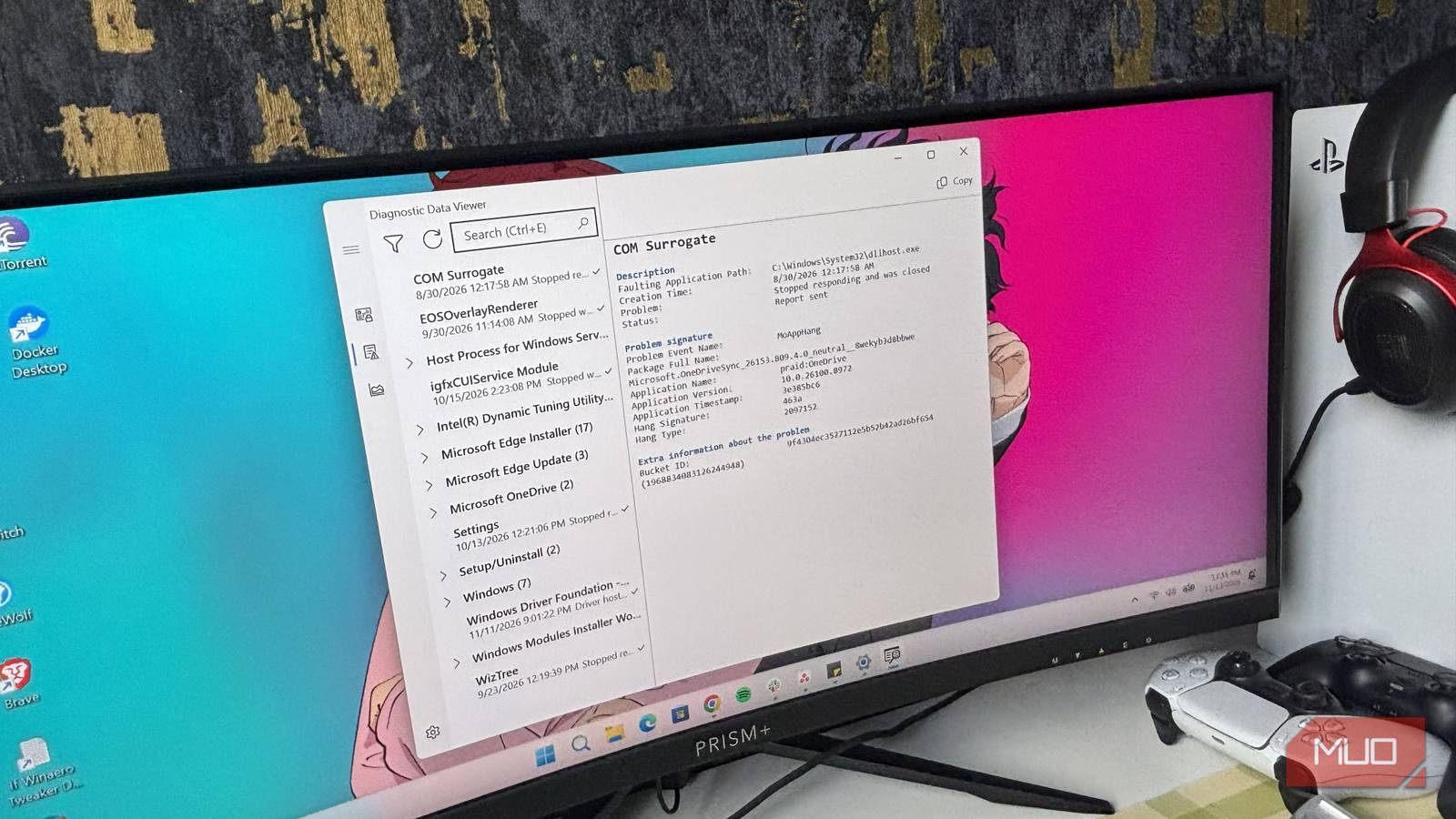
Once I opened Diagnostic Data Viewer, I found that it doesn’t just show a vague summary of Microsoft’s data collection practices. It displays individual diagnostic events, with each one containing a detailed JSON-formatted record. I can select an event to inspect its contents and see the information associated with that particular activity.
The viewer organizes events into categories, which I can filter to narrow down what I’m looking for. There’s also a search feature that lets me find specific terms across the event details. If I want to investigate a Windows crash or another system issue, I can check the View problem reports section for Windows Error Reporting information, too. And if I want to keep a copy of what I’ve found, I can export the event history to a CSV file.
The viewer can also display diagnostic data from Microsoft 365 and Office applications, although that requires enabling Office data viewing separately in the app’s settings. So, I can use the same interface to inspect more than just Windows events.
Despite its usefulness, I wouldn’t call it a network traffic monitor. The viewer displays diagnostic events Windows has collected for viewing, but an event appearing in the app doesn’t necessarily mean it has already been uploaded to Microsoft. Some events may still be queued for later transmission. Still, it’s a much more concrete way to understand the diagnostic information associated with my PC than simply reading Microsoft’s privacy explanations.
There’s a storage limit
I increased the storage capacity to 2GB but kept the 30-day history

By default, Diagnostic Data Viewer stores up to 1GB of diagnostic data or 30 days of history, whichever limit is reached first. Once either limit is hit, the oldest events are gradually removed to make room for newer ones. Microsoft estimates that an average device generates around 6MB of Windows diagnostic data per day, although the actual amount varies.
For a lot of people, the default limit is enough, but you don’t have to stick with that. The app has a settings page where I can adjust the maximum storage capacity and how long diagnostic data is retained. I increased the storage limit to 2GB because I could afford to spare that. The maximum storage you can assign is 10GB.
Meanwhile, for the time limit, I left it at the default 30 days, which is enough history for me to review recent activity without keeping a long record. The app’s storage and time limits work independently, so whichever one is reached first determines when older events start getting removed.
I no longer have to guess what Windows sends
I don’t think anyone should have to guess what diagnostic information their operating system collects. Microsoft provides explanations of its data practices, but Diagnostic Data Viewer gives me something I can inspect. It doesn’t let me stop diagnostic data from going out of my PC, and it isn’t a complete record of every piece of information Microsoft might receive. But it does give me a useful window into what Windows is reporting from my PC.