The Windows Power Mode dropdown controls your CPU power and boost behavior, aiming to give you more juice without cooking your laptop in the process.
But there is another setting behind the scenes that means the Power Mode dropdowns aren’t in complete control. Enter the venerable old Control Panel’s Power Options, which ultimately decide just how far you can really crank the dial.
Two power controls, one Windows PC
Working in tandem, but one has more control

When you head to Settings > System > Power & Battery > Power Mode, you see the Power Mode dropdowns: Best Power Efficiency, Balanced, and Best Performance.
These options adjust the EPP (Energy Performance Preference) output (a 0-100 value that relates to CPU boost), and Processor Performance Boost Mode, which governs the rate at which Windows asks the CPU to chase frequencies above its base clock (basically how aggressively Windows will boost your CPU speeds).
But then, if you head to Control Panel > Power Options, you’ll find the older power plan options, also known as schemes. Windows has largely abstracted the settings here to the Power Plan dropdowns to make CPU power boost easier to understand. It’s reasonably useful overall, but it betrays the fact that in the old-school Power Options, there are additional schemes you can use to boost or reduce your CPU overhead.
That’s because in Power Options, there are specific schemes for Balanced, Power Saver, and High Performance, and on some systems, there is an unlockable Ultimate Performance power plan designed to squeeze every last bit of power from your machine.
Turns out, the old Control Panel plans are really in charge
But the modern Settings don’t mention that

What’s interesting is that despite the modern Power Plan dropdowns making CPU power management incredibly simple, they don’t give you the full picture.
The two power control options aren’t working as equals, and changing your Power Mode doesn’t change the Power Options scheme.
For example, the “legacy” power options in Control Panel have much greater manual access to specific features Power Plan doesn’t reveal. In Control Panel, you can adjust display timeout, disk spin-down, USB selective suspend, and when the machine sleeps or hibernates, to name just a few.
Furthermore, changing these options in the Control Panel means that they’re universal settings. They remain active no matter what you set in Power Plan.
Elsewhere, changing the Power Plan in settings from, say, Balanced to Best Performance doesn’t actually change the Control Panel settings to match. Switch Power Mode to Best Performance or Best Power Efficiency and Control Panel keeps showing “Balanced” the whole time, because you never left Balanced. Windows just runs that same plan with different EPP and boost values.
You might not even see the other Power Options in Control Panel
Modern Windows keeps some bits hidden

It actually gets a little murkier, too, which is fun. So, I’m sure you’ve read the old tutorials that say “Switch High Performance mode for a speed boost” and similar. On prior Windows versions, this was reasonably accurate.
But on Windows 11, on most laptops, you won’t even see High Performance or Power Saver as options to try this in the first place. The Modern Standby feature that most laptops ship with typically hides them from the Control Panel by default.
Modern Standby specifically keeps your laptop locked into the Balanced mode at all times, precisely because it prefers most folks to use its Power Mode options rather than tinkering under the hood.
Restore the missing power schemes using Terminal commands
It’s relatively straightforward, once you get the right combo
However, you can attempt to restore using the Terminal with some specific commands.
Read this whole section before you start adding commands. I’ve added the whole process, but you might not need all of it.
- Press Win + X to open the Power Menu, then select Terminal (Admin)
-
First, input
powercfg /listto see the available power schemes. If your device is using Modern Standby, which is highly likely, you’ll likely only see Balanced. -
If that is the case, you can attempt to manually add the missing power schemes with the following commands:
-
High performance:
powercfg -duplicatescheme 8c5e7fda-e8bf-4a96-9a85-a6e23a8c635c -
Power saver:
powercfg -duplicatescheme a1841308-3541-4fab-bc81-f71556f20b4a -
Ultimate Performance:
powercfg -duplicatescheme e9a42b02-d5df-448d-aa00-03f14749eb61
-
High performance:
-
Once you’ve run the commands, run the
powercfg /listcommand again to see if the power modes have been added.
This is where things started to fall apart for me, as the commands wouldn’t work at all. My own laptop is also locked down to Windows Modern Standby, which you can check on your device with the following:
- Press Win + X to open the Power Menu, then select Terminal (Admin)
-
Now, input
powercfg /a
Most modern Windows laptops will all show the same sleep states available:
- Standby (S0 Low Power Idle) Network Connected
- Hibernate
- Fast Startup
Microsoft issued some fixes for the S0 Low Power Idle mode in Windows 11 24H2, but that still doesn’t mean you can unlock the additional power modes unavailable in Control Panel.
So, even though I thought I was adding them, Modern Standby actively blocked them.
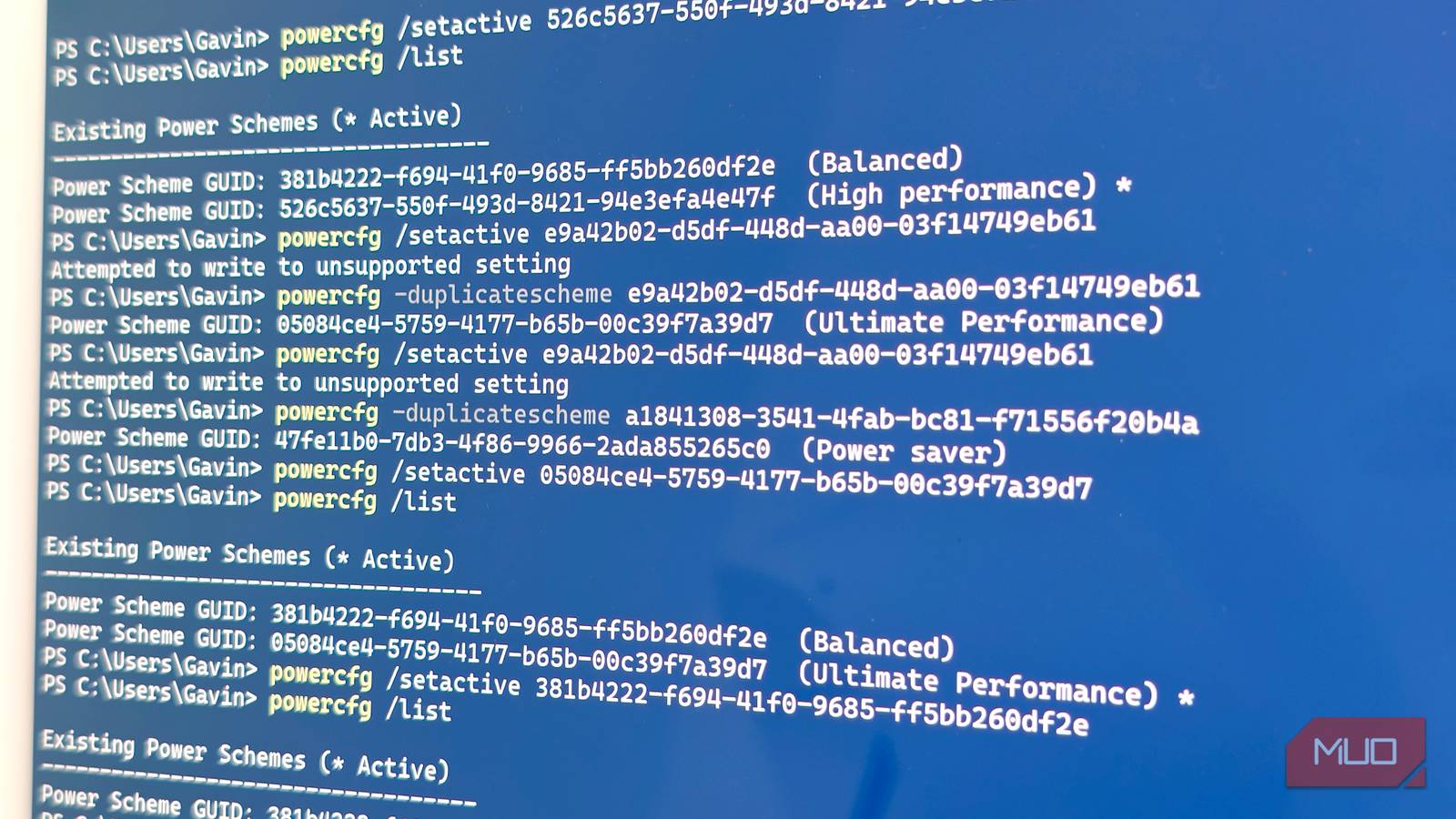
The “setactive” command enables manual switching
Don’t give up hope just yet: there is another powercfg setting that specifically selects the Power Scheme in Terminal, after you’ve used the duplicatescheme option. In that, while the scheme doesn’t appear immediately in Control Panel, the command generates a new GUID, which you can then select manually to enable.
- Press Win + X to open the Power Menu, then select Terminal (Admin)
-
Input
powercfg -duplicatescheme 8c5e7fda-e8bf-4a96-9a85-a6e23a8c635c - Note the new GUID generated beneath the command, and copy this ready to use.
-
Now, input
powercfg /setactive [your GUID goes here]and press Enter.
You should now be able to select the new power scheme in Control Panel.
New power schemes, no Power Plans
As you’ll now note, when you select a manual power scheme in the Terminal/Control Panel, the Power Plans in Windows Settings become greyed out.
That’s because, as said, the Power Plans only work when Windows is set to a Balanced power scheme; Microsoft doesn’t really want you tinkering with these settings, which is why the abstracted Power Plan drop-downs exist.