
My laptop comes with a 512GB SSD, and it gets filled up pretty fast. I download a bunch of apps and files that I use once and never touch again, movies I keep just for the sake of it, and even games I barely play. And apart from my storage filling up because of my actions, Windows itself contributes quite a bit. Windows can fill up your storage by accumulating temporary files, system updates, hidden caches, and background app data over time, and you’d be surprised how much space this junk can cost you.
Now, you’d assume that as advanced as Windows 11 is, it would have a dedicated tool to show you exactly what’s eating your storage. Well, it kind of does. You can head over to the Storage section in the Settings app and get an overview of how much space you’re using.
However, it’s all quite generalized. I can see that Temporary files are taking up a certain amount of space, for example, but I don’t get a clear picture of which specific files or folders are responsible for it. And when my SSD is full, that’s exactly the information I need. Luckily, where Windows lacks, there’s usually a third-party tool out there to compensate for it. In this case, it’s WizTree.
WizTree scans my storage in seconds
Reading the file table directly beats crawling folder by folder
I promise you, I’m not exaggerating when I say WizTree is very fast. I scanned my C: drive, which had about 300,000 files on it, and the entire scan took just 1.42 seconds. Yeah, the tool displays a timer after it’s done with a scan.
WizTree is able to achieve that speed by using the same basic mechanism behind the popular Everything app from voidtools. Instead of slowly going through every file and folder the traditional way, it can read the NTFS Master File Table (MFT) directly from the disk. The MFT contains information about the files and folders stored on an NTFS drive, so WizTree can use that information to quickly figure out what’s taking up space without having to crawl through the entire file system like a standard disk analyzer.
WizTree isn’t limited to NTFS drives, either. It can scan NTFS, exFAT, and FAT32 file systems, along with network drives. It also supports MTP/PTP devices, meaning I can use it to analyze compatible connected devices such as smartphones and cameras.
The treemap turns storage into something I can actually see
Large files become impossible to miss when they’re displayed as blocks

The speed is what caught my attention at first, but the visual treemap is probably my favorite part of WizTree. WizTree displays files and folders as color-coded blocks, and the size of each block corresponds to the amount of storage they are using. So, a small file takes up a tiny block while a huge file takes up a much larger one.
The biggest storage hogs immediately stand out because they’re physically bigger on the screen. This way, I can look at the treemap and quickly spot the things consuming the most space without having to open dozens of folders. I’ve found that much more useful than simply seeing a percentage or category in Windows Settings.
I can manage my files without leaving WizTree
Rename, copy, or delete a file straight from its block
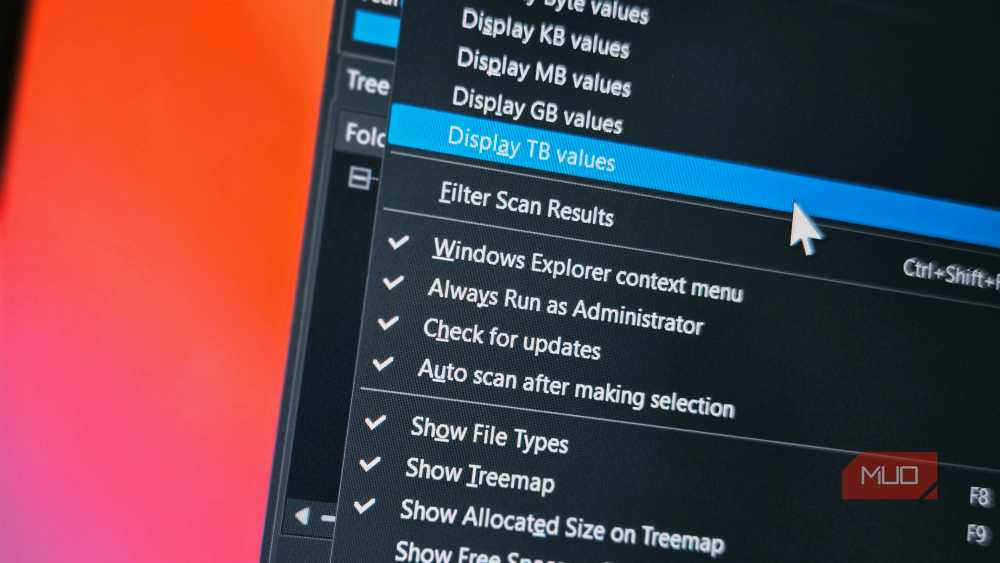
Finding a massive file is only half the battle. Once I know what’s consuming all my storage, I need a way to deal with it. WizTree doesn’t force me to open File Explorer every time I find something I want to manage. I can work with files directly from the interface.
For example, I can rename files, copy their paths, or delete them without leaving WizTree. I spotted a huge video file I’d completely forgotten about, and all I did was right-click its visual block to manage it from there.
Of course, I still need to be careful about what I delete. Just because WizTree shows me a large Windows folder doesn’t mean it’s safe to remove. System files, application data, and other folders can be important to how Windows and my apps work.
No more guessing what my SSD is full of
Windows 11’s Storage settings are useful when I just want a quick overview of how much space is being used, but WizTree gives you details. It scans your drive in seconds and provides a fantastic visual representation, and lets you manage youe files all in one place.
I’ve always known that a 512GB SSD wasn’t going to feel like much forever, especially with the amount of stuff I download and keep around. But at least now, when Windows tells me I’m running out of storage, I don’t have to guess what’s responsible.

- OS
-
Windows
- Developer
-
Antibody Software Limited
- Price model
-
Free/ Business License