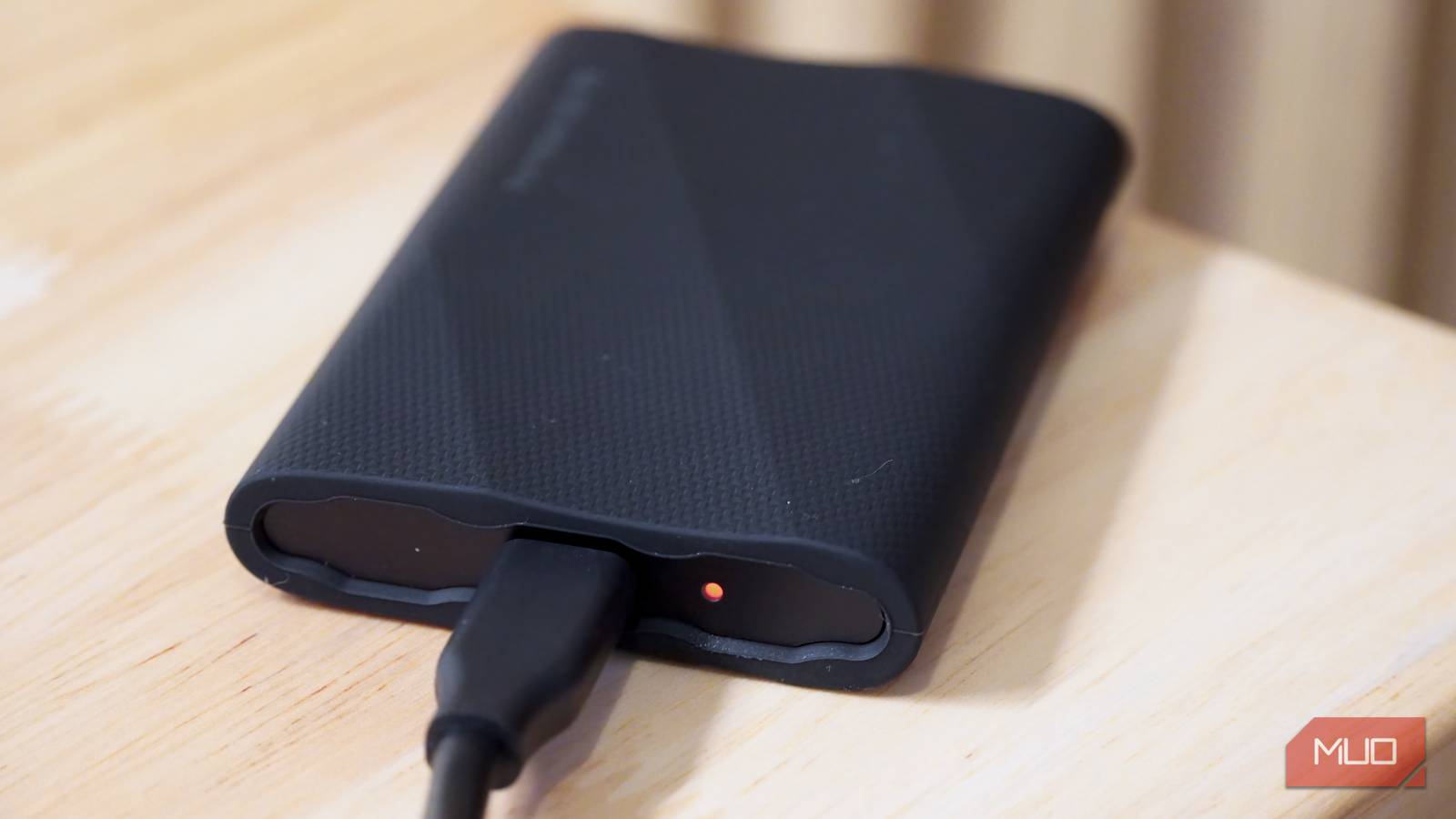
I’ve had a bad habit with backup drives. Once the copy finishes, I label the SSD, unplug it, and mentally file it under “safe forever.” Then months pass, I find one sitting in a drawer, and I realize I haven’t checked whether it still mounts, whether the files open, or whether that backup is even as complete as I remember.
Recently, I’ve started giving my offline SSDs one date with a USB cable every year. It doesn’t take much effort, and I do it for a good reason.
Your SSD can sit unplugged, but it doesn’t get immortality
NAND remembers by holding a charge
An SSD doesn’t forget everything the moment you unplug it. NAND flash stores data as electrical charge inside memory cells, and that charge can hang around for a long time without external power. Over a long enough stretch, however, some of that charge can drift, making the stored states harder for the controller to read cleanly.
How long your files stay safe depends on a couple of major factors:
- Wear and tear: A drive that has been written to and erased thousands of times wears out, making it harder for the cells to hold onto that electrical charge.
- Storage temperature: Heat kills data. Leaving a backup SSD in a baking hot car or a stuffy attic makes that stored charge leak away faster. It’s best to keep your drives in a cool, indoor drawer.
You might have heard that consumer SSDs only hold data for one year without power, but that number needs context. The one-year figure comes from an industry endurance standard [PDF] that requires a client SSD to retain data for a year at 30°C through its rated write endurance. A lightly used consumer SSD stored somewhere cool may retain its data considerably longer, but there isn’t one safe retention number that applies to every drive.
That also works in favor of an SSD that spends most of its life holding backups instead of absorbing daily writes. Low write wear gives its NAND an easier life. If you want some idea of how much wear a drive has accumulated, Windows can show basic health numbers for supported NVMe SSDs, or you can use a free tool like GSmartControl for a deeper look at the drive’s stats.
Power it up once a year, then make it prove itself
A drive letter isn’t a recovery test

Plugging in your SSD gives its controller a chance to run whatever background maintenance the drive supports. Some SSDs monitor NAND for weakening data and refresh it while they’re powered on. However, you can’t just plug a drive in for ten minutes and assume everything is perfectly fixed.
The best yearly routine is to leave the drive plugged in long enough actually to put it to work. Here is a quick checklist:
- Plug it in: Make sure your computer detects the drive normally.
- Click around: Open a few different folders and click into a mix of old, new, large, and small files to make sure they open.
- Run a scan: If your backup app has a “verify” feature, run it. If you use checksums, test them against the files on the SSD.
- Check its health: Open up your drive manufacturer’s app, Windows settings, or a health tool to check the drive’s stats.
- Double-check the irreplaceable stuff: Make sure your most important, can’t-lose files still have a second copy saved somewhere else.
Remember, data fading away isn’t the only way a backup can fail. The drive’s internal brain can die, files can get corrupted, and cables or USB enclosures can go bad. If you notice slow read speeds, constant file errors, or the drive randomly disconnecting, those are major warning signs that your SSD is on its last legs.

If a SMART tool can’t pull health info from the drive over USB, don’t assume the drive is in the clear. Some USB enclosures don’t pass the needed commands through properly. I ran into this while testing GSmartControl, so sometimes the enclosure is what’s standing between the software and the drive.
Don’t let the backup become your only copy
One healthy SSD still isn’t enough

For files you could never replace, keep another independent copy. A second drive stored somewhere else or a good cloud backup gives you another way back to your data. Sync services like Dropbox or iCloud can help too, but syncing and backing up aren’t the same thing. If you delete a file or change it by accident, that change can spread to every synced device. That’s one reason relying on just one backup method leaves a weak spot you can avoid.
Eventually, you’ll need to retire an old backup SSD, too. If it starts disconnecting, develops read errors, reports worrying health data, or is old enough that you no longer trust it as the sole home for an archive, migrate the backup while the drive is still cooperating. Migrating data on your own schedule beats trying to recover it after the old drive has already given up.
The drawer isn’t a time capsule
Offline backups have a funny way of making neglect look like smart storage. The SSD is unplugged, safe from ransomware, and spared most everyday wear and tear, so months can go by without you thinking about it. A yearly check gives you something much better than a guess. You can confirm whether the drive, enclosure, files, and recovery plan still work together, and you still have time to fix things if they don’t.