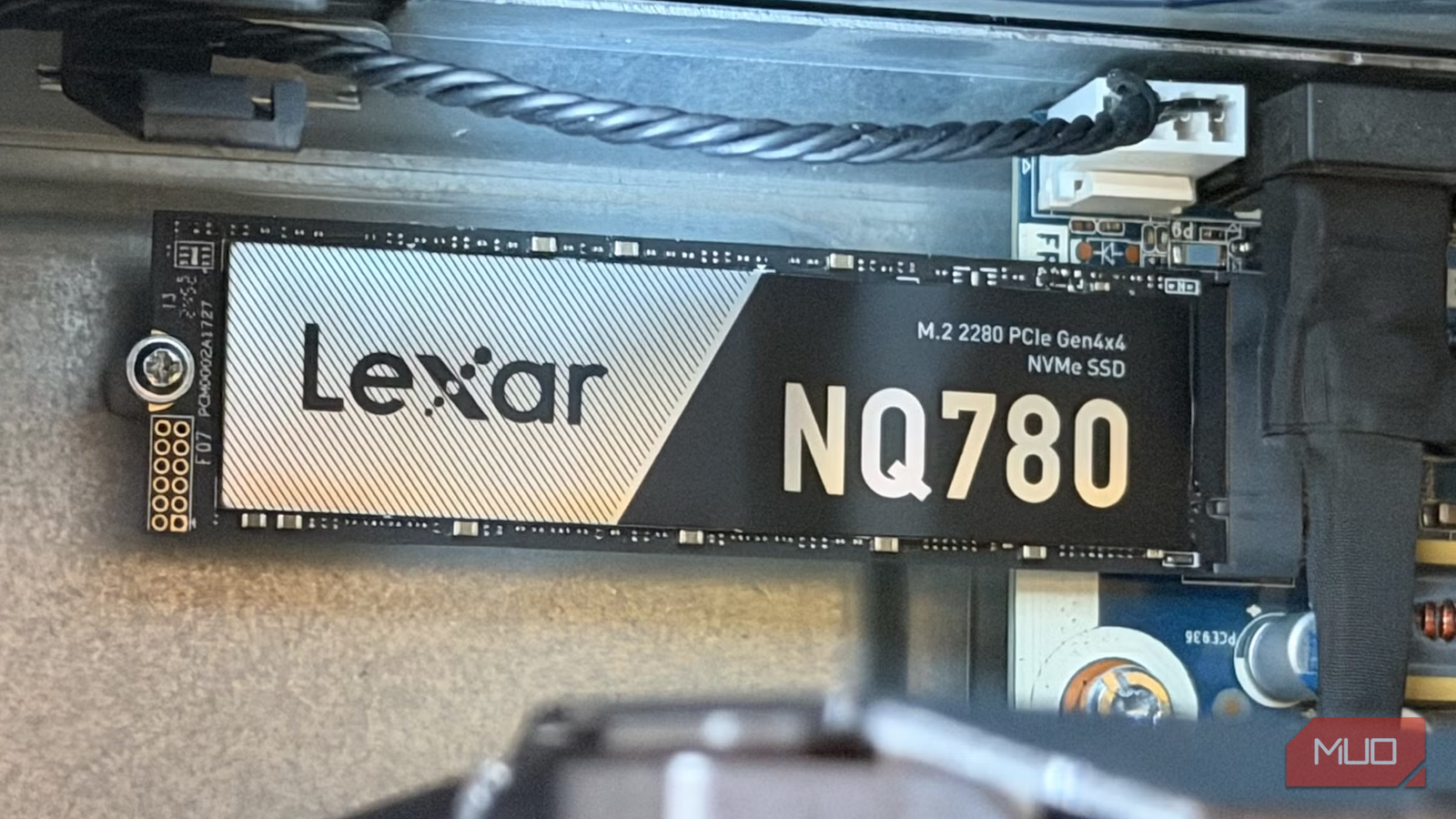
For someone who has built several PCs over a decade or so, one thing I’ve noticed is that most users aren’t getting the most out of their rig’s processing power. And no, I’m not referring to the most cliché of hacks, like forgetting to enable XMP/EXPO — some obscure BIOS settings left unattended can take a performance hit on your PC by double-digit percentages.
One notable instance of this is your NVMe SSD not working at its advertised speed. You can get a PCIe Gen 5 SSD with read/write speeds in the 10,000 MB/s range, but the actual speeds can be capped somewhere around 5,000–6,000 MB/s. One of the first things that might come to mind is that it might just be a faulty unit or a false advertisement, but more often, it’s the wrong configuration you’ve put your drive in, because not all PCIe slots are the same.
PCIe generations aren’t interchangeable
A Gen 5 SSD can run at Gen 4 speeds
Modern motherboards have PCIe (Peripheral Component Interconnect Express) slots for high-speed connections for components. Some PCIe connections are designed for higher bandwidth, while others aren’t. The bandwidth concept is linked to the PCIe generation. Older generations can only process so much data, and for high-speed NVMe drives, especially those based on PCIe Generation 4.0 and above, you’ll need to match the generation to the drive and the slot.
For instance, if you place a Samsung 9100 Pro SSD in a PCIe 4.0 slot, it will downgrade to PCIe 4.0 speeds, dropping from 14,000 MB/s read to around 7,000 MB/s. Most motherboards, like the Z790 or X670 series, feature a mix of PCIe 4.0 and 5.0 slots, so check the motherboard manual and be strategic with SSD placement.
The chipset-shared bandwidth can cause a bottleneck
The chipset can’t process too many devices on a single uplink

In some instances, you could have your SSD in the PCIe 5.0 slot, but it can still throttle speeds. Even if your motherboard has several slots, your CPU can only process so much data at once. Modern CPUs, such as those from the Ryzen 7000/9000 or Arrow Lake families, have 24 usable lanes. Those lanes are split across your motherboard. Usually, the fastest slots are the primary 16X and a 4X slot connected directly to the CPU.
The remaining four lanes are directed either through the motherboard chipset (DMI link for Intel platforms) or through the four lanes reserved for motherboard connectivity like SATA drives, expansion cards, etc.
AMD advertises 28 lanes for its CPUs, but that’s essentially the same as the Intel counterparts if you account for the 4 lanes reserved for motherboard connectivity.
Check your SSD’s speeds
CrystalDiskMark and HWiNFO will do the job

If you suspect that your “fast” NVMe drive is running slow, then it might be worth checking. For starters, you can use CrystalDiskMark to perform a sequential read/write test and then compare the speeds to the advertised numbers. If they don’t match, use HWiNFO to check your SSD’s link speed. The next step would be to check your motherboard manual to see the PCIe configuration: which generation each slot is, which slots connect through the chipset, and which are directly linked to your CPU.
Place your fastest SSD on the port that is directly connected to your CPU, and the slower SSD on the port that connects through your chipset. Using more than one drive through the chipset will cause them to compete with each other for bandwidth, capping their speeds during simultaneous heavy usage for both.
In some cases, the direct CPU connection may offer two ports, and populating both can cause your GPU’s speeds to drop.
The rule for a multi-drive setup
The go-to advice is to place the fastest drive in the slot directly linked to the CPU and reserve the slower one for the chipset uplink connection. In this way, you can avoid lane splitting. More drives can work fine too, and limited bandwidth would still be okay for most real-life workloads, i.e., gaming and productivity. However, for someone with heavy workloads like video editing, simultaneous transfers are required, in which case your speeds will likely be throttled by the chipset uplink as the SSDs compete for bandwidth for the same 4X lane.

- Storage capacity
-
2TB
- Brand
-
Samsung
- Transfer rate
-
Read: 7,450 MB/s, Write: 6,900 MB/s
This high-performance SSD offers PCIe 4.0 ×4 speeds with up to 7,450 MB/s read and 6,900 MB/s write. With 1,400,000+ IOPS, AES-256 encryption, and a 5-year warranty / 1,200 TBW, it’s built for demanding gaming, content creation, and power users alike.