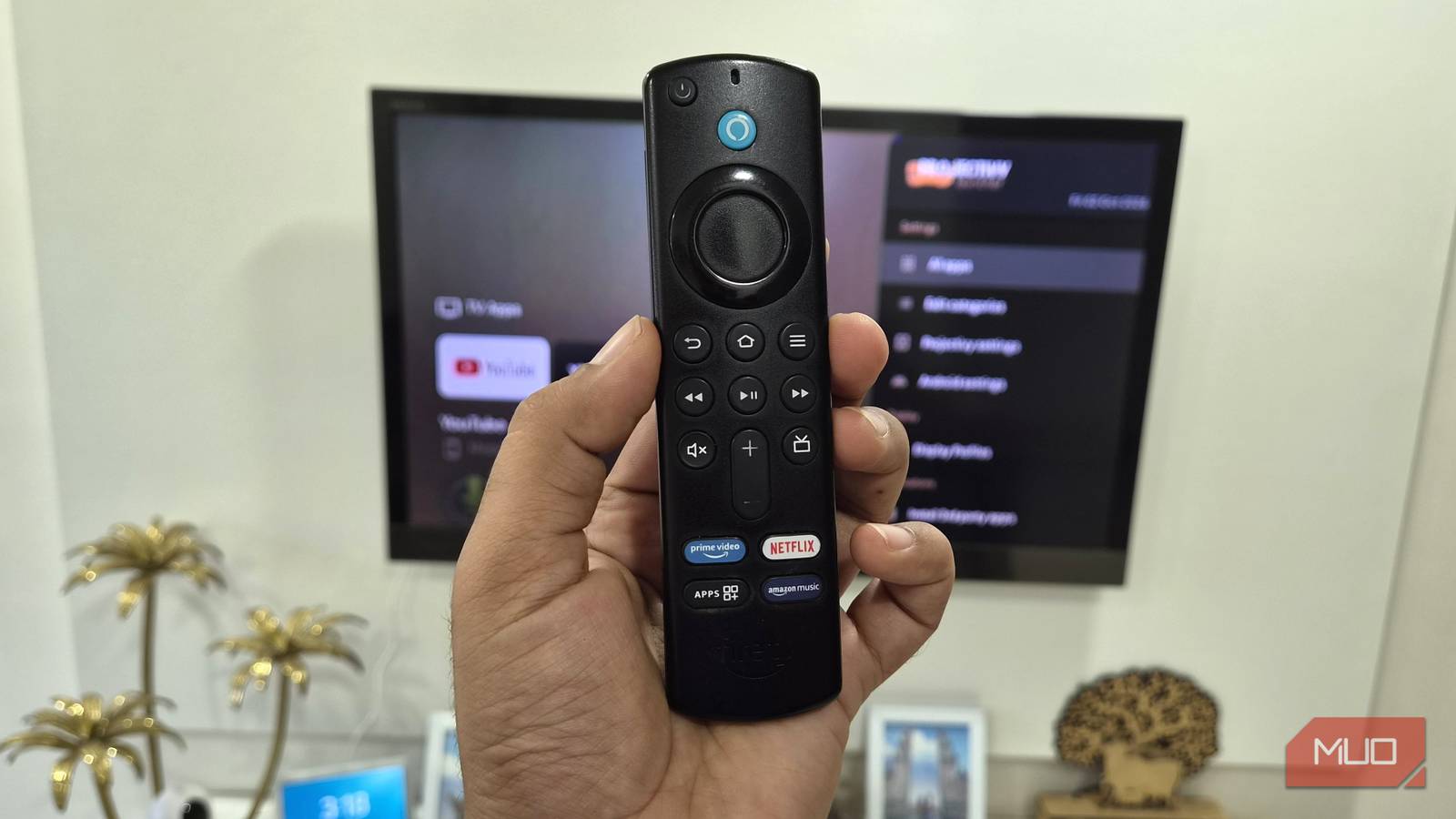
Modern streaming devices are incredibly impressive tech. I mean, I’m still amazed by devices as small as a USB flash drive, à la the Fire TV Stick, capable of streaming in native 4K. However, navigating the UI of said streaming device(s) using the included remote is almost always a cumbersome experience. While general navigation works fine (mostly), switching between apps on my Fire TV is definitely an exercise in frustration.
Now, to help with this, most media remotes come with “app shortcut” buttons. However, these buttons are usually tied to specific services/apps, which makes them redundant if you don’t use that app.
Unbeknownst to most users, you can easily remap those buttons to any other function or app on your streaming device.
How to remap app shortcut buttons on your streaming device remote
Dedicated remapper apps are the easiest way
Remapping the “extra” button on the remote is easy on any Android-based smart TV or streaming device. You essentially need to install a third-party app, aptly titled Button Mapper. And that’s about it. This app works on almost every Android-based smart device and lets you remap any of the buttons on your streaming device’s remote. That said, on some devices, like the Chromecast or Xiaomi’s Android TVs, you will need to enable developer mode to install this app.
Now, to remap your remote buttons using Button Mapper:
- On your Android TV, go to the Play Store and download Button Mapper.
-
Once Button Mapper is installed, launch it on your TV.
- If the app won’t install on your TV, enable Developer Mode in Settings, then try again.
-
After you launch the app for the first time, you will need to grant it accessibility permissions.
- Head to Settings > System > Accessibility > Permissions and enable it.
-
Next, under the Buttons tab, select More Options > Add Buttons.
- You can also choose the input delay duration for a button press.
- This is useful if you want to map multiple functions to a single button. Otherwise, it’s best to always select Single Tap.
- Furthermore, the Long Press option isn’t available on the free version of the app. To access it, you need to buy the Pro upgrade, which costs $3 (not a bad deal if you want more customization options).
- Now just select the app you want to map to one of the sponsored buttons on your Android TV, and you’re done.
This app did not work with my old third-gen Fire TV Stick, as it’s too old. It wasn’t even available on Amazon’s app store in the first place. However, Button Mapper worked without a hitch on my old Acer Android TV. I mapped the Netflix button on my TV’s remote to the screen mode settings since I use that frequently, depending on the type of content I’m watching.
But not impossible, thanks to ADB

While reprogramming the sponsored buttons on a Google TV or a Chromecast is fairly easy, it’s a completely different story on devices like the Fire TV Stick. This is essentially due to the proprietary OS on the Fire TV devices, i.e., the Fire OS or the new Vega OS. Although the Fire OS is based on Android, it doesn’t use the Google Play Store for apps. Instead, Fire TV devices rely on a very limited selection of apps in Amazon’s app store.
That said, you can still remap the sponsored buttons on the Fire TV remote. The catch is that setting it up is a little trickier than the “plug and play” nature of third-party apps on Android TVs.
Now, to remap the extra buttons on the Fire TV remote:
- Download the firetv-remapper by suuhm from GitHub and extract the files on your PC.
-
On your Fire TV’s dashboard, go to Settings > About > Developer Options > ADB Debugging, and enable it.
- Also, make sure the Install unknown apps option is enabled.
-
Once ADB is enabled, you will be able to connect your Fire TV to your PC using the command:
-
adb connect - You can find your Fire TV’s IP address under the Network settings.
-
-
Once your PC and Fire TV are connected, you can install the firetv-remapper.sh app using:
-
adb push firetv-remapper.sh /sdcard/ -
adb shell "sh /sdcard/firetv-remapper.sh"
-
-
Next, locate the key code for the apps you want to map to the extra buttons on your Fire TV remote. To do so, use the command:
-
adb shell getevent -l -
If you’re missing the app’s package name, you can get that using
adb shell pm list packages | grep
-
-
Once you have the package name and key code, you can map the extra button to an app using the command:
-
adb shell sh/sdcard/firetv-remapper.shand follow this up with the remote key code and app package name.
-
While it certainly isn’t easy setting up the Fire TV Remapper, it’s the only app that worked with my old Fire TV remote. I did find a handful of button remapping apps on Amazon’s app store, but most of them didn’t work on Fire OS, or were limited-time trial versions.

- Brand
-
Amazon
- Operating System
-
Fire OS
The Amazon Fire TV Stick 4K transforms your television into a premium streaming hub. It delivers sharp 4K Ultra HD picture quality with vibrant Dolby Vision and HDR10+ support. Featuring rapid Wi-Fi 6 connectivity and an Alexa Voice Remote, it provides smooth, voice-controlled access to thousands of apps and channels.
Using your phone as a remote is always an option

Reprogramming the extra buttons on your Smart TV’s remote is a great idea, especially for enthusiasts who like tinkering with their tech. However, I also understand that not everyone would want to go through the “hassle” of doing so. That said, if you’re not interested in installing third-party apps on your streaming device just to reprogram the remote buttons, you can always just use your phone as the remote instead.
All Android-based Smart TVs and even Fire TVs have dedicated remote apps for Android and iOS, which can be used as a replacement for the physical remote.
Furthermore, you can also remap buttons on these “digital” remotes without having to install a script or third-party app. The only caveat of using a digital remote is, well, you’re losing out on the tactility of using a physical remote.