For decades, Adobe has created a range of apps and tools that have become industry standards for design, editing, documentation, and more. While there are very few exceptions, most of these Adobe tools are so expensive that most of us cannot afford them. Fortunately, there’s no dearth of free and often open-source alternatives to these tools, offering similar, if not better, features.
Darktable replaces Lightroom for RAW processing
But it does expect you to learn quite a bit
Adobe Lightroom may have been the go-to solution for RAW processing for most people, but not everyone can afford the subscription costs Lightroom entails.
Well, you can be grateful to darktable, which brings core RAW processing features to Windows, macOS, and Linux devices for free. This open-source photography workflow application brings several non-destructive editing tools to a wider variety of media formats while ensuring reliable performance on low-configuration hardware.
You must not mistake darktable for a basic tool, though. On the contrary, this free app offers incredible control over almost every editing task, and you can even connect it to Claude to automate your photo editing. In many cases, darktable offers granular control over many important aspects of color grading and noise reduction, to name a few.
Yet, we must address the elephant in the room: the steep learning curve. For all intents and purposes, darktable isn’t as user-friendly as Adobe Lightroom, and you’d notice this difference while working with a large library. So, getting the best out of this open-source photo editor means investing time in learning. You might also miss the AI-powered features that Lightroom advertises, but you also say goodbye to upgrade messages.

- OS
-
Windows, Linux, macOS
- Developer
-
Johannes Hanika
- Price model
-
Free, Open-source
Darktable is an open source photography workflow application and raw developer.
DaVinci Resolve replaces Premiere Pro for editing
Something professional colorists actually use for free
If the hefty price tag of Adobe Premiere Pro is stopping you from achieving those video production dreams, you might want to meet DaVinci Resolve. This excellent video editing suite packs a lot of features you cannot find in Premiere Pro, even while keeping everything free. As you’d expect, DaVinci Resolve smoothly handles features like multi-cam editing, proxy workflows, advanced trimming, and 4K/8K timelines for non-destructive editing. But you get more in terms of color grading, audio, and performance.
DaVinci Resolve offers a lot for color grading, including node-based grading, HDR grading, and support for DaVinci Color Management (DCM), all widely used in Hollywood. You won’t be disappointed with the audio, which supports ADR, noise reduction, bus routing, and EQ, among many other features. Compared to Adobe Premiere Pro, DaVinci Resolve uses fewer resources, making it a better option if you have a lower-spec Mac or PC. If you want AI-powered editing features, you can always upgrade to the Studio version.
What you might miss is the ecosystem that Premiere Pro offers and the other integrations it supports. For example, motion graphics may be better if you have access to Creative Cloud, and that also means setting up After Effects. There is also a gentler learning curve attached to Premiere Pro compared to DaVinci Resolve, because DaVinci Resolve is, at the end of the day, an integrated workstation for all things editing.

- OS
-
Windows, Linux, macOS, iPadOS
- Developer
-
BlackMagic
- Price model
-
Free. Paid version available.
DaVinci Resolve is a professional-grade video editing and post-production software.
The Affinity suite replaces three Adobe apps at once
You just need a free account
As I said, Adobe has also been the industry standard in publishing, and its full toolkit can be a bit expensive. On the contrary, the Affinity suite offers quite a lot and can replace three separate Adobe apps at once: Photoshop, Illustrator, and InDesign. Affinity has now brought all these into a single suite, and you can start and resume work within the same window.
The Pixel subsection of the Affinity suite does a decent job of replacing Adobe Photoshop for raster editing! Whether for retouching, color changes, or other basic and advanced tasks, this section delivers great results. You also get great options for RAW editing, smart selections, HDR merging, panorama stitching, and, of course, PSD compatibility. Photoshop may still be required if you need features like the plugin system, smart objects, and collaboration.
Designer from Affinity is also considered one of the best ways to create vector designs compared to tools like Illustrator. For instance, you get faster performance and precision vector tools, excellent typography, and a clean interface that adds to the overall experience. However, unlike Illustrator, it may not offer advanced vector effects and better overall compatibility. It is more of a tie here as well.
Last but not least, Affinity Publisher can easily replace InDesign, which helps you publish books, magazines, brochures, master pages, and a few other things that you may want in the print industry. However, Adobe still may have an edge when it comes to larger publishing teams, and you want integration with something like InCopy or enterprise features in general. But then again, for the consumer, this is more of a tie.
Most of the features on these tools are free, but you need a free Canva account to use all of them. If you have the Pro version of Canva, you also get AI-assisted features across these tools.
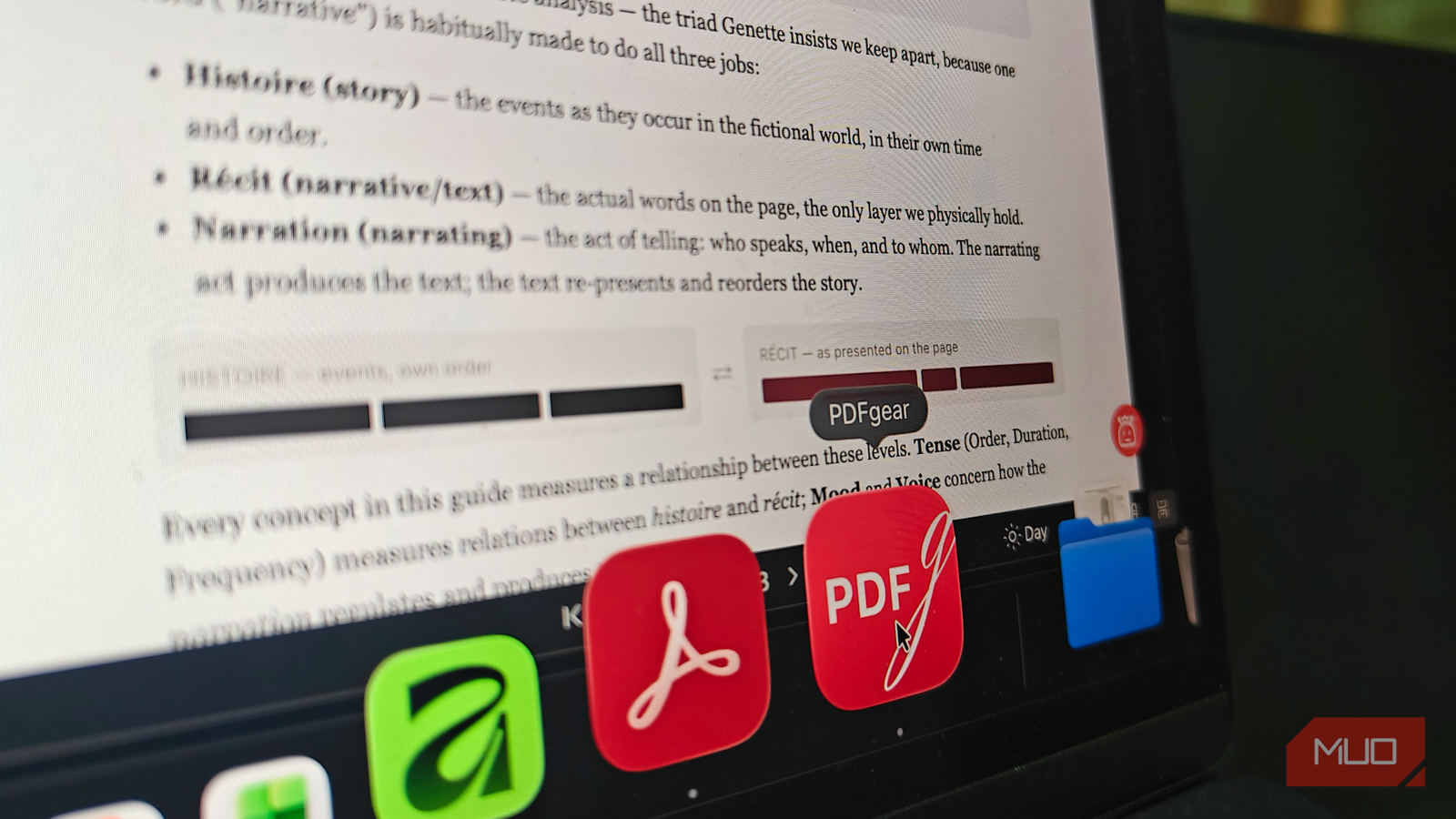
PDFgear does everything I used Acrobat for
Turns out I’ve never had to pay for Acrobat
Lately, paying for Adobe Acrobat has felt like a huge burden, especially if your primary purpose is to read and annotate. The subscription costs don’t translate well for most people who aren’t involved in complex workflows, OCR, or other instances. If you feel the same, you’d want to check out PDFgear, which does a surprisingly capable job of replacing Acrobat. This completely free PDF editor not only packs several features that Adobe charges for, but is also lightweight on system resources like RAM and CPU, despite offering AI features and other benefits, including some toolkits for converting files and making bulk edits.
PDFgear works great if you want to read and edit PDF documents effortlessly and use features like merging and splitting. It also handles OCR pretty well, but its accuracy may not be as high as Adobe’s.
I must also highlight that PDFgear doesn’t show ads, so I’ve had no issues using it in my professional workspace. The Chat with PDF feature also comes in handy while reading complex documents, and I’d like to have it while going through academic papers. I don’t use those features much, but PDFgear also packs ample features for encryption, e-signatures, and file security. It thus becomes a no-brainer pick for those who want to read/edit PDFs on PC, Mac, Android, and iOS.

- OS
-
Windows, MacOS, iOS, Android
- Version
-
2
.1 - Plan Options
-
Free
- Services
-
PDF Editing/Signing
PDFGear is a free alternative to Adobe Acrobat that does all the basic editing that you need which usually goes for a subscription price.
Where these free apps still fall short
It must be clear to you how feature-packed and optimized these free apps are and how easily they can replace the expensive Adobe products you use. Yet, there are times when they fall short, and it depends on the work you do. For instance, collaboration and adherence to industry standards are areas where Adobe apps excel. Similarly, adopting advanced tools like darktable and DaVinci Resolve presents a steep learning curve. Then again, these points do not really matter to most consumer-grade users, making it a no-brainer to ditch those expensive Adobe apps in favor of these free apps.