As RAM prices keep going up, I’m biased toward fixes for slow, stuttering devices that help me avoid buying more memory. This has led me to valuable discoveries on how Windows settings can reclaim memory I already have.
Several of these take just a couple of seconds, and one involves a browser that may not fully close. I tried them all and found which are worth using on your PC.
Startup apps
Cut what launches without asking

Open Settings, navigate to Apps > Startup, then sort the list by status. This way, whatever is switched on sits at the top. Depending on your setup, you may have some of the common suspects, like game launchers, chat apps, printer helpers, and cloud sync tools. When these load at startup, they hold on to a bit of memory throughout the day.
Next to each entry, you will notice the impact label that Windows shows. This is just a description of how much the app slows down startup. Don’t confuse it with RAM use, because even when an app is rated low, it can still hold a significant amount of memory.
On one of my devices, I turned off Steam, Discord, and Adobe Creative Cloud because I rarely need them running after I sign in. I left OneDrive enabled just because it keeps my files synced. What you do depends on your setup, but the idea is to stop apps you rarely use from competing for RAM.
When you turn off a startup app, the app isn’t uninstalled from your device. You can simply flip the toggle back on if needed. Security, audio, and touchpad utilities are the ones I don’t tamper with.
Sleeping tabs
Probably already on, so check the timer
Sleeping tabs remain in your tab bar, but they release their resources until you click them. This feature is likely turned on by default on Edge, but you may verify it by typing this into the address bar:
edge://settings/system/managePerformance
The setting you should look out for on that page is the inactivity timer under the Memory section. It decides how long a forgotten tab may hold on to memory. On my computer, it was set to 15 minutes. But this may not be a universal value, so check what yours is set to. You can shorten it to limit how long idle tabs hold on to memory.
You may also add specific sites to the Always keep these sites active list. This is where I put my dashboards or anything I can’t afford to lose. This kind of memory optimization option isn’t unique to Edge; other browsers have similar options. The right setting can help keep your browser from holding on to more resources than you want.
Also in Edge’s settings, there are two other options worth a look: Startup boost and Continue running background extensions and apps when Microsoft Edge is closed. To find these, within the Settings menu, click on System and performance on the left pane. With these enabled, Edge can still use memory when you aren’t browsing.
Background apps
Stop closed apps from staying awake

I believe turning off background apps is where you get the smallest memory win, but it’s worth a look. Go to Settings > Apps > Installed apps, click the three dots next to an app, and open Advanced options. Under Let this app run in the background you get three options: Always, Power optimized, and Never.
When you set a Microsoft Store app to Never, it stops running when you aren’t using it. You don’t see Advanced options for classic desktop programs. You would have to use their individual app settings to get background options. Chat apps and launchers would often keep running when closed, and if you don’t need them, you may set Let this app run in the background to Never.
This setting means you may lose some notifications and background syncing.
Windows 11 updates
Microsoft’s 2GB claim comes with fine print

When your RAM fills up, Windows starts moving things to your drive. The downside is that it takes longer to retrieve from the drive than from RAM. You may feel this as a pause when you switch between apps.
Microsoft’s October 15, 2026 announcement says Windows 11 can now keep up to 2GB more active data in memory instead of sending it to slower storage. There’s no switch to turn it on because it’s just an update. However, it doesn’t increase available RAM by 2GB and won’t double an 8GB PC to 16GB.
This update was first released to Windows Insiders, with a broader rollout planned for later this year. You just need to check Windows Update to make sure you are on the latest build.
One way Microsoft makes these memory-saving improvements is by loading Widgets only when you open them on PCs with 8GB of RAM or less.
A full memory bar isn’t always a problem
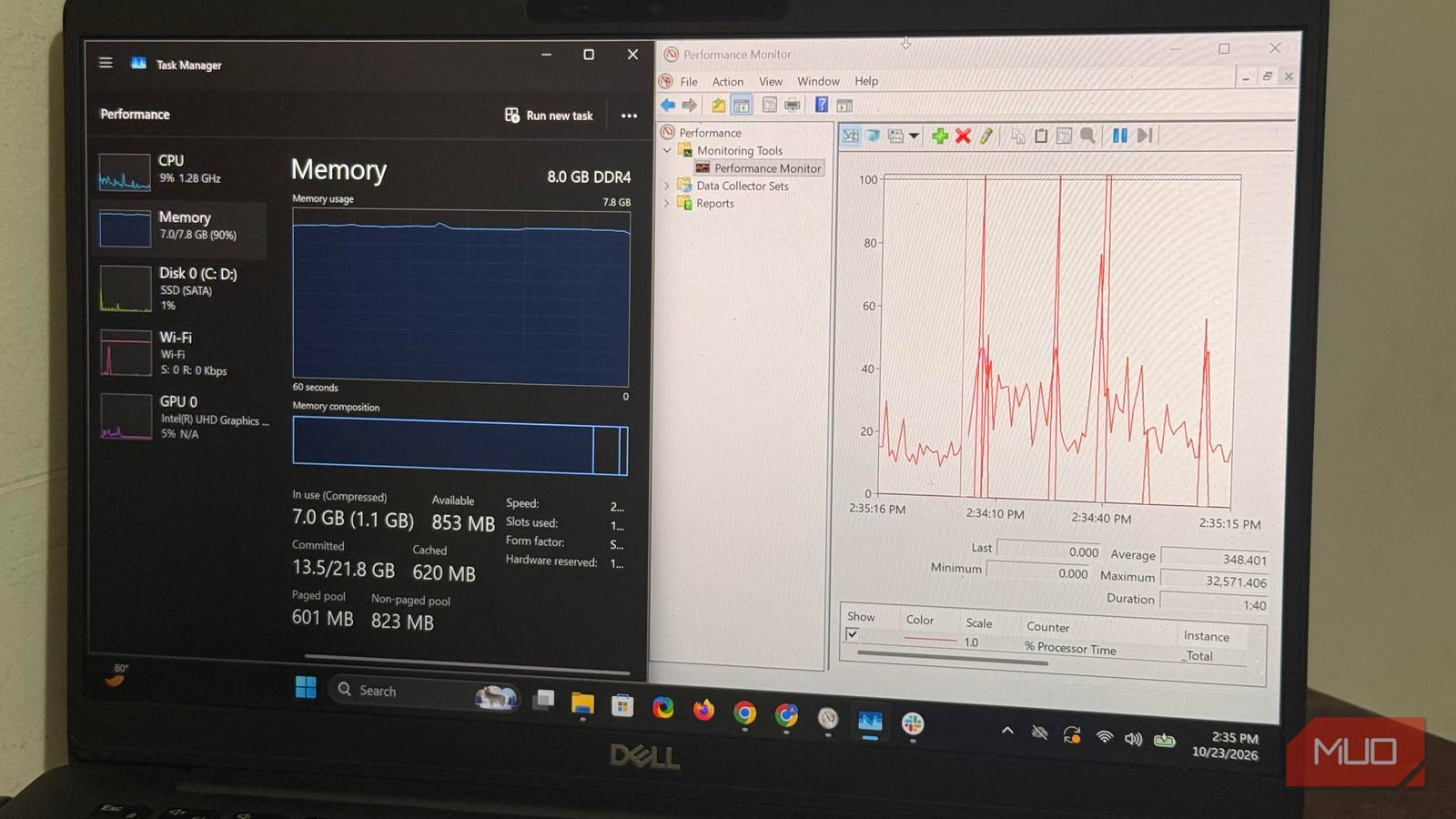
Don’t go searching for memory-saving settings just because you saw a full memory bar in Task Manager. It looks alarming, but your computer is usually still fine. Spare RAM is often intentionally filled with cached data to help apps open faster. But Windows can hand that memory back to an app or process that needs it.
The signs you should pay attention to are lag while switching apps and a busy drive that always makes you wait. The specific settings to configure depend on the symptoms:
|
If this sounds like you |
Start with |
|---|---|
|
Slow right after sign-in |
Startup apps |
|
Always in your browser |
Edge’s sleeping tabs and background settings |
|
Store apps that keep pinging you |
Background apps |
|
A laptop with 8GB or less |
Widgets and the Windows 11 update |
These settings won’t increase your RAM. So if your PC still feels slow after you’ve made these changes and restarted, buying more RAM may make sense.