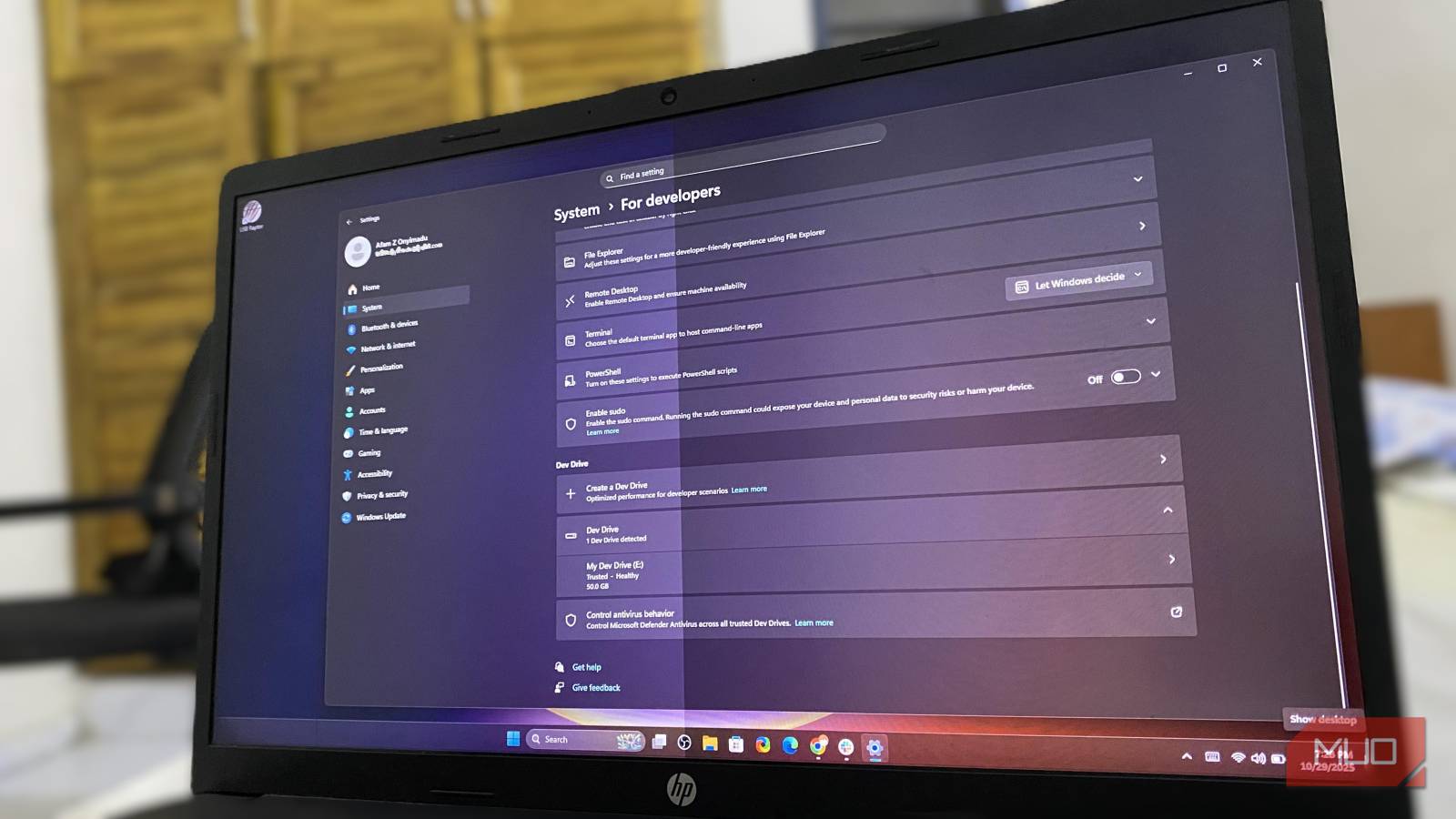
Most “free performance” tweaks for Windows end up making little measurable difference. I was skeptical about the free Windows setting that’s supposed to speed up development folders, but I still tried it on my developer folder. It was surprising to see how much of the frustration of waiting on installs and builds it took away. The feature is called Dev Drive, and it’s sitting unnoticed in your Settings.
Why Dev Drive is faster
ReFS and Defender work together to reduce build times

If I had gotten just a small bump after moving my active project folder to a Dev Drive, I wouldn’t have complained; I never had high hopes for it. However, I saw a full‑second improvement in git status, and npm install no longer left me waiting.
This wasn’t a case of Windows feeling snappier. The regular computer activities didn’t feel different. The difference was with just those folders I moved, where I write, delete, and rewrite several small files daily, clone repositories, install dependencies, and extract build archives. On the same device, running the same tasks felt very different:
|
Task |
On my old NTFS drive |
On the Dev Drive |
|---|---|---|
|
npm install (fresh, no cache) |
58s |
21s |
|
Cloning a mid-sized repo |
42s |
13s |
|
Extracting a 2GB build archive |
41s |
19s |
The only downside was that after repointing my terminal and IDE to my Dev Drive, I forgot to update certain shortcut scripts to reflect the new drive letter. It took me more time to figure out the problem than it did to run the timed test in the table above.
After a reboot, the Settings app doesn’t always keep VHD‑based Dev Drives marked as “trusted”, so it’s worth confirming in Virus & Threat Protection.
Here’s why
Dev Drive speeds up the kind of work that normally overwhelms NTFS

Dev Drive uses ReFS, a different file system from the Windows system drive, which uses NTFS. When NTFS was built, it targeted general storage. However, ReFS was designed to handle the specific patterns involved in creating and deleting many tiny files. This is the kind of activity associated with unpacking dependency trees from a package manager or Git interactions with internal object files.
That’s not the whole story: Windows also automatically marks Dev Drive as a trusted developer volume. For these volumes, Microsoft Defender switches to Performance Mode, scanning those files asynchronously in the background. Since it doesn’t check each file the moment it’s touched, the system avoids a chunk of the slowdowns you typically experience during installs and builds.
These two elements explain why I saw real performance gains with workloads that included constant small-file churn. It doesn’t offer the same benefits as video export or game load times. It’s such a useful feature that I’m surprised more people haven’t written about it.
It isn’t for every folder
The real deciding factor is how your files are used, not how large they are

There is a simple rule with Dev Drive. They are advantageous for any task that constantly creates or rewrites several small files. Git repositories are an easy example because, behind the scenes, they are constantly writing tiny metadata files. Package manager caches are another good example. Package managers often unpack thousands of tiny files at once as dependencies are installed. I also use Dev Drive for build output folders, and the reason is the same: compilers generate large amounts of tiny temporary files before they deliver the final result.
You won’t see the same gains in your documents, photos, videos, and game library. Even though these files may be large, they are mainly static, and NTFS handles them fine.
I’d recommend it to anyone regularly cloning repos, installing dependencies, or running builds on their computer. Most other kinds of users can skip it.
How to create a Dev Drive
It only takes a few minutes once you know where to look
Dev Drive works on Windows 11 version 22H2 or later. To set it up, you’ll need at least 50GB of free space and administrator rights.
- Open the Windows Settings app.
- Navigate to System -> Storage -> Advanced storage settings -> Disks & volumes, then click Create Dev Drive.
- Choose either Create new VHD to build the volume on a new virtual hard disk or Resize an existing volume to create new unallocated space, then follow the prompts in the wizard to complete the process.
I prefer using the Resize an existing volume option because it’s a simpler setup for drives you don’t plan to move around in the future and skips an extra layer that a VHD adds.
Budget time for copying based on how much you move — you can’t convert an existing NTFS folder in place. You must create a new volume, then move your files.
VHD-based Dev Drives tend to get skipped by backup tools, so add yours to the routine manually.
The Windows 11 feature every developer should try
The Dev Drive setting is buried deep in the Settings app, which is why you may never have heard of it. However, it’s one of the most useful Windows 11 features for developers. Once you know which files benefit from it, you’ll never go back to using these files on a traditional NTFS drive.