Your old Android phone isn’t slow because it’s old. After three or four years with a budget phone, everything feels laggy, and at some point you just assume the hardware is giving out. I thought the same about my Samsung Galaxy M31, until I realized its processor hadn’t actually degraded. What had changed was the software, a handful of default settings that had been quietly dragging the phone down all along.
Drop system animation scales to half
Speed up every tap and swipe
The first thing I noticed was the animations. Every tap had this drawn-out slide to it, like the phone was narrating each action instead of doing it. Turns out, that’s not the processor. Android’s window manager plays every transition at full length regardless of hardware, so even on a Galaxy M31 from 2020, the slow feel is a default, not decay.
Three animation scales control this timing: window, transition, and animator duration. All three sit at 1.0x out of the box. At 0.5x, each animation runs in half the time, and honestly, the phone responded like it had been holding back.
To get there, open Settings, tap About phone, and hit Build number seven times. That unlocks Android’s Developer Options menu, which stays hidden until you enable it. Go back to the main Settings menu, open it, scroll down to the Drawing section, and set all three scales to 0.5x. Now, I tried setting them to 0x at first, which turns animations off, but the UI felt choppy and disorienting. Half keeps transitions smooth; you just stop waiting through them.
Turn off virtual RAM expansion
Stop your storage from faking RAM
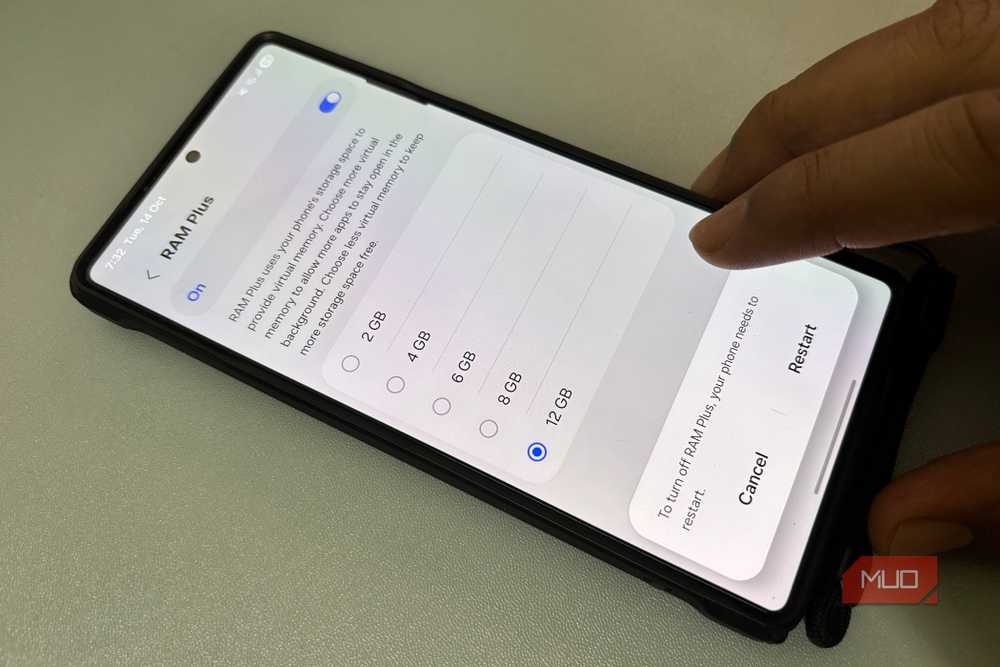
With the animations sorted, apps were still reloading every time I switched between them. RAM Plus was turned on by default, and it’s supposed to turn spare storage into extra RAM so apps don’t dump their state. But on an aging phone, that borrowed space actually slows things down.
Internal storage reads and writes data far slower than RAM. When the system swaps app data between physical memory and that borrowed storage, every transfer adds a small delay. Stack enough of those over a full day, and you get random stuttering and micro-freezes that make the phone feel like it’s dying. On flash storage that’s been grinding through five years of constant writes, the slowdown gets even worse.
To find it, open Settings and scroll down to Device care. Tap Memory, and you’ll see how much RAM your phone is currently using, along with a list of apps sitting in the background. Scroll past those to the bottom, and you’ll find RAM Plus. Disabling RAM Plus on a Galaxy takes just a quick toggle and a restart, and it immediately stops your storage from thrashing.
Put battery hogs into deep sleep
Freeze the apps draining your battery
The battery was still giving up too early in the day, even after trimming the animations and killing RAM Plus. A lot of that comes down to apps you haven’t opened in weeks still syncing data and checking for updates in the background, eating into your battery the whole time.
Samsung actually lets you put these apps into deep sleep, which cuts off their background access entirely. Once you add an app to the list, it won’t sync data, send notifications, or pull updates until you open it yourself. There’s a regular sleeping apps list too, which still lets apps check in occasionally, but deep sleep is what you want for anything you rarely touch.
To set it up, open Settings > Battery > Background usage limits, and you’ll see both lists. Tap Deep sleeping apps, hit the plus icon, and start adding the apps you know you don’t need running behind the scenes.
Disable apps you never asked for
Get rid of Samsung’s preinstalled bloat

After sorting out the battery hogs, I turned to the software I never installed. Every Galaxy arrives loaded with things like AR Zone, Game Launcher, and Samsung Free. On a phone with four or six gigabytes of RAM, those preinstalled apps quietly sync data and tie up memory all day long.
Naturally, your first instinct is to uninstall them, but Samsung doesn’t give you that option for most of its own apps. Instead, you can head to Settings, open Apps, select the app, and hit Disable. That stops all background activity, clears out any accumulated updates, and hides the app from your drawer.
Unfortunately, even that compromise has its limits. Samsung greys out the Disable button on quite a few of its own apps, so you can’t shut them down through settings at all. I connected my Galaxy to a laptop and removed Samsung’s bloatware with a few ADB commands, and every one of those stubborn apps came right off.
Keep things fresh with regular reboots
Once you’ve made all four of these changes, get into the habit of rebooting every week or two. Stale memory leaks accumulate over time, but a quick restart clears them out in seconds. That’s all it takes to keep an aging budget phone running well beyond the point most people replace it.